tSageX3Output
Writes data into a given Sage X3 system.
This component connects to the Web service provided by a given
Sage X3 Web server and therefrom insert, update or delete data in
the Sage X3 system (the X3 server).
tSageX3Output Standard properties
These properties are used to configure tSageX3Output running in the Standard Job framework.
The Standard
tSageX3Output component belongs to the Business family.
The component in this framework is generally available.
Basic settings
|
Schema and Edit |
A schema is a row description. It defines the number of fields (columns) to Click Edit schema to make changes to the schema.
Click Sync columns to retrieve the schema from |
|
|
Built-in: No property data stored |
|
|
Repository: Select the repository |
|
Endpoint address |
Type in the address of the Web service provided by the given Sage |
|
Username and |
Type in the Web service user authentication data that you have To enter the password, click the […] button next to the |
|
Language |
Type in the name of the X3 language code used to start a |
|
Pool alias |
Type in the name of the connection pool that distributes the |
|
Request config |
Type in the configuration string if you want to retrieve the debug For example, the string could be: If you need use several strings, separate them with a
Warning:
A third party tool is needed to retrieve this kind of |
|
Publication name |
Type in the publication name of the published object, list or |
|
Action |
You can do any of the following operations on the data in a Sage Insert: insert data Update: update data Delete: delete data |
|
Mapping |
Complete this table to map the variable elements of the object,
Column: the columns defined in the
Key: the variable element used as |
Advanced settings
|
tStatCatcher Statistics |
Select this check box to gather the Job processing metadata at a |
Global Variables
|
Global Variables |
ERROR_MESSAGE: the error message generated by the A Flow variable functions during the execution of a component while an After variable To fill up a field or expression with a variable, press Ctrl + For further information about variables, see |
Usage
|
Usage rule |
Usually used as an output component. An input component is |
Scenario: Using a Sage X3 Web service to insert data into a given Sage X3
system
This scenario describes a two-component Job used to generate one row of data and
insert the data into a given Sage X3 system. You can find the data used in this scenario
in the example provided by Sage X3. The Sage X3 Web service is used to access an
object.

Setting up the Job
-
Drop the tFixedFlowInput and the
tSageX3Output components onto the
workspace from Palette. -
Connect the tFixedFlowInput component to
the tSageX3Output component using a
Row > Main connection.
Configuring the schema for the input data
-
Double-click the tFixedFlowInput
component to set its Basic Settings in the
Component view
-
Click the three-dot button next to Edit
schema to open the schema editor.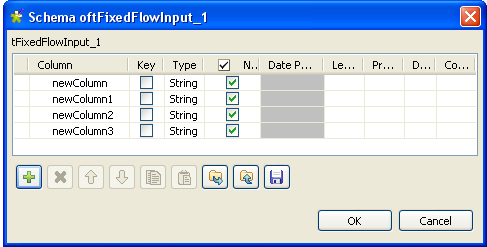
-
In the schema editor and then under the schema table, click the plus
button four times to add four rows. -
Click OK to validate this changes and
then accept the propagation prompted by the pop-up dialog box. The four rows
appear automatically in the Values table of
the Component view. -
In the Values table within the Mode area, type in the values for each of the
four rows in the Value column. In this
scenario, the values downward are:
CONTS00059, Screen 24" standard 16/10, Screen 24" standard 28/10, 2.Warning:These values in the Value column must be put between quotation
marks.
Setting up the connection to the Sage X3 Web server
-
Double-click tSageX3Output to set its
properties from the Basic Settings view.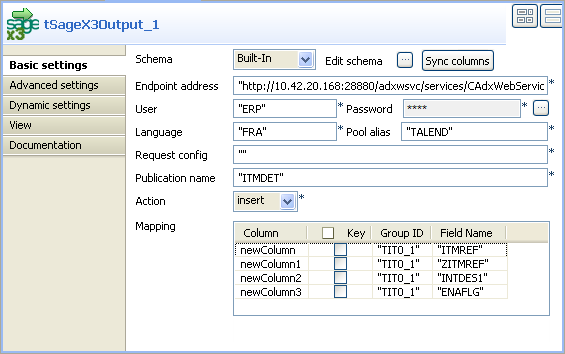
-
In the Endpoint address field, type in
the URL address of the Web service provided by the Sage X3 Web server. In
this example, it is
http://10.42.20.168:28880/adxwsvc/services/CAdxWebServiceXmlCC
-
In the User field, type in the user name
of the given Sage X3. In this example, it is
ERP. -
In the Language field, type in the name
of the X3 language code used to start a connection group. In this example,
it is FRA. -
In the Pool alias field, type in the name
of connection pool to be used. In this example, this connection pool is
called TALEND. -
In the Publication name field, type in
the publication name of the object to be called. In this scenario, the
publication name is ITMDET. - In the Action field, select insert from the drop-down list.
Setting up the mapping
-
In the Field name column of the Mapping table, type in the field names of the
attributes the selected data action is exercised on. -
In the Group ID column of the Mapping table, type in values corresponding to
group IDs of the selected attributes. These IDs are defined in the Sage X3
Web server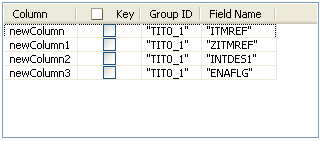 Note:
Note:In the Mapping table, the Column column has been filled automatically
with the columns retrieved from the schema of the preceding
component.
Job execution
Press CTRL+S to save your Job and press F6 to
execute it.
To verify the data that you inserted in this scenario, you can use the tSageX3Input component to read the concerned data from
the Sage X3 server.
For further information about how to use the tSageX3Input component to read data, see Scenario: Using query key to extract data from a given Sage X3 system.