tSPSSInput
Addresses SPSS .sav data to write it for example in another file.
tSPSSInput reads
data from an SPSS .sav file.
tSPSSInput Standard properties
These properties are used to configure tSPSSInput running in the Standard Job framework.
The Standard
tSPSSInput component belongs to the Business Intelligence family.
The component in this framework is generally available.
Basic settings
|
Sync schema |
Click this button to synchronize with the columns of the input |
|
Schema and Edit |
A schema is a row description. It defines the number of fields (columns) to The schema metadata in this component is retrieved directly from You can click Edit schema to |
|
Filename |
Name or path of the SPSS .sav file to be read. |
|
Translate labels |
Select this check box to translate the labels of the stored Note:
If you select this check box, you need to retrieve the |
Advanced settings
|
tStat |
Select this check box to collect log data at the component |
Global Variables
|
Global Variables |
NB_LINE: the number of rows read by an input component or
ERROR_MESSAGE: the error message generated by the A Flow variable functions during the execution of a component while an After variable To fill up a field or expression with a variable, press Ctrl + For further information about variables, see |
Usage
|
Usage rule |
This component is used as a start component. It requires an output Warning:
Before being able to benefit from all functional objectives of |
|
Limitation |
Oracle provides two kinds of JVM platforms (32-bit and 64-bit). By To do so, perform the following:
|
Scenario: Displaying the content of an SPSS .sav file
The following scenario creates a two-component Job, which aims at reading each row of
a .sav file and displaying the output on the log console.
Setting up the Job
-
Drop a tSPSSInput component and a
tLogRow component from the Palette onto the design workspace.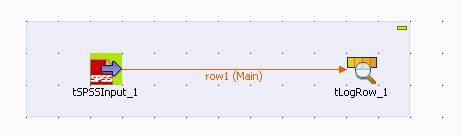
-
Right-click on tPSSInput and connect it
to tLogRow using a Main Row link.
Configuring the input component
-
Click tSPSSInput to display its Basic settings view and define the component
properties.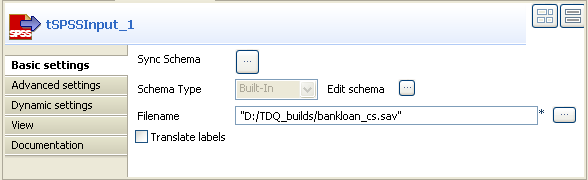
-
Click the three-dot button next to the Filename field and browse to the SPSS .sav file you want to
read. -
Click the three-dot button next to Sync
schema. A message opens up prompting you to accept retrieving
the schema from the defined SPSS file.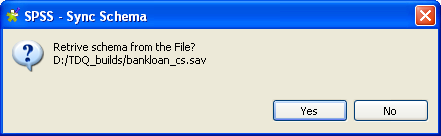
-
Click Yes to close the message and
proceed to the next step. -
If required, click the three-dot button next to Edit
schema to view the pre-defined data structure of the source
SPSS file.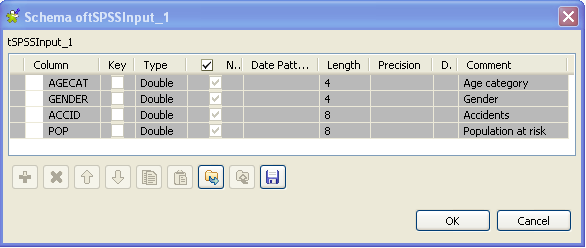
- Click OK to close the dialog box.
Job execution
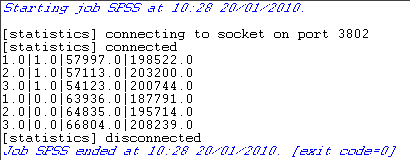
Save the Job and press F6 to execute it.
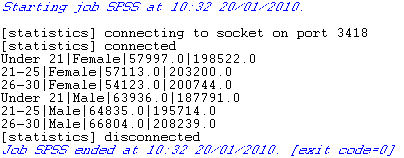
The SPSS file is read row by row and the extracted fields are displayed on the log
console.
Translating the stored values
To translate the stored values, complete the following:
-
In the Basic settings view, select the
Translate label check box. -
Click Sync Schema a second time to
retrieve the schema after translation.A message opens up prompting you to accept retrieving the schema from the
defined SPSS file. -
Click Yes to close the message and
proceed to the next step.A second message opens up prompting you to accept propagating the
changes. -
Click Yes to close the message and
proceed to the next step. -
Save the Job and press F6 to execute
it.
The SPSS file is read row by row and the extracted fields are displayed on the log
console after translating the stored values.