tSQSInput
messages, from an Amazon SQS (Simple Queue Service) queue.
tSQSInput Standard properties
These properties are used to configure tSQSInput running in the Standard Job framework.
The Standard tSQSInput component belongs to
the Cloud family.
The component in this framework is generally available.
Basic settings
| Use an existing connection |
Select this check box and in the Component |
|
Access Key and Secret Key |
Specify the access keys (the access key ID in the Access To enter the secret key, click the […] button next to |
| Inherit credentials from AWS role |
Select this check box to leverage the instance profile credentials. These |
| Assume role |
Select this check box and specify the values for the following parameters used to
create a new assumed role session.
For more information about assuming roles, see AssumeRole. |
| Region |
Specify the AWS region by selecting a region name from the list or entering a |
| Queue (Name or URL) |
Specify the name or URL of the queue from which the messages will be |
|
Schema and Edit schema |
A schema is a row description. It defines the number of fields (columns) to The schema of this component is predefined with the
You can click the |
| Read standard attributes |
Select this check box to retrieve the standard Amazon SQS |
| Read custom user attributes |
Select this check box to retrieve the customized user |
|
Custom visibility timeout |
Select this check box and in the field displayed specify |
| Custom wait time |
Select this check box and in the field displayed specify |
|
Delete the messages while streaming |
Select this check box to delete the message while |
|
Read all messages from the queue |
Select this check box to retrieve all messages from the This check box is not available when the Delete the messages while streaming check |
|
Max number of message to return per request |
Specify the maximum number of messages to return per each request. Valid |
| Die on error |
Select the check box to stop the execution of the Job when an error |
Advanced settings
| Config client |
Select this check box and in the table displayed specify the client configuration
parameters. Click the [+] button below the table to add as many rows as needed, each row for a client configuration parameter, and set the value of the following attributes for each parameter:
|
| STS Endpoint |
Select this check box and in the field displayed, specify the AWS Security Token This check box is available only when the Assume |
| tStatCatcher Statistics |
Select this check box to gather the Job processing metadata at the Job level |
Global variables
| NB_LINE |
The number of messages processed. This is an After variable and it returns an |
| ERROR_MESSAGE |
The error message generated by the component when an error occurs. This is an After |
Usage
| Usage Rule |
This component is usually used as a start component of a Job or Subjob and it |
Retrieving messages from an Amazon SQS queue
from an existing Amazon SQS (Simple Queue Service) queue and then delete the empty
queue.
Creating a Job for retrieving Amazon SQS messages
Create a Job to open a connection to access Amazon SQS, then retrieve
all messages from an existing Amazon SQS queue, finally delete the queue.
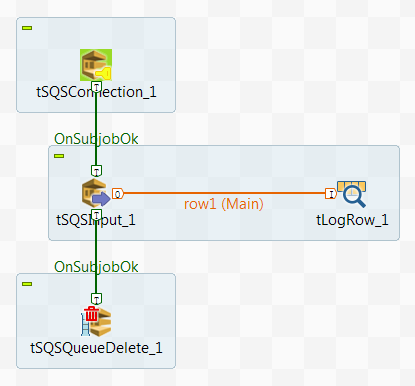
Prerequisites: You must deliver the following message
creator attribute and message body data to the Amazon SQS queue named
talend in order to replicate this scenario.
|
1 2 3 4 |
#Creator;Body Talend DOC Team;the 1st message from Talend DOC team Talend DEV Team;the 2nd message from Talend DEV team Talend QA Team;the 3rd message from Talend QA team |
-
Create a new Job and add a tSQSConnection component, a tSQSInput component, a tLogRow
component, and a tSQSQueueDelete component by
typing their names in the design workspace or dropping them from the Palette. -
Link the tSQSInput component to the
tLogRow component using a Row > Main connection. -
Link the tSQSConnection component to
the tSQSInput component using a Trigger > OnSubjobOk
connection. -
Link the tSQSInput component to the
tSQSQueueDelete component using a Trigger > OnSubjobOk
connection.
Opening a connection to access Amazon SQS
component to open a connection to access Amazon SQS.
-
Double-click the tSQSConnection
component to open its Basic settings view.
-
In the Access Key and Secret Key fields, specify the authentication information
required to access Amazon SQS. -
Select an AWS region available for Amazon SQS from the Region drop-down list. In this example, it is
Asia Pacific (Tokyo).
Retrieving messages from an Amazon SQS queue
and the tLogRow component to retrieve all messages from
an existing Amazon SQS queue and display the retrieved messages on the console of
Talend Studio
.
-
Double-click the tSQSInput component
to open its Basic settings view.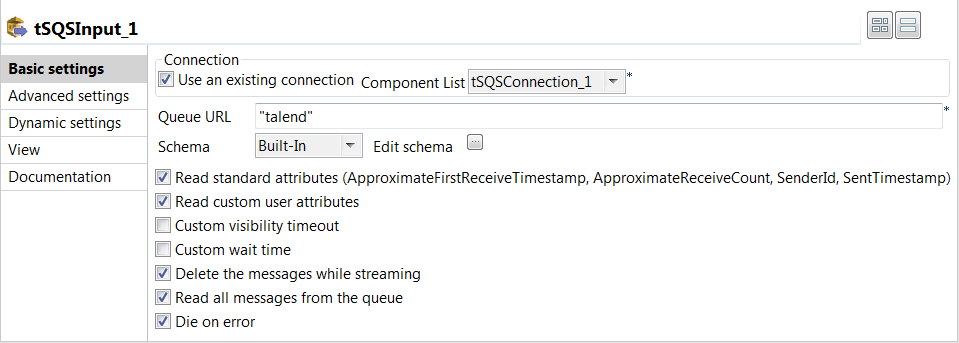
-
Specify the connection details required to access Amazon SQS. In this
example, select the Use an existing connection
check box and from the Component List drop-down
list displayed, select the connection component to reuse its connection details you
have already defined. -
In the Queue URL field, enter the name
for the queue from which the messages will be retrieved. In this example, it is
talend. -
Click the

button next to Edit schema to
open the schema dialog box.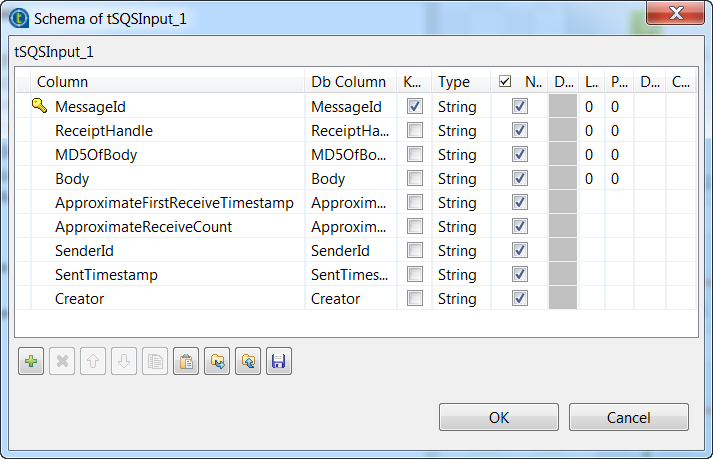 You can see the schema of the tSQSInput component
is predefined with four columns of String type: MessageId,
ReceiptHandle, MD5OfBody and
Body. -
Click the

button to add five columns of String type, including four
Amazon SQS attributes ApproximateFirstReceiveTimestamp,
ApproximateReceiveCount, SenderId and
SentTimestamp and one customized attribute
Creator. -
Click OK to save the changes and close
the schema dialog box. -
Select the Read standard attributes and Read custom user attributes check boxes to retrieve the
value of four Amazon SQS attributes and one customized user attribute along with
each message. -
Double-click the tLogRow component to
open its Basic settings view, and then select
Table (print values in cells of a table) in the
Mode area for better readability of the
result.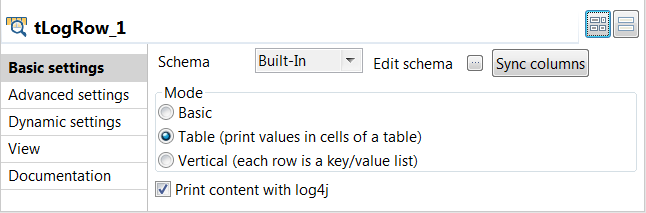
Deleting an Amazon SQS queue
component to create an Amazon SQS queue.
-
Double-click the tSQSQueueDelete
component to open its Basic settings view.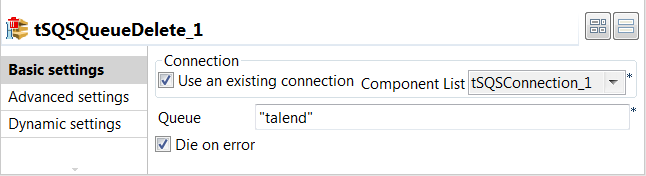
-
Specify the connection details required to access Amazon SQS. In this
example, select the Use an existing connection
check box and from the Component List drop-down
list displayed, select the connection component to reuse its connection details you
have already defined. -
In the Queue field, enter the name for
the queue to be deleted. In this example, it is talend.
Executing the Job to retrieve Amazon SQS messages
Job for retrieving Amazon SQS messages, you can then execute the Job and verify the Job
execution result.
-
Press Ctrl + S to save the Job and
then F6 to execute the Job.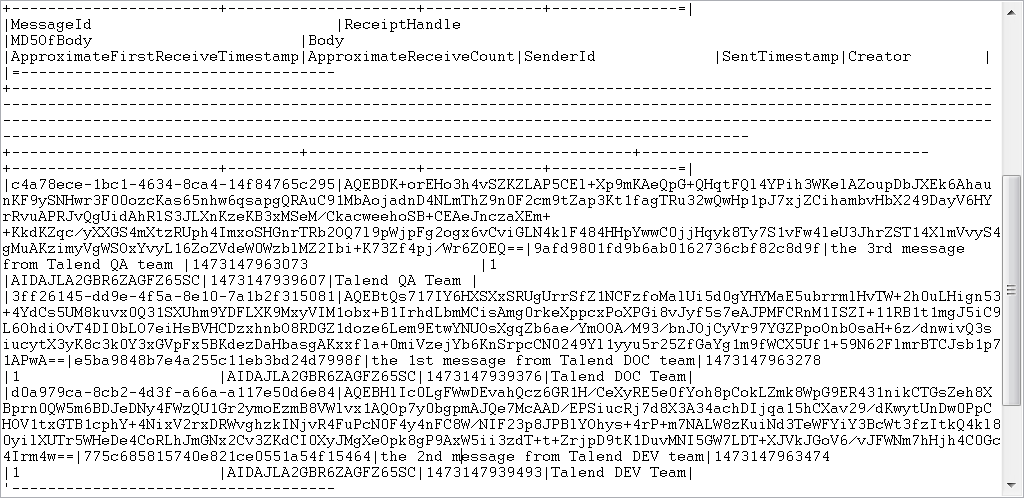 As shown above, all three messages and their attributes are retrieved and
displayed on the console. -
View the queue details on the AWS console to validate the Job execution
result.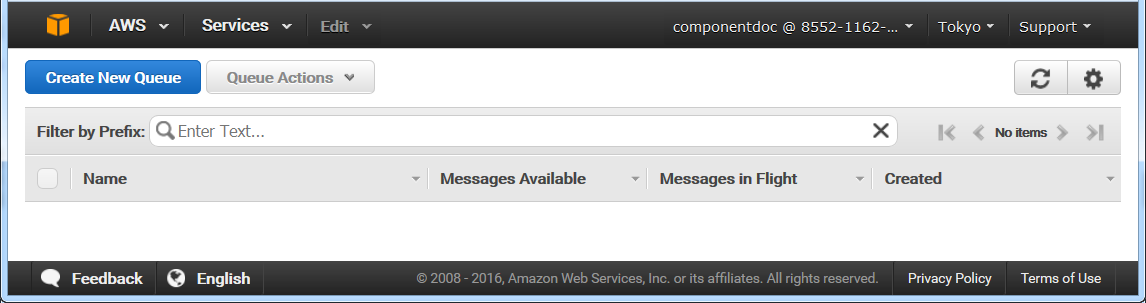 You can see the talend queue has already been deleted and is
not on the AWS console any more.