tSugarCRMInput
Extracts data from a SugarCRM database based on a query.
tSugarCRMInput connects to a Sugar
CRM database module via the relevant webservice.
tSugarCRMInput Standard properties
These properties are used to configure tSugarCRMInput running in the Standard Job framework.
The Standard
tSugarCRMInput component belongs to the Business and the Cloud families.
The component in this framework is generally available.
Basic settings
|
SugarCRM Webservice URL |
Type in the webservice URL to connect to the SugarCRM DB. |
|
Username and |
Type in the Webservice user authentication data. To enter the password, click the […] button next to the |
|
Module |
Select the relevant module from the list Note:
To use customized tables, select Use |
|
Schema and Edit |
A schema is a row description. It defines the number of fields (columns) to Click Edit schema to make changes to the schema.
In this component the schema is related to the Module |
|
Query condition |
Type in the query to select the data to be extracted. Example: |
Advanced settings
|
tStat |
Select this check box to collect log data at the component |
Global Variables
|
Global Variables |
NB_LINE: the number of rows read by an input component or
ERROR_MESSAGE: the error message generated by the A Flow variable functions during the execution of a component while an After variable To fill up a field or expression with a variable, press Ctrl + For further information about variables, see |
Usage
|
Usage rule |
Usually used as a Start component. An output component is |
Scenario: Extracting account data from SugarCRM
This scenario describes a two-component Job which extracts account information from a
SugarCRM database and writes it to an Excel output file.

Setting up the Job
- Drop a tSugarCRMInput and a tFileOutputExcel component from the Palette onto the workspace.
-
Connect the input component to the output component using a Row > Main
connection.
Configuring the input component
-
Double-click tSugarCRMInput to define the
component properties in its Basic settings
view.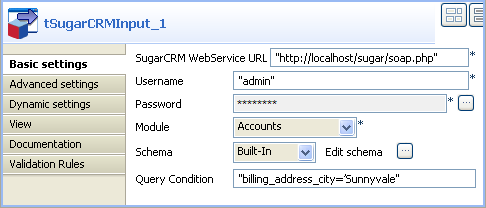
-
Fill the SugarCRM WebService URL field
with the connection inforamtion, and the Username and Password
fields with the authentication you have. -
Select the Module from the list of
modules offered. In this example, Accounts is
selected.The Schema is then automatically set
according to the module selected. But you can change it and remove the
columns that you do not require in the output. -
In the Query Condition field, type in the
query you want to extract from the CRM. In this example:
“billing_address_city=’Sunnyvale'”.
Job execution
-
Double-click tFileOutputExcel to define
the component properties in its Basic
settings view.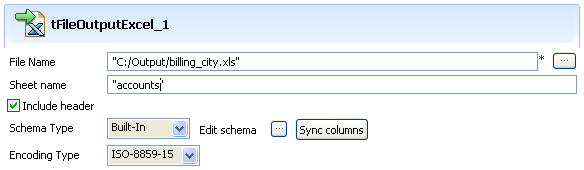
-
Set the destination file name as well as the Sheet name and select the Include
header check box. -
Press CTRL+S to save your Job and press F6 to execute it.
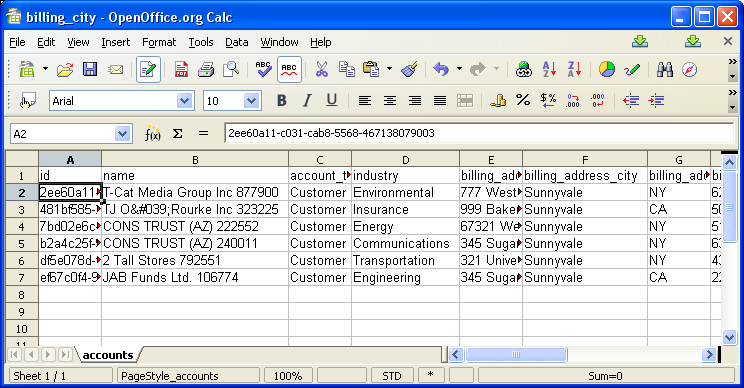 The filtered data is output in the defined spreadsheet of the specified
Excel file.