tSynonymSearch
Searches a given index for the reference entries matching the data you
input.
tSynonymSearch reads input data and
searches for reference entries defined in a given synonym index. If this component finds
matched entries in the synonym index, it outputs them along with the corresponding input
data and the relative matching details.
For further information about how to create a synonym index and
define the reference entries, see tSynonymOutput.
For further information about how to access and manage the words
and the reference entries (documents) of an existing synonym index
using the synonym index editor, see the
Talend Studio User Guide.
For further information about available synonym indexes, see the
appendix about data synonym dictionaries in the
Talend Studio User Guide.
Studio version 5.1. If your indexes were created with version
5.0 or lower and you need to handle them using this enhanced
computation method, you have to update these indexes by
executing the IndexMigrator.jar file downloadable from: http://talendforge.org/svn/top/trunk/org.talend.dataquality.standardization.migration/dist/IndexMigrator.jar.
The command to be used to run this jar file is
|
1 2 3 |
java -jar IndexMigrator.jar <inputPath> <outputPath(optional)> |
Depending on the Talend solution you
are using, this component can be used in one, some or all of the following Job
frameworks:
-
Standard: see tSynonymSearch Standard properties.
The component in this framework is available when you have subscribed to one of
the Talend Platform products or Talend Data
Fabric. -
Spark Batch: see tSynonymSearch properties for Apache Spark Batch.
The component in this framework is available when you have subscribed to any Talend Platform product with Big Data or Talend Data
Fabric. -
Spark Streaming: see tSynonymSearch properties for Apache Spark Streaming.
The component in this framework is available only if you have subscribed to Talend Real-time Big Data Platform or Talend Data
Fabric.
tSynonymSearch Standard properties
These properties are used to configure tSynonymSearch running in the Standard Job framework.
The Standard
tSynonymSearch component belongs to the Data Quality family.
The component in this framework is available when you have subscribed to one of
the Talend Platform products or Talend Data
Fabric.
Basic settings
|
Schema and Edit |
A schema is a row description. It defines the number of fields (columns) to Default columns are provided in the schema of this component in order to present For further information about the default schema columns, see Default schema columns Click Sync columns to retrieve the schema from Click Edit schema to make changes to the schema.
|
|
|
Built-In: You create and store the |
|
|
Repository: You have already created |
|
Limit of each group |
Type in a number to indicate the maximum display of the reference entries matched to each If the entries count exceeds the indicated limit, this component displays the ones scored |
|
Columns to search |
Complete this table to provide parameters used to match the input data and the reference The columns to be completed are: – Input column: select the column(s) of interest from – Reference output column: select the column(s) from the – Index path: enter the path to the index you – Search mode: select the search mode you want to use to – Score threshold (available for all modes): set a The score value is returned by the Lucene engine and can be anything above – Max edits (based on the Levenshtein algorithm and Fuzzy match gains much in performance with Max edits for fuzzy Note:
Jobs migrated in the Studio from older releases run correctly, but results might be – Word distance (available for the Match – Limit: type in a number to indicate the maximum |
Advanced settings
|
tStatCatcher Statistics |
Select this check box to gather the Job processing metadata at the Job level |
Global Variables
|
Global Variables |
ERROR_MESSAGE: the error message generated by the A Flow variable functions during the execution of a component while an After variable To fill up a field or expression with a variable, press Ctrl + For further information about variables, see |
Usage
|
Usage rule |
This component needs incoming data from the preceding component. |
|
Connections |
Outgoing links (from this component to another): Row: Main; Reject
Trigger: Run if; On Component Ok; On Component Incoming links (from one component to this one): Row: Main; Reject For further information regarding connections, see |
Default schema columns
This section presents the detailed information about the default schema columns
provided natively with the tSynonymSearch
component.
Tip: In addition to the matching-related information presented in the default schema
columns, you need to define more columns in order to output the input data and their
matched reference entries.
|
Columns |
Description |
|---|---|
|
GID |
Group IDs. These IDs are created automatically at runtime to |
|
GRP_SIZE |
Numbers of the matched reference entries for each group of the |
|
SCORE |
Lucene score used to measure in total the match degree between |
|
SCORES |
Lucene scores used to measure the match degree between each |
|
NB_MATCHED _FIELDS |
Number of the input columns you have selected for the matching |
Scenario 1: Searching a given index for matched reference entries
This scenario applies only to a subscription-based Talend Platform solution or Talend Data Fabric.
In this scenario, a three-component Job reads the provided first name data, searches a
given synonym index for reference entries that match the input data and then outputs the
results.
Create a first-name synonym index for this Job following the procedures outlined in
Scenario 2: Creating a synonym index for people names using tMap.
The three components used in this Job are:
-
tFixedFlowInput: this component generates the
input data you will match against the reference entries in the synonym
index. -
tSynonymSearch: this component searches for
the matched reference entries in the synonym index. -
tLogRow
(found): this
component lists the result of this matching search.

Setting up the Job
-
Drop tFixedFlowInput, tSynonymSearch and tLogRow from the Palette
onto the design workspace.You can change the displayed name of each of these component as what has
been done for the tLogRow component, named
found in this scenario. For further information,
see
Talend Studio User Guide. -
Right-click the tFixedFlowInput component
to open the contextual menu and select Row > Main. -
Drop the link on the tSynonymSearch
component to create an connection between these two components. -
Do the same thing to connect tSynonymOutput to tLogRow
(found).
Configuring the components
-
Double-click tFixedFlowInput to open its
Basic settings view.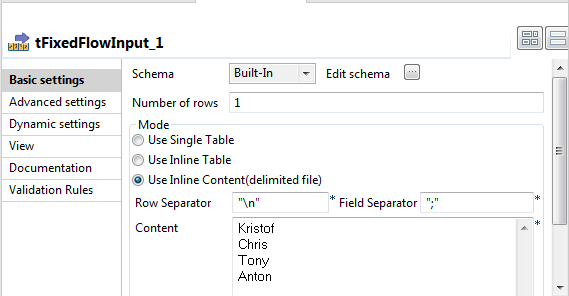
-
Next to the Schema field, click the
Edit schema button to open the
[Schema] dialog box, add one column and
name it FIRSTNAME. When done, click OK to validate these changes and close the dialog
box.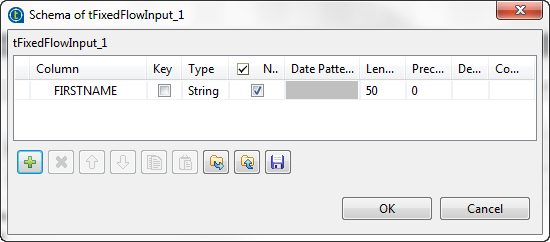
-
In the Mode area, select the Use Inline Content (delimited file) option, and
supply the following names in the Content
field:1234KristofChrisTonyAnton -
Double-click tSynonymSearch to open its
Basic settings view.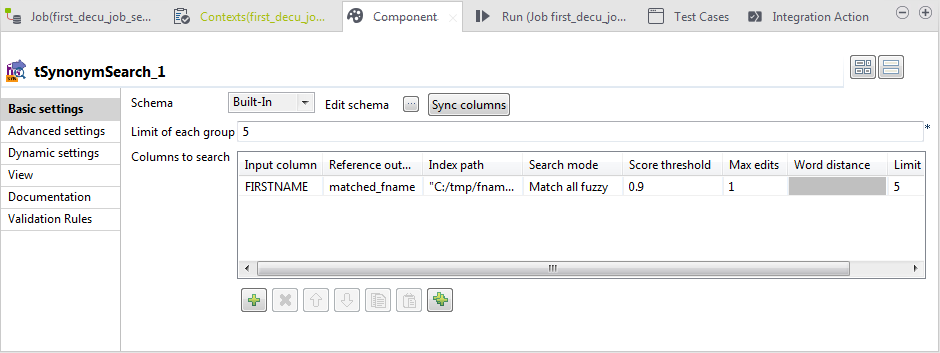
-
Click Sync columns to add the schema
columns of its preceding component to the default schema columns of
tSynonymSearch.When prompted, click Yes to propagate the
changes to the next component. -
Click the […] button next to Edit schema to open the [Schema] dialog box, and add one column to the output
schema: matched_fname.This column will hold the matched reference entries in the output
flow.When done, click OK to validate the
setting and accept propagating the changes when prompted.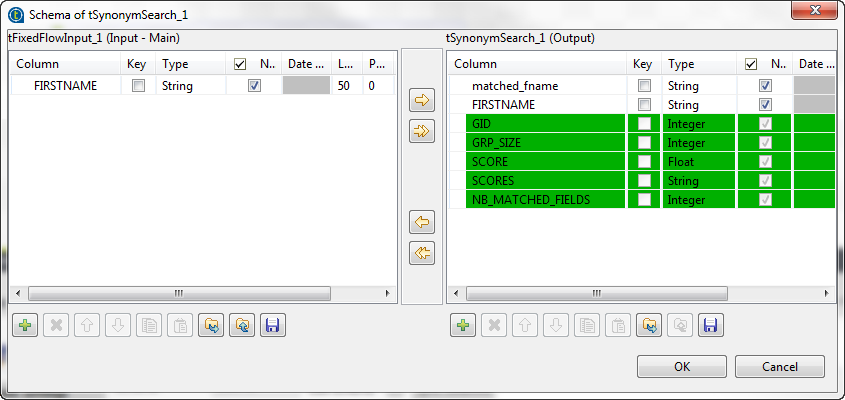
-
In the Limit of each group field, type in
5 to replace the default value. -
Under the Columns to search table, click
the [+] button to add one row and define
the parameters as follows:-
In the Input column column,
select FIRSTNAME from the list of the input
columns. -
In the Reference output column
column, select matched_fname from the list of
the output columns. -
In the Index path column, type in
the path to the synonym index to be used, between double quotation
marks. -
In the Search mode column, select
Match all fuzzy. This will match each word
of the input string against similar word of the index string. -
In the Score threshold column,
enter 0.9 to filter results and list only terms
with higher similarity. -
In the Max edits column,
select1 to be the allowed edit distance to
use.With max edit distance 1, you can have only
one insertion, deletion or substitution. Any terms within that edit
distance from the input data are matched. -
Leave the Word distance column as
it is only for the Match partial mode. -
In the Limit column, leave the
default value 5.
-
-
In the Basic settings view of the
tLogRow component, select the Table option for better readable display of the
Job execution result.
Executing the Job
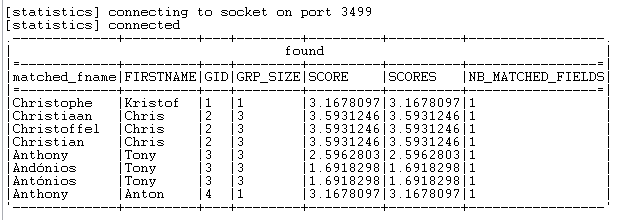
word of the index string. For example, the entry Chris from the input flow is found to fuzzy match
3 words in the given synonym index. And this record
is recognized as group 2 that has a group size equal to
3, meaning that three matched reference entries are
found for this group.
present the same values in this scenario because only one input column is
used.
string, select Match exact in the Search mode column in tSynonymSearch basic settings.
Scenario 2: Searching for matched reference entries for two input columns
This scenario applies only to a subscription-based Talend Platform solution or Talend Data Fabric.
In this scenario, you are going to use the previous Job with slight modifications on
it in order to search two synonym indexes for input data from two columns.
In addition to the index used earlier, another index is used alongside holding the
last name data, for example, Correia, Corria,
Toum, Toom, toom,
Walker, Waker.
To replicate this scenario, open the Job created in the previous section and proceed
as follows:
Configuring the components
-
Double-click tFixedFlowInput to open its
Basic settings view.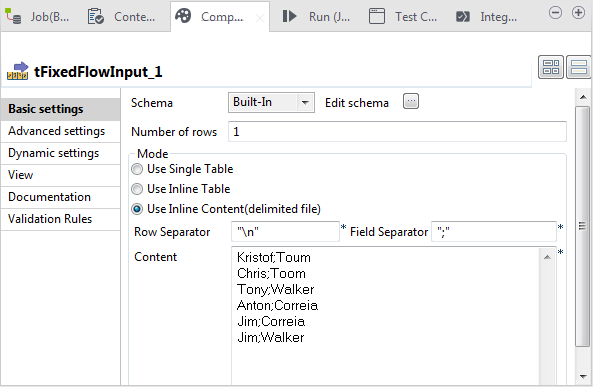
-
Next to Edit schema, click the […] button to open the [Schema] dialog box, and add a second column
LASTNAME next to the FIRSTNAME
column you have defined in the previous scenario.When done, click OK to validate this
change and thus close the dialog box.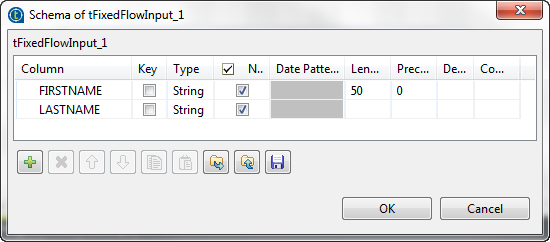
-
In the Content field of the Mode area, add more first name and last name data
to make the input data read as
follows:Kristof;Toum
Chris;Toom
Tony;Walker
Anton;Correia
Jim;Correia
Jim;Walker
-
Double-click tSynonymSearch to open its
Basic settings view.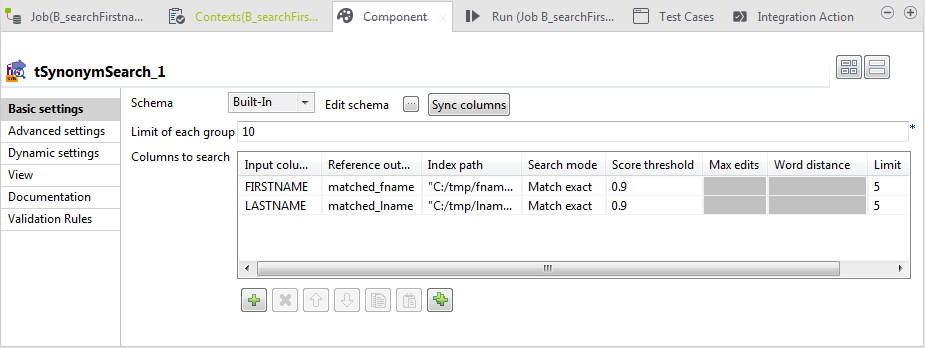
-
Click Sync columns to synchronize the
columns of this component with the preceding one and click Yes to propagate the changes to the next
component when prompted. -
Click the […] button next to Edit schema to open the [Schema] dialog box, and add two columns to the output
schema: matched_fname and
matched_lname.These columns will hold the matched reference entries in the output
flow.When done, click OK to validate the
setting and accept propagating the changes when prompted. -
In the Limit of each group field, type in
10 to replace the one you have defined in the
previous scenario. -
Under the Columns to search table, click
the [+] button to add a second row and
define the parameters as follows:-
In the Input column column,
select LASTNAME from the drop-down list. -
In the Reference output column
column, select matched_lname from the drop-down
list. -
In the Index path column, type
in, between quotation marks, the path to the synonym index holding
the last name entries. -
In the Search mode column, select
Match exact for both input columns. This
will match the exact input word against an exact index word. -
In the Score threshold column,
enter 0.9 to filter results and list only terms
with higher similarity. -
Leave the Min similarity and
Word distance columns as they
are only for the fuzzy modes and the Match
partial mode respectively. -
In the Limit column of this row,
leave the default value 5.
-
Executing the Job
-
Press F6 to run this Job.
The execution result reads as follows in the console of the Run view.
From this result, if you take the input data Chris
Toom for example, you can see that:
-
this record is recognized as group 2 with a group size equal to 3. This
means that 3 pairs of exact match reference entries are found from the two
synonym indexes in use. The exact match for the first name are
Christian, Christiaan and
Christoffel, and the exact match for the last name
are toomx3. -
the SCORES column contains two sub-columns.
These sub-columns present the matching scores in regards to the
matched_fname and to the
matched_lname reference columns respectively. Each
figure listed in the SCORE column is equal to the sum
of the two figures of the same row in the sub-columns of the
SCORES column.
tSynonymSearch properties for Apache Spark Batch
These properties are used to configure tSynonymSearch running in the Spark Batch Job framework.
The Spark Batch
tSynonymSearch component belongs to the Data Quality family.
The component in this framework is available when you have subscribed to any Talend Platform product with Big Data or Talend Data
Fabric.
Basic settings
|
Schema and Edit |
A schema is a row description. It defines the number of fields (columns) to Default columns are provided in the schema of this component in order to present For further information about the default schema columns, see Default schema columns Click Sync columns to retrieve the schema from Click Edit schema to make changes to the schema.
|
|
|
Built-In: You create and store the |
|
|
Repository: You have already created |
|
Limit of each group |
Type in a number to indicate the maximum display of the reference entries matched to each If the entries count exceeds the indicated limit, this component displays the ones scored |
|
Columns to search |
Complete this table to provide parameters used to match the input data and the reference The columns to be completed are: – Input column: select the column(s) of interest from – Reference output column: select the column(s) from the Index path: enter the path to the index you need to – Search mode: select the search mode you want to use to – Score threshold (available for all modes): set a The score value is returned by the Lucene engine and can be anything above – Max edits (based on the Levenshtein algorithm and Fuzzy match gains much in performance with Max edits for fuzzy Note:
Jobs migrated in the Studio from older releases run correctly, but results might be – Word distance (available for the Match – Limit: type in a number to indicate the maximum |
Global Variables
|
Global Variables |
ERROR_MESSAGE: the error message generated by the A Flow variable functions during the execution of a component while an After variable To fill up a field or expression with a variable, press Ctrl + For further information about variables, see |
Usage
|
Usage rule |
This component is used as an intermediate step. This component, along with the Spark Batch component Palette it belongs to, appears only Note that in this documentation, unless otherwise |
|
Connections |
Outgoing links (from this component to another): Row: Main; Reject
Trigger: Run if; On Component Ok; On Component Incoming links (from one component to this one): Row: Main; Reject For further information regarding connections, see |
|
Spark Connection |
You need to use the Spark Configuration tab in
the Run view to define the connection to a given Spark cluster for the whole Job. In addition, since the Job expects its dependent jar files for execution, you must specify the directory in the file system to which these jar files are transferred so that Spark can access these files:
This connection is effective on a per-Job basis. |
Related scenarios
No scenario is available for the Spark Batch version of this component
yet.
tSynonymSearch properties for Apache Spark Streaming
These properties are used to configure tSynonymSearch running in the Spark Streaming Job framework.
The Spark Streaming
tSynonymSearch component belongs to the Data Quality family.
The component in this framework is available only if you have subscribed to Talend Real-time Big Data Platform or Talend Data
Fabric.
Basic settings
|
Schema and Edit |
A schema is a row description. It defines the number of fields (columns) to Default columns are provided in the schema of this component in order to present For further information about the default schema columns, see Default schema columns Click Sync columns to retrieve the schema from Click Edit schema to make changes to the schema.
|
|
|
Built-In: You create and store the |
|
|
Repository: You have already created |
|
Limit of each group |
Type in a number to indicate the maximum display of the reference entries matched to each If the entries count exceeds the indicated limit, this component displays the ones scored |
|
Columns to search |
Complete this table to provide parameters used to match the input data and the reference The columns to be completed are: – Input column: select the column(s) of interest from – Reference output column: select the column(s) from the Index path: enter the path to the index you need to – Search mode: select the search mode you want to use to – Score threshold (available for all modes): set a The score value is returned by the Lucene engine and can be anything above – Max edits (based on the Levenshtein algorithm and Fuzzy match gains much in performance with Max edits for fuzzy Note:
Jobs migrated in the Studio from older releases run correctly, but results might be – Word distance (available for the Match – Limit: type in a number to indicate the maximum |
Global Variables
|
Global Variables |
ERROR_MESSAGE: the error message generated by the A Flow variable functions during the execution of a component while an After variable To fill up a field or expression with a variable, press Ctrl + For further information about variables, see |
Usage
|
Usage rule |
This component, along with the Spark Streaming component Palette it belongs to, appears This component is used as an intermediate step. You need to use the Spark Configuration tab in the This connection is effective on a per-Job basis. For further information about a Note that in this documentation, unless otherwise |
|
Connections |
Outgoing links (from this component to another): Row: Main; Reject
Trigger: Run if; On Component Ok; On Component Incoming links (from one component to this one): Row: Main; Reject For further information regarding connections, see |
|
Spark Connection |
You need to use the Spark Configuration tab in
the Run view to define the connection to a given Spark cluster for the whole Job. In addition, since the Job expects its dependent jar files for execution, you must specify the directory in the file system to which these jar files are transferred so that Spark can access these files:
This connection is effective on a per-Job basis. |
Related scenarios
No scenario is available for the Spark Streaming version of this component
yet.