tUnite
Centralizes data from various and heterogeneous sources.
Merges data from various sources, based on a common schema.
Note that tUnite cannot exist in a
data flow loop. For instance, if a data flow goes through several tMap components to generate two flows, they cannot be fed to tUnite.
Depending on the Talend solution you
are using, this component can be used in one, some or all of the following Job
frameworks:
-
Standard: see tUnite Standard properties.
The component in this framework is generally available.
-
Spark Batch: see tUnite properties for Apache Spark Batch.
The component in this framework is available only if you have subscribed to one
of the
Talend
solutions with Big Data. -
Spark Streaming: see tUnite properties for Apache Spark Streaming.
The component in this framework is available only if you have subscribed to Talend Real-time Big Data Platform or Talend Data
Fabric.
tUnite Standard properties
These properties are used to configure tUnite running in the Standard Job framework.
The Standard
tUnite component belongs to the Orchestration family.
The component in this framework is generally available.
Basic
settings
|
Schema and Edit |
A schema is a row description, it defines the number of fields to Click Edit schema to make changes to the schema.
Click Sync This component offers the This dynamic schema |
|
|
Built-in: The |
|
|
Repository: The |
Advanced
settings
|
tStatCatcher |
Select this check box to collect log data at the |
Global Variables
|
Global Variables |
ERROR_MESSAGE: the error message generated by the
NB_LINE: the number of rows processed. This is an After A Flow variable functions during the execution of a component while an After variable To fill up a field or expression with a variable, press Ctrl + For further information about variables, see |
Usage
|
Usage rule |
This component is not |
|
Connections |
Outgoing links (from this component to another): Row: Main.
Trigger: Run if; On Component Ok; Incoming links (from one component to this one): Row: Main; Reject. For further information regarding connections, see |
Scenario: Iterate on files and merge the content
The following Job iterates on a list of files then merges their content and displays
the final 2-column content on the console.

Dropping and linking the components
-
Drop the following components onto the design workspace: tFileList, tFileInputDelimited, tUnite
and tLogRow. -
Connect the tFileList to the tFileInputDelimited using an Iterate connection and connect the other
component using a row main link.
Configuring the components
-
In the tFileList
Basic settings view, browse to the
directory, where the files to merge are stored.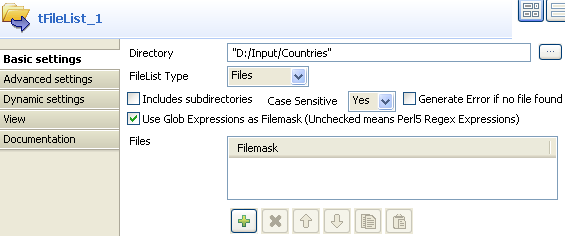 The files are pretty basic and contain a list of countries and their
respective score.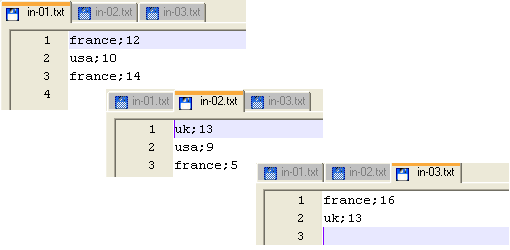
-
In the Case Sensitive field, select
Yes to consider the letter case. -
Select the tFileInputDelimited component,
and display this component’s Basic settings
view.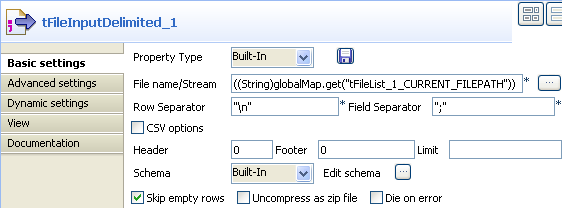
-
Fill in the File Name/Stream field by
using the Ctrl+Space bar combination to
access the variable completion list, and selecting
tFileList.CURRENT_FILEPATHfrom the global variable list to
process all files from the directory defined in the tFileList. -
Click the Edit Schema button and set
manually the 2-column schema to reflect the input files’ content. For this example, the 2 columns are Country and
Points. They are both nullable. The Country column is of
String type and the
Points column is of Integer type. -
Click OK to validate the setting and
accept to propagate the schema throughout the Job. -
Then select the tUnite component and
display the Component view. Notice that the
output schema strictly reflects the input schema and is read-only. - In the Basic settings view of tLogRow, select the Table option to display properly the output values.
Saving and executing the Job
- Press Ctrl+S to save your Job.
-
Press F6, or click Run on the Run console to
execute the Job.The console shows the data from the various files, merged into one single
table.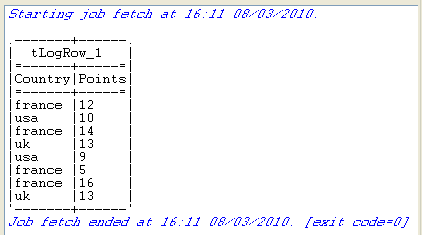
tUnite properties for Apache Spark Batch
These properties are used to configure tUnite running in the Spark Batch Job framework.
The Spark Batch
tUnite component belongs to the Orchestration family.
The component in this framework is available only if you have subscribed to one
of the
Talend
solutions with Big Data.
Basic settings
|
Schema and Edit |
A schema is a row description, it defines the number of fields to be Click Edit schema to make changes to the schema.
Click Sync columns to retrieve the |
|
|
Built-In: You create and store the |
|
|
Repository: You have already created |
Usage
|
Usage rule |
This component is used as an intermediate step. This component, along with the Spark Batch component Palette it belongs to, appears only Note that in this documentation, unless otherwise |
|
Spark Connection |
You need to use the Spark Configuration tab in
the Run view to define the connection to a given Spark cluster for the whole Job. In addition, since the Job expects its dependent jar files for execution, you must specify the directory in the file system to which these jar files are transferred so that Spark can access these files:
This connection is effective on a per-Job basis. |
Related scenarios
No scenario is available for the Spark Batch version of this component
yet.
tUnite properties for Apache Spark Streaming
These properties are used to configure tUnite running in the Spark Streaming Job framework.
The Spark Streaming
tUnite component belongs to the Orchestration family.
The component in this framework is available only if you have subscribed to Talend Real-time Big Data Platform or Talend Data
Fabric.
Basic settings
|
Schema and Edit |
A schema is a row description, it defines the number of fields to be Click Edit schema to make changes to the schema.
Click Sync columns to retrieve the |
|
|
Built-In: You create and store the |
|
|
Repository: You have already created |
Usage
|
Usage rule |
This component is used as an intermediate step. This component, along with the Spark Streaming component Palette it belongs to, appears Note that in this documentation, unless otherwise explicitly stated, a scenario presents |
|
Spark Connection |
You need to use the Spark Configuration tab in
the Run view to define the connection to a given Spark cluster for the whole Job. In addition, since the Job expects its dependent jar files for execution, you must specify the directory in the file system to which these jar files are transferred so that Spark can access these files:
This connection is effective on a per-Job basis. |
Related scenarios
No scenario is available for the Spark Streaming version of this component
yet.