tWriteJSONField
database table, etc.
Depending on the Talend solution you
are using, this component can be used in one, some or all of the following Job
frameworks:
-
Standard: see tWriteJSONField Standard properties.
The component in this framework is generally available.
-
MapReduce: see tWriteJSONField MapReduce properties.
The component in this framework is available only if you have subscribed to one
of the
Talend
solutions with Big Data. -
Spark Batch:
see tWriteJSONField properties for Apache Spark Batch.The component in this framework is available only if you have subscribed to one
of the
Talend
solutions with Big Data. -
Spark Streaming:
see tWriteJSONField properties for Apache Spark Streaming.The component in this framework is available only if you have subscribed to Talend Real-time Big Data Platform or Talend Data
Fabric.
Configuring a JSON Tree
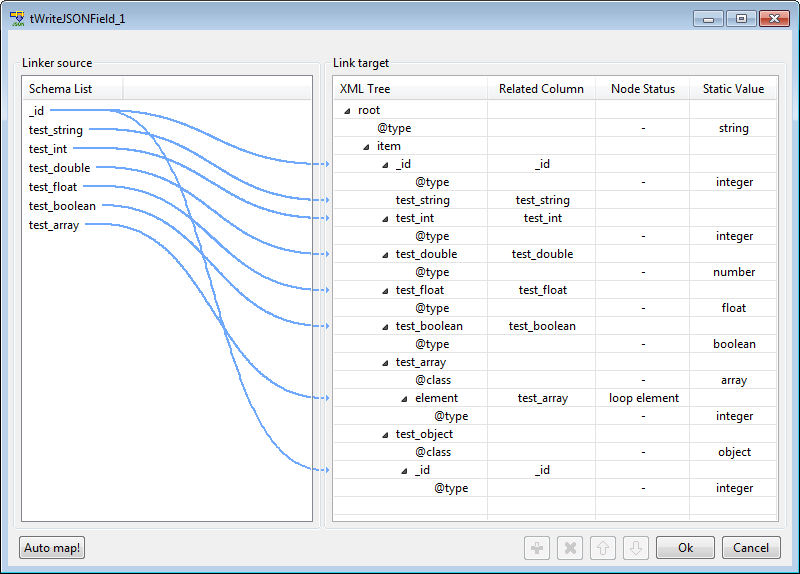
When configuring a JSON tree, the default type of an element is string. If an
element is not of type string, you need to add an
attribute for the element to set its type.
-
For an integer, double, float, or
boolean element, you need to add an
attribute named type and set its static
value to integer, number, float, or boolean respectively. -
For an array element, you need to add
an attribute named class and set its static
value to array, and then add a sub-element
named element set as a loop. -
For an object element, you need to add
an attribute named class and set its static
value to object.
The following figure shows an example of JSON tree configuration:
tWriteJSONField Standard properties
These properties are used to configure tWriteJSONField running in the Standard Job framework.
The Standard
tWriteJSONField component belongs to the Processing family.
The component in this framework is generally available.
Basic settings
|
Output Column |
List of the columns defined in the output schema to hold the JSON |
|
Configure JSON Tree |
Opens the interface to create the JSON data structure. For more |
|
Schema and Edit |
A schema is a row description. It defines the number of fields (columns) to Click Edit schema to make changes to the schema.
|
|
|
Built-In: You create and store the |
|
|
Repository: You have already created |
|
Sync columns |
Click to synchronize the output file schema with the input file |
|
Group by |
Define the aggregation set, the columns you want to use to regroup Warning:
Make sure that the data to be grouped is in sequential |
|
Remove root node |
Select this check box to remove the root node from the JSON field |
Advanced settings
|
tStatCatcher Statistics |
Select this check box to gather the Job processing metadata at a |
Global Variables
|
Global Variables |
ERROR_MESSAGE: the error message generated by the
NB_LINE: the number of rows read by an input component or A Flow variable functions during the execution of a component while an After variable To fill up a field or expression with a variable, press Ctrl + For further information about variables, see |
Usage
|
Usage rule |
Preceded by an input component, this component wraps the incoming |
Scenario: Writing flat data into JSON fields
In this scenario, flat data is wrapped into JSON fields via tWriteJSONField.
Linking the components
- Drop the following components from the Palette onto the design workspace: tFixedFlowInput, tWriteJSONField and tLogRow.
-
Link tFixedFlowInput and tWriteJSONField using a Row > Main connection.
-
Link tWriteJSONField and tLogRow using a Row > Main connection.

Configuring the components
-
Double-click tFixedFlowInput to display
its Basic settings view.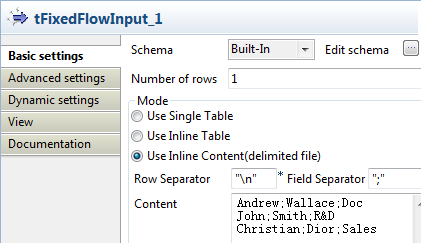
-
Click Edit schema to open the schema
editor.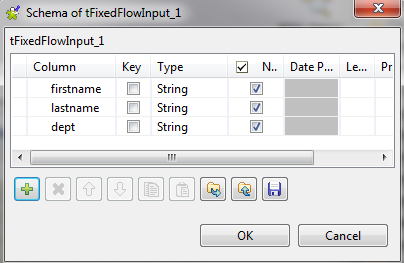 Click the [+] button to add three
columns, namely firstname, lastname and dept, with the type of string.Click OK to close the editor. -
Select the Use Inline Content option and
enter the data below in the Content box:123Andrew;Wallace;DocJohn;Smith;R&DChristian;Dior;Sales -
Click tWriteJSONField to display its
Basic settings view.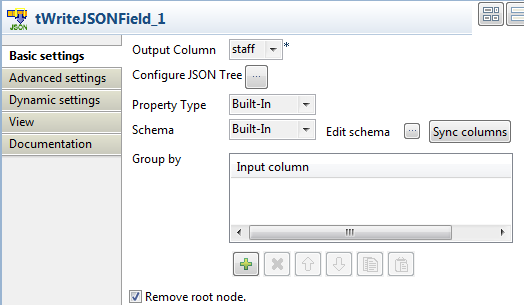 Select the Remove root node option to
remove the root node setting from the JSON fields generated. -
Click Configure JSON Tree to open the XML
tree editor.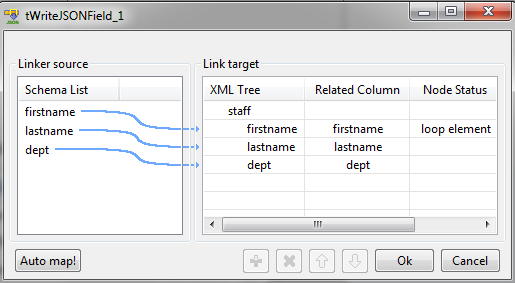 The schema of tFixedFlowInput appears in
the Linker source panel. -
In the Linker target panel, click the
default rootTag and type in staff, which is the root node of the JSON field
to be generated. - Right-click staff and select Add Sub-element from the context menu.
-
In the pop-up box, enter the sub-node name, namely firstname.
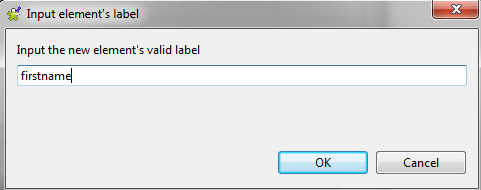 Repeat the steps to add two more sub-nodes, namely lastname and dept.
 -
Right-click firstname and select
Set As Loop Element from the context
menu. -
Drop firstname from the Linker source panel to its counterpart in the
Linker target panel.In the pop-up dialog box, select Add linker to
target node.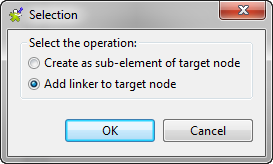 Click OK to close the dialog box.Repeat the steps to link the two other items.Click OK to close the XML tree
editor. -
Click Edit schema to open the schema
editor.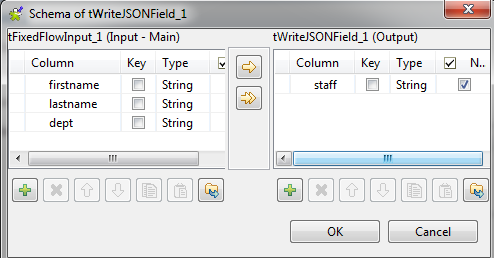
-
Click the [+] button in the right panel
to add one column, namely staff, which
will hold the JSON data generated.Click OK to close the editor. -
Double-click tLogRow to display its
Basic settings view.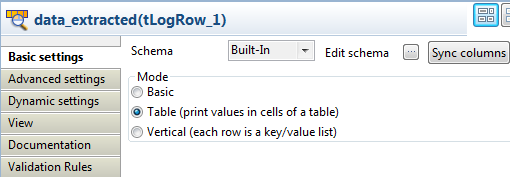 Select Table (print values in cells of a
table) for a better display of the results.
Executing the Job
- Press Ctrl + S to save the Job.
-
Click F6 to execute the Job.
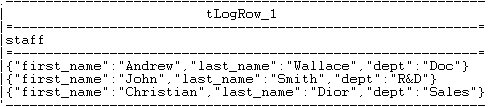 As shown above, the JSON fields have been generated correctly, with the
root node settings removed.
Related Scenarios
For related scenarios, see:
tWriteJSONField MapReduce properties
These properties are used to configure tWriteJSONField running in the MapReduce Job framework.
The MapReduce
tWriteJSONField component belongs to the Processing family.
The component in this framework is available only if you have subscribed to one
of the
Talend
solutions with Big Data.
Basic settings
|
Output Column |
List of the columns defined in the output schema to hold the JSON |
|
Configure JSON Tree |
Opens the interface to create the JSON data structure. For more |
|
Schema and Edit |
A schema is a row description. It defines the number of fields (columns) to Click Edit schema to make changes to the schema.
|
|
|
Built-In: You create and store the |
|
|
Repository: You have already created |
|
Sync columns |
Click to synchronize the output file schema with the input file |
|
Group by |
Define the aggregation set, the columns you want to use to regroup Warning:
Make sure that the data to be grouped is in sequential |
|
Remove root node |
Select this check box to remove the root node from the JSON field |
Global Variables
|
Global Variables |
ERROR_MESSAGE: the error message generated by the A Flow variable functions during the execution of a component while an After variable To fill up a field or expression with a variable, press Ctrl + For further information about variables, see |
Usage
|
Usage rule |
In a You need to use the Hadoop Configuration tab in the For further information about a Note that in this documentation, unless otherwise |
Related scenarios
No scenario is available for the Map/Reduce version of this component yet.
tWriteJSONField properties for Apache Spark Batch
These properties are used to configure tWriteJSONField running in the Spark Batch Job framework.
The Spark Batch
tWriteJSONField component belongs to the Processing family.
The component in this framework is available only if you have subscribed to one
of the
Talend
solutions with Big Data.
Basic settings
|
Editor |
Opens the interface to create the JSON data structure. For more |
|
Schema and Edit |
A schema is a row description. It defines the number of fields (columns) to Click Edit schema to make changes to the schema.
|
|
|
Built-In: You create and store the |
|
|
Repository: You have already created |
|
Sync columns |
Click to synchronize the output file schema with the input file |
|
Group by |
Define the aggregation set, the columns you want to use to regroup the Warning:
Make sure that the data to be grouped is in sequential |
|
Remove root node |
Select this check box to remove the root node from the JSON field |
Usage
|
Usage rule |
This component is used as an intermediate step. This component, along with the Spark Batch component Palette it belongs to, appears only Note that in this documentation, unless otherwise |
|
Spark Connection |
You need to use the Spark Configuration tab in
the Run view to define the connection to a given Spark cluster for the whole Job. In addition, since the Job expects its dependent jar files for execution, you must specify the directory in the file system to which these jar files are transferred so that Spark can access these files:
This connection is effective on a per-Job basis. |
Related scenarios
No scenario is available for the Spark Batch version of this component
yet.
tWriteJSONField properties for Apache Spark Streaming
These properties are used to configure tWriteJSONField running in the Spark Streaming Job framework.
The Spark Streaming
tWriteJSONField component belongs to the Processing family.
The component in this framework is available only if you have subscribed to Talend Real-time Big Data Platform or Talend Data
Fabric.
Basic settings
|
Output type |
Select the type of the data to be outputted into the target file. The data is |
|
Editor |
Opens the interface to create the JSON data structure. For more |
|
Schema and Edit |
A schema is a row description. It defines the number of fields (columns) to Click Edit schema to make changes to the schema.
|
|
|
Built-In: You create and store the |
|
|
Repository: You have already created |
|
Sync columns |
Click to synchronize the output file schema with the input file |
|
Group by |
Define the aggregation set, the columns you want to use to regroup Warning:
Make sure that the data to be grouped is in sequential |
|
Remove root node |
Select this check box to remove the root node from the JSON field |
Usage
|
Usage rule |
This component is used as an intermediate step. This component, along with the Spark Streaming component Palette it belongs to, appears Note that in this documentation, unless otherwise explicitly stated, a scenario presents |
|
Spark Connection |
You need to use the Spark Configuration tab in
the Run view to define the connection to a given Spark cluster for the whole Job. In addition, since the Job expects its dependent jar files for execution, you must specify the directory in the file system to which these jar files are transferred so that Spark can access these files:
This connection is effective on a per-Job basis. |
Related scenarios
No scenario is available for the Spark Streaming version of this component
yet.