Validating XML files
-
Drop the following components from the Palette to the design workspace: tFileList, tDTDValidator,
tMap, tFileOutputDelimited. -
Connect the tFileList to the tDTDValidator with an Iterate
link and the remaining component using a main
row. -
Set the tFileList component properties, to
fetch an XML file from a folder.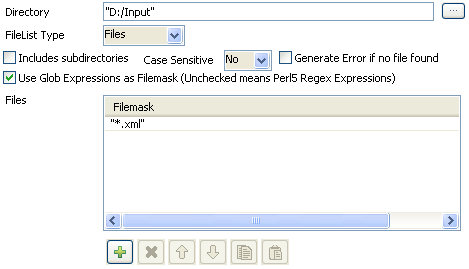 Click the plus button to add a filemask line and enter the filemask: *.xml.
Remember Java code requires double quotes.Set the path of the XML files to be verified.Select No from the Case Sensitive drop-down
list. -
In the tDTDValidate
Component view, the schema is read-only as it
contains standard log information related to the validation process.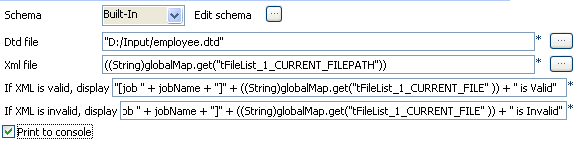 In the Dtd file field, browse to the DTD file
to be used as reference. -
Click in the XML file field, press Ctrl+Space
bar to access the variable list, and double-click the current
filepath global variable:tFileList.CURRENT_FILEPATH. -
In the various messages to display in the Run
tab console, use the jobName variable to recall the job
name tag. Recall the filename using the relevant global variable:
((String)globalMap.get("tFileList_1_CURRENT_FILE")). Remember
Java code requires double quotes.Select the Print to Console check box. -
In the tMap component, drag and drop the
information data from the standard schema that you want to pass on to the output
file.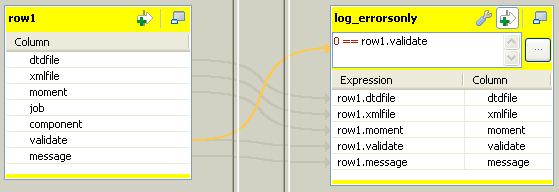
-
Once the Output schema is defined as required, add a filter condition to only
select the log information data when the XML file is invalid.Follow the best practice by typing first the wanted value for the variable,
then the operator based on the type of data filtered then the variable that
should meet the requirement. In this case:0 == row1.validate. -
Then connect (if not already done) the tMap
to the tFileOutputDelimited component using a
Row > Main connection. Name it as relevant, in this example:
log_errorsOnly. -
In the tFileOutputDelimited
Basic settings, define the destination
filepath, the field delimiters and the encoding. -
Save your Job and press F6 to run it.
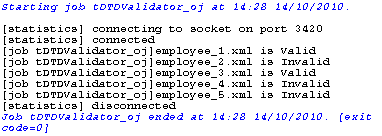 On the Run console the messages defined
display for each of the files. At the same time the output file is filled with
the log data for invalid files.
Document get from Talend https://help.talend.com
Thank you for watching.
Subscribe
Login
0 Comments