Mapping data using a group element
- In your Studio, open the Job used in Launching a lookup flow to join complementary data to display it in the design workspace, and double-click the tXMLMap component to open its Map Editor.
-
In the XML tree view of the Customer output table,
right-click the customer (loop) node and select
Delete from the contextual menu. Thus
all of the elements under the customers root node are
removed, then you can reconstruct the XML tree view that can be used to group
the output data of interest.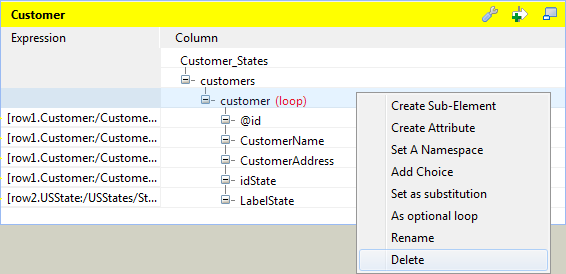
-
Right-click the customers root node and select
Create Sub-Element from the
contextual menu. In the pop-up dialog box, enter the name of the new
sub-element. In this example, it is customer. -
Click OK to validate the changes and
close the dialog box. A customer node is added under the
customers root node in the output table. -
In the row2 lookup input table, select the LabelState node and drop it onto the customer node in the output table. In the pop-up dialog box, select
Create as sub-element of target node
and click OK to close the dialog box. A
LabelState node is added under the customer node in the output table. -
Right-click the customer node in the output table and
select Create Sub-Element from the
contextual menu. In the pop-up dialog box, enter the name of the new
sub-element. In this example, it is Name. -
Click OK to validate the changes and
close the dialog box. A Name node is added under the customer node in the output table. -
In the row1 main input table, select the id and CustomerName nodes and
drop them onto the Name node in the output table. In the
pop-up dialog box, select Create as sub-element of
target node and click OK
to close the dialog box. A id node and a CustomerName node are added under the Name node in the output table. -
In the output table, right-click the Name node and from
the contextual menu select As loop
element to set it as the loop element, then right-click the customer node and from the contextual menu select
As group element to group the output
data according to the LabelState element.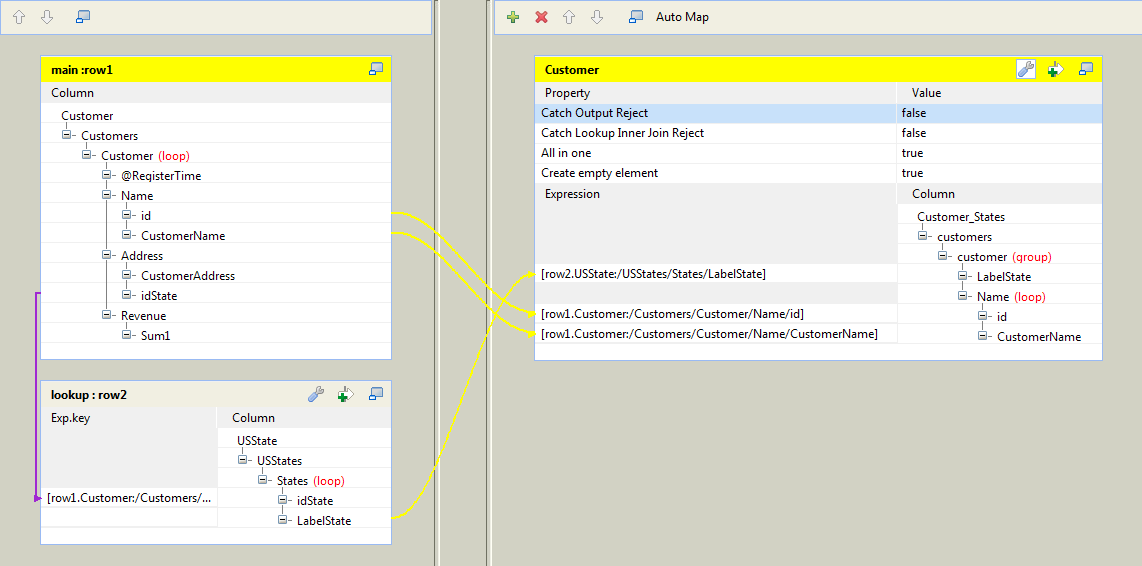
-
Click OK to validate the changes and
close the map editor. -
Press Ctrl+S to save the Job and then
F6 to run the Job.
As shown above, the id element and the CustomerName
element contained in the loop are grouped according to the LabelState element. The group element customer tags
the start and the end of each group.
Document get from Talend https://help.talend.com
Thank you for watching.
Subscribe
Login
0 Comments