Mapping data using a filter
-
In your Studio, open the Job used in the previous scenario to display it in the
design workspace.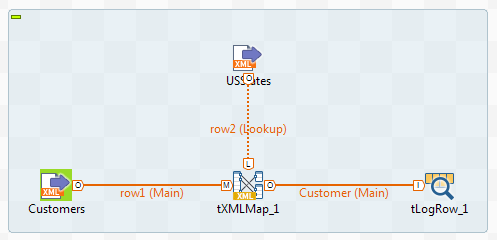
-
Double-click the tXMLMap component to open its Map Editor.
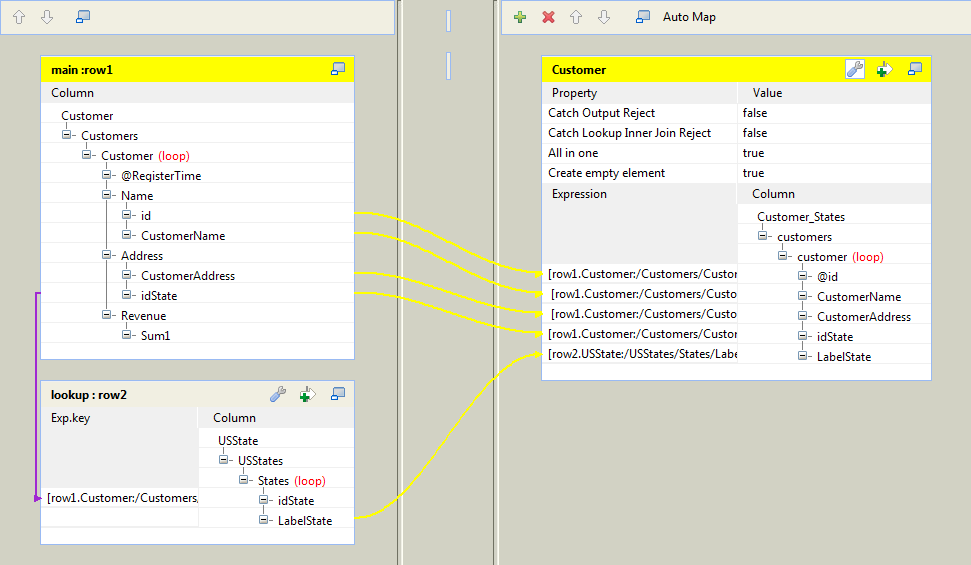
-
On the top of the Customer output table, click
the
button to open the filter area.
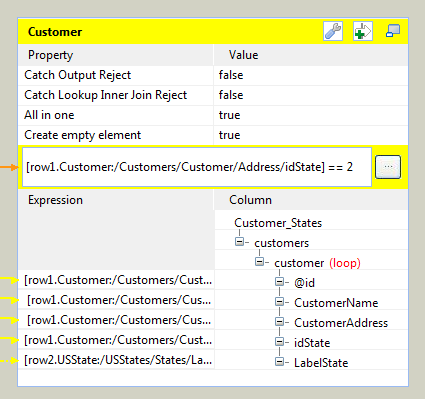
-
Drop the idState node in the main input table to the filter
area. The XPath [row1.Customer:/Customers/Customer/Address/idState] of the
idState node is added automatically to this filter
area.Enter == 2 after the XPath of the idState node, and the complete filter condition becomes
[row1.Customer:/Customers/Customer/Address/idState] ==
2. This means only the customer data with the state id of 2 will be passed to the output flow. -
Click OK to validate the changes and close the
map editor. - Press Ctrl + S to save the Job and then F6 to run the Job.
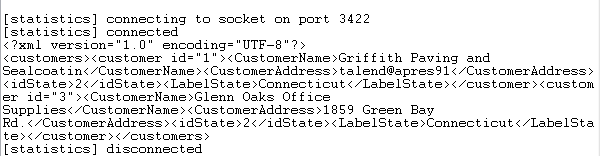
As shown above, the customers Griffith Paving and Sealcoatin and
Glenn Oaks Office Supplies, whose state id is
2 are displayed on the console.
Document get from Talend https://help.talend.com
Thank you for watching.
Subscribe
Login
0 Comments