Mapping the service structure and displaying the retrieved user
information
-
Double-click the tXMLMap component to
open the Map Editor. -
If you selected XML in the Accept Type list of the tRESTClient component, define the input XML tree structure
according to the service structure.-
In the input table, right-click the default root node of the body column, select Rename from the contextual menu, and
rename it to users. -
Right-click the users node,
select Create Sub-Element from the
contextual menu, and create sub-element named user. Set user as the loop element because the XML structure
of the Web service to be invoked is looped on this element. -
Right-click the user node,
select Create Attribute from the
contextual menu, and enter id in
the [Create New Attribute] dialog
box to create an attribute named id for the user
node. -
Right-click the user node
again, select Create Sub-Element
from the contextual menu, and enter first_name in the [Create New
Element] dialog box to create an sub-element named
first_name for the user node.Repeat this operation to create another sub-element under the
user node, last_name. -
Drop the id, first_name and last_name columns from the input table to the output
table, and then click OK to
validate the mapping and close the Map Editor.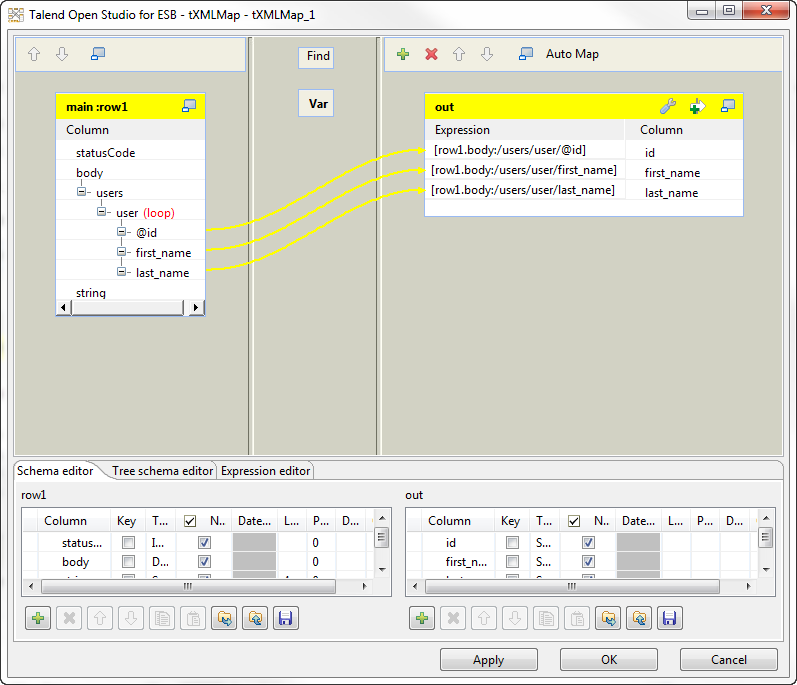
If you selected JSON in the Accept Type list of the tRESTClient component, the response from the server end will
be sent back in JSON format and converted to document type. In this example,
the converted response structure looks like the following:123456789<root><users><user><id>2</id><first_name>Theodore</first_name><last_name>Harding</last_name></user></users></root>Note that the
<root>element is removed if the Wrap JSON Response check box is cleared in the
Advanced settings of the tRESTClient component.Define the input XML tree structure accordingly and map it with the output
data flow in a similar manner as described above.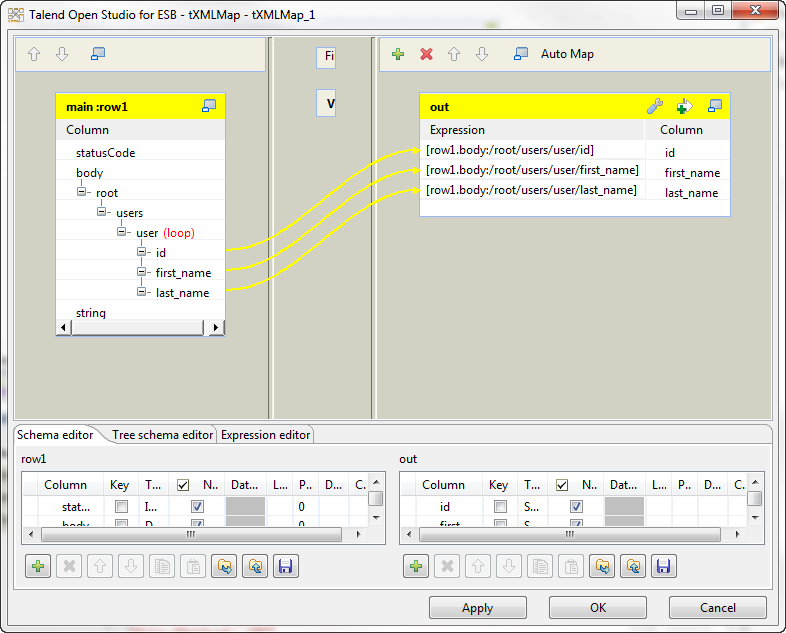
-
In the input table, right-click the default root node of the body column, select Rename from the contextual menu, and
-
Double-click the tLogRow component to
open its Basic settings view.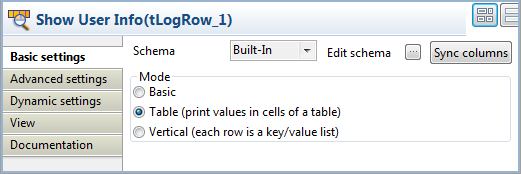
-
Click the Sync columns button to make
sure the component schema is synchronized with the output schema of the
tXMLMap component. -
In the Mode field, select the Table option to display the GET result in table
cells.
Document get from Talend https://help.talend.com
Thank you for watching.
Subscribe
Login
0 Comments