Transforming the incoming data into XML structure
-
Double-click tWriteXMLField to open its
Basic settings view.
-
Click the […] button next to the Edit schema field to open the schema editor and then
add a row by clicking the [+] button.
-
Click the newly added row to the right view of the schema editor and enter the
name of the output column where you want to write the XML content. It is
xmlRecord in this example. -
Click OK to validate this output schema and
close the schema editor.In the dialog box that pops up, click OK to
propagate this schema to the following component. -
In the Basic settings view, click the
[…] button next to Configure XML Tree to open the dialog box where you can create
the XML structure.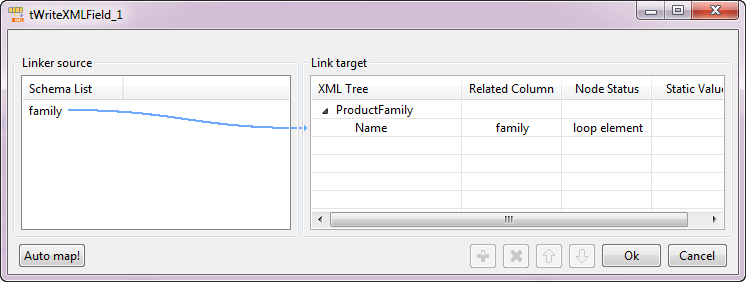
-
In the Link Target area, click
rootTag and rename it to
ProductFamily, which is the name of the business entity
used in this scenario. -
In the Linker source area, drop
family to ProductFamily in the
Link target area.A dialog box pops up, asking you to select one operation.Select Create as sub-element of target node
to create a sub-element of the ProductFamily node. Then,
the family element appears under the
ProductFamily node.Right-click the Name node and select from the contextual
menu Set As Loop Element. -
In the Link target area, click the family node and rename it to Name, which is one of the attributes of the
ProductFamily business entity.Click OK to validate the XML structure you
defined.
Document get from Talend https://help.talend.com
Thank you for watching.
Subscribe
Login
0 Comments