|
Component Family |
Transformation |
|
|
Function |
cContentEnricher is designed to use |
|
|
Purpose |
cContentEnricher allows you to |
|
|
Basic settings |
Resource URI |
This refers to the destination to which a message will be |
|
Using a producer |
Select this check box to use a producer to provide additional data, that is to say |
|
|
Using a consumer |
Select this check box to use a consumer to obtain additional data, that is to say |
|
|
Use Aggregation Strategy |
Select this check box to define the aggregation strategy for |
|
|
Specify timeout |
This area appears when Using a Wait until a message arrive: the Immediately polls the message: Waiting at most until the timeout |
|
|
Usage |
cContentEnricher allows you to use |
|
|
Limitation |
n/a |
|
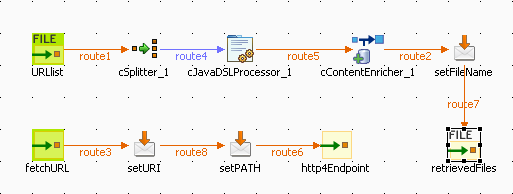
In this scenario, we will use the Camel component HTTP4 and the cContentEnricher component to retrieve messages from a list of URLs. To
do this, we need to build two sub-routes, one to read a file with a list of URLs and
send the messages to the local file system, the other to retrieve the messages on these
URLs.
In this use case, we will take a list of URLs on the local Tomcat server as the
example. So we need to start Apache Tomcat before executing the Route.
A TXT file URLlist is used to provide the list of URLs, as shown
below.
|
1 2 |
docs/introduction.html docs/setup.html |
-
From the Palette, drag and drop a
cSplitter, a cJavaDSLProcessor, a cContentEnricher, two cFile, two cMessagingEndpoint,
and three cSetHeader components onto the
design workspace. -
Label the components properly for better identification of their roles and
link them using the Row > Route connection as shown above.
Configuring the first sub-route
-
Double-click the URLlist component to
display its Basic settings view in the
Component tab.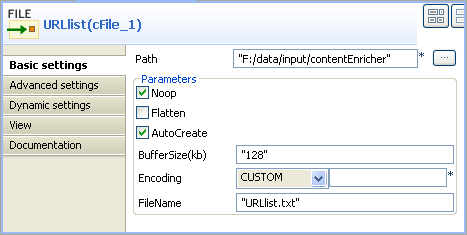
-
In the Path field, browse to the file
path where the URL list file is saved.In the FileName field, enter the filename
URLlist.txt. -
Double-click the cSplitter component to
display its Basic settings view in the
Component tab.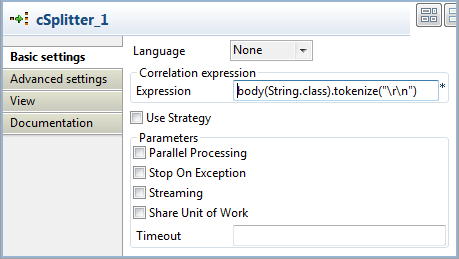
-
Select None in the Language list. In the Expression field, enter the code
body(String.class).tokenize("to split the message in
")
each row into sub-messages.Note
Note that this piece of code is for Windows only. For Unix, change it
tobody(String.class).tokenize(", and for Mac,
")
body(String.class).tokenize(".
") -
Double-click the cJavaDSLProcessor
component to display its Basic settings
view in the Component tab.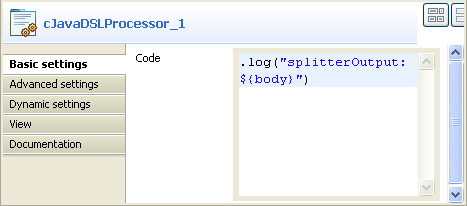
-
In the Code area, enter the code
.log("splitterOutput: ${body}")to get the split message
body. -
Double-click the cContentEnricher
component display its Basic settings view
in the Component tab.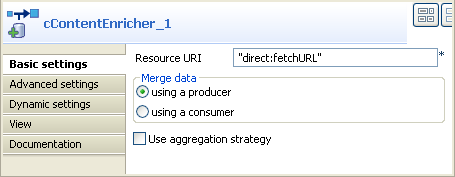
-
Select using a producer to use a producer
to provide additional data and send the message to a defined URI.In the Resource URI field, enter
"direct:fetchURL"where the message will be delivered. -
Double-click the setFileName component to
display its Basic settings view in the
Component tab.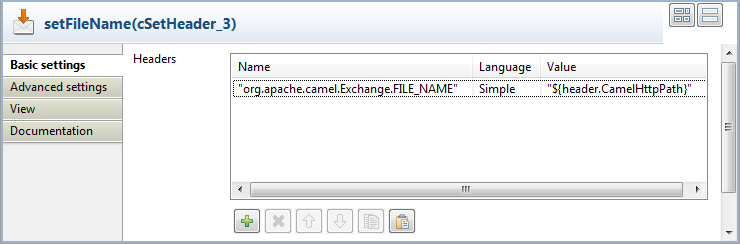
-
Click [+] to add a row to the Headers table.
In the Name field, enter
org.apache.camel.Exchange.FILE_NAMEto define the file name
for each incoming message.Select Simple in the Language list.
In the Value field, enter
"${header.CamelHttpPath}"to get the URI’s path of the
incoming message. -
Double-click the retrievedFiles component
to display its Basic settings view in the
Component tab.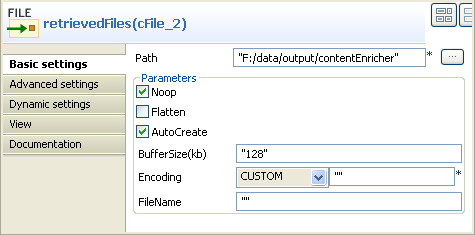
-
In the Path field, browse to the
destination file path where you want the messages to be saved.
Configuring the second sub-route
-
Double-click the fetchURL component to
display its Basic settings view in the
Component tab.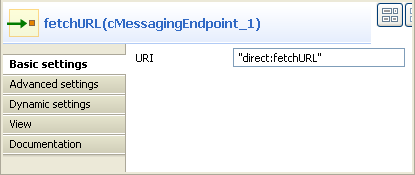
-
In the URI field, enter “direct:fetchURL” that is defined in the
cContentEnricher component. -
Double-click the setURI component to
display its Basic settings view in the
Component tab.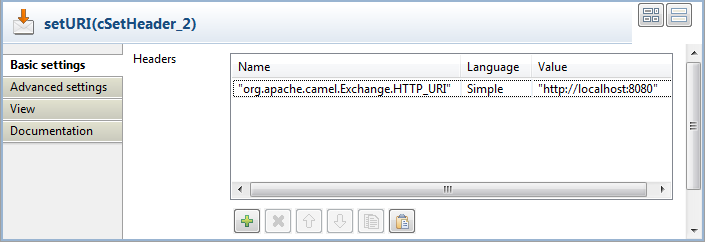
-
Click [+] to add a row to the Headers table.
In the Name field, enter
org.apache.camel.Exchange.HTTP_URIto define the HTTP URI
of each message.Select Simple in the Language list.
In the Value field, enter
"http://localhost:8080"of the local Tomcat server. -
Double-click the setPATH component to
display its Basic settings view in the
Component tab.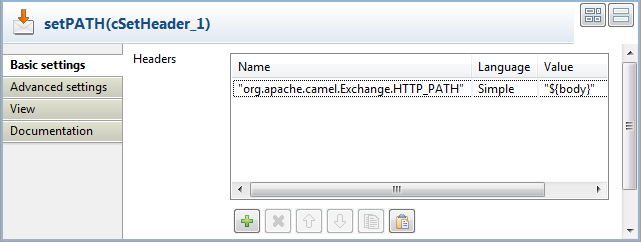
-
Click [+] to add a row to the Headers table.
In the Name field, enter
org.apache.camel.Exchange.HTTP_PATHto define the HTTP path
of each message.Select Simple in the Language list.
In the Value field, enter
"${body}"that is split from the original message. -
Double-click the http4Endpoint component
to display its Basic settings view in the
Component tab.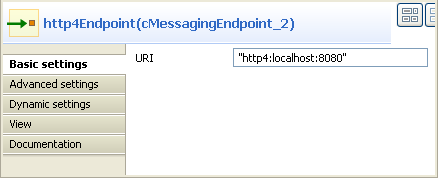
-
In the URI field, enter “http4:localhost:8080” to consuming HTTP
resources on the local Tomcat server. -
Click the Advanced settings view. Click
 at the bottom of the Dependencies list to add a row and select
 http4
from the drop-down list. For more information about HTTP4, see the site
http://camel.apache.org/http4.html.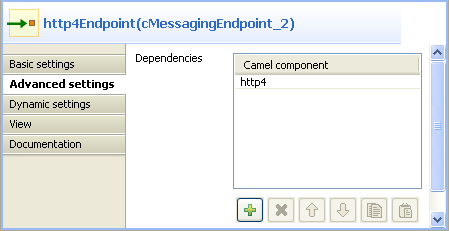
Press Ctrl+S to save your Route.
-
Click the Code tab at the bottom of the
design workspace to have a look at the generated code.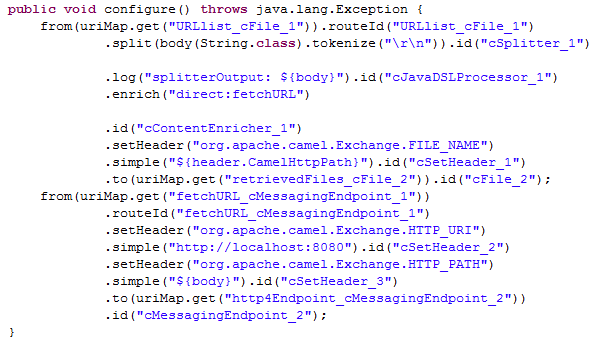
As shown above, a message route is built from the
URLlistto
theretrievedFilesvia the.split,
.log,.enrich, and.setHeader.
The other message route is built fromfetchURLto
http4Endpointvia two.setHeader. -
Press F6 to execute the Route.
RESULT: The split message is printed on the Run console.
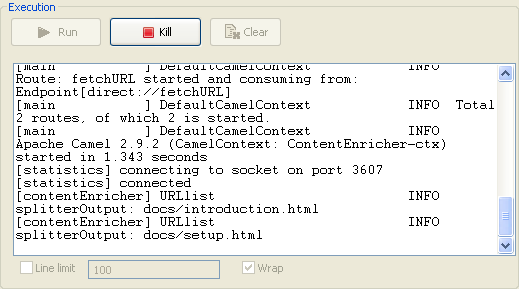
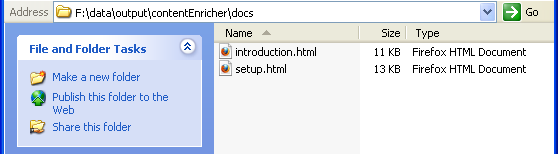
The messages from the list of URLs are saved in defined directory of the
local file system.