|
Component Family |
Transformation |
|
|
Function |
cConvertBodyTo converts the message |
|
|
Purpose |
cConvertBodyTo is used to change |
|
|
Basic settings |
Target Class Name |
Enter the name of the class type that you want to convert the |
|
Usage |
cConvertBodyTo is used as a |
|
|
Limitation |
n/a |
|
In this scenario, a cConvertBodyTo component is used
to convert the body of an XML file into an org.w3c.dom.Document.class. Then a cBean component imports the org.w3c.dom.Document class,
checks its content and prints out the root element name and the content of each
category element.
The XML file is as follows:
|
1 2 3 4 5 6 7 8 9 10 11 12 13 14 15 16 17 18 |
<bookstore> <bookshelf> <category>Cooking</category> <quantity>100</quantity> </bookshelf> <bookshelf> <category>Languages</category> <quantity>200</quantity> </bookshelf> <bookshelf> <category>Arts</category> <quantity>300</quantity> </bookshelf> <bookshelf> <category>Science</category> <quantity>400</quantity> </bookshelf> </bookstore> |
-
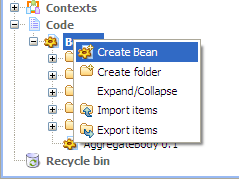
From the repository tree view, expand the Code node and right click the Beans node. In the contextual menu, select Create Bean.
-
The [New Bean] wizard opens. In the Name field, type in a name for the bean, for
example, PrintConvertToBean. Click Finish to close the wizard.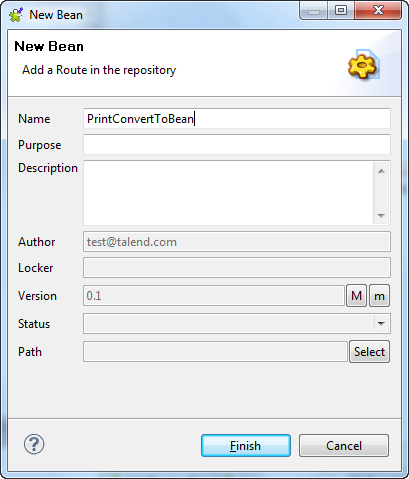
-
Enter the following code in the design workspace.
12345678910111213141516171819202122232425262728293031package beans;import org.w3c.dom.Document;import org.w3c.dom.Element;import org.w3c.dom.NodeList;public class PrintConvertToBean {/*** print input message* @param message*/public static void helloExample(Document message) {if (message == null) {System.out.println("There's no message here!");return;}Element rootElement = message.getDocumentElement();if (rootElement == null) {System.out.println("There's no root element here!");return;}System.out.println("The root element name is:"+ rootElement.getNodeName());System.out.println("The book categories are:");NodeList types = rootElement.getElementsByTagName("category");for(int i = 0;i<types.getLength();i++){Element child = (Element) types.item(i);System.out.println(child.getFirstChild().getNodeValue());}}} -
Press Ctrl+S to save your bean.
For more information about creating and using Java Beans, see Talend Studio User
Guide.
-
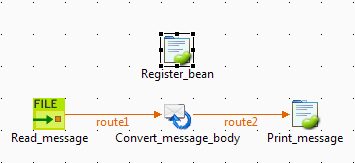
Drag and drop a cFile, a cConvertBodyTo, a cBean and a cBeanRegister
from the Palette onto the workspace. -
Link the cFile, cConvertBodyTo and cBean
using the Row > Route connection as shown above. -
Label the components to better identify their functionality.
-
Double-click the cFile component to open
its Basic settings view in the Component tab.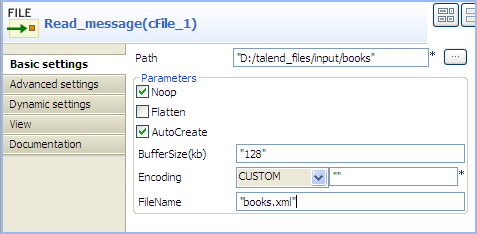
-
In the Path field, enter or browse to the
path to the source XML file.If the source file folder contains more than one file, enter the name of
the XML file of interest in the FileName
field, and leave the other parameters as they are. -
Double-click the cConvertBodyTo component
to open its Basic settings view in the
Component tab.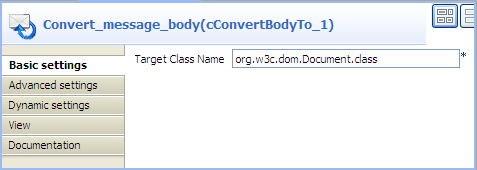
-
In the Target Class Name field, enter
your target class name, org.w3c.dom.Document.class in this scenario. -
Double-click the cBeanRegister component
to open its Basic settings view in the
Component tab.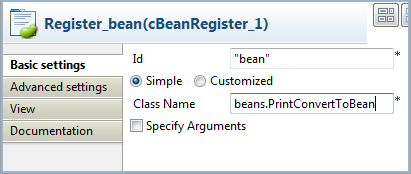
-
In the Id field, enter
"bean".Select the Simple option and in the
Class Name field, enter the name of the
bean to be invoked, beans.PrintConvertToBean in this scenario. -
Double-click the cBean component to open
its Basic settings view in the Component tab.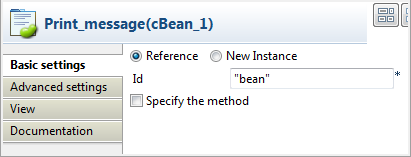
-
Select Reference and in the Id field, enter
"bean"to call the
bean that is registered by the cBeanRegister. -
Press Ctrl+S to save your Route.
-
Click the Code tab at the bottom of the
design workspace to check the generated code.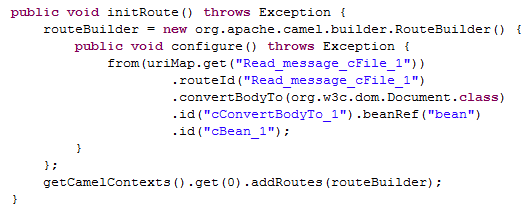
As shown above, the message
fromthe endpoint
Read_message_cFile_1has its body converted to
org.w3c.dom.Document.classby
cConvertBodyTo_1, and then processed bybean
invoked bycBean_1. -
Press F6 to execute the Route.
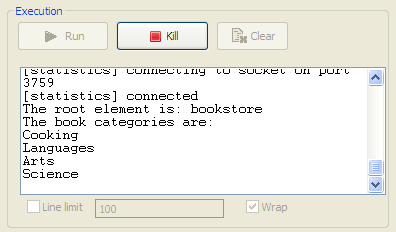
RESULT: The root element name and the contents of the category elements are displayed.