
|
Component Family |
Exception |
|
|
Function |
cErrorHandler provides multiple strategies to deal |
|
|
Purpose |
cErrorHandler is used to process errors in the message |
|
|
Basic settings |
Default Handler |
This error handler does not support a dead letter queue and will |
|
Set Maximum Redeliveries: select |
||
|
Set Redelivery Delay: select this |
||
|
Set Retry Attempted Log Level: |
||
|
Asynchronized Delayed Redelivery: |
||
|
More Configurations by Code: |
||
|
Dead Letter |
This handler supports attempting to redeliver the message exchange |
|
|
Dead Letter Uri: select this Other parameters share the same meaning as those of the default |
||
|
Logging Handler |
This handler logs the exceptions. |
|
|
Set Logger Name: select this |
||
|
Set Log Level: select this check |
||
|
Usage |
cErrorHandler is used separately |
|
|
Limitation |
n/a |
|
In this scenario, a Jetty server is started before a client browser requests access to it.
Then an exception is thrown at the server side and logged by cErrorHandler.
-
Drop the following components from the Palette onto the
workspace: cMessagingEndpoint, cErrorHandler and cProcessor, labelled as Jetty_Server, Error_Handler
and Throw_Exception respectively. -
Link cMessagingEndpoint and cProcessor using a Row >
Route connection.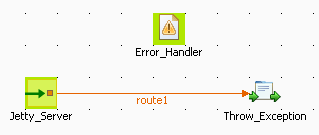
-
Double-click cErrorHandler to open its Basic settings view in the Component tab.

-
Select Logging Handler to log the exceptions that are
thrown. -
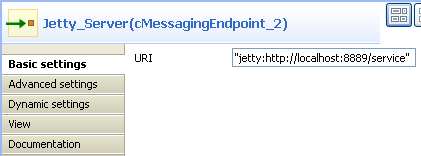
Double-click cMessagingEndpoint to open its Basic settings view in the Component tab.
-
In the Uri field, enter
jetty:http://localhost:8889/serviceto specify the Jetty
server. -
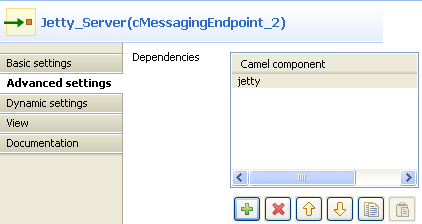
Click Advanced settings for further setup.
-
In the Dependencies table, click the [+] button to add a line and select
jettyfrom the Camel
component list. -
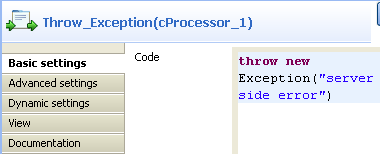
Double-click cProcessor to open its Basic settings view in the Component tab.
-
In the Code box, enter
throw new Exception("serverto throw an exception.
side error") -
Press Ctrl+S to save your Route.
-
Click the Code tab at the bottom of the design workspace
to check the generated code.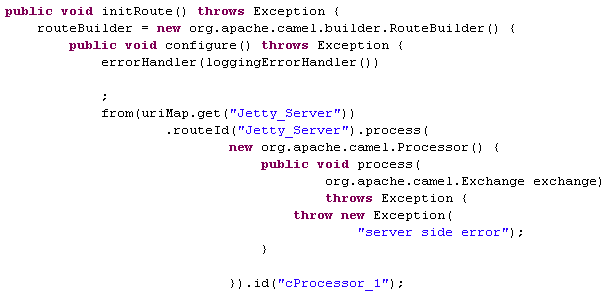
As shown above, the route starts
fromthe endpointJetty_Server
and throws the exception ofserver side errorvia
cProcessor_1. -
Press F6 to execute the Route.

The Jetty server has started.
-
Launch an Internet browser and enter
http://localhost:8889/service(the Jetty server URI
configured above) in the address bar to access the server.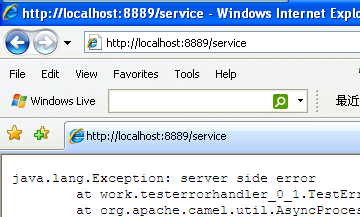
As shown above, the request failed due to the server error.
-
Go to the Studio and check the results in the Run
tab.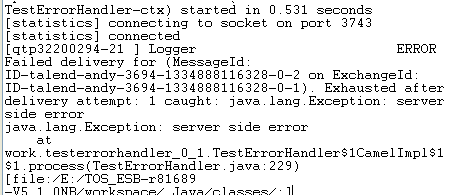
As shown above, cErrorHandler has logged the exception
at the level of ERROR.