August 17, 2023

cMap – Docs for ESB 5.x

cMap

cMap_icon32.png

Warning

This component will be available in the Palette of
Talend Studio on the condition that you have subscribed
to one of the Talend platform solutions.

cMap properties

Component Family

Transformation

Function

cMap transforms data from a wide range of sources to a
wide range of destinations. If you want to use multiple inputs
and/or outputs, you must use Talend Data Mapper I/O functions. For more information,
see Talend Data Mapper User Guide.

Purpose

cMap executes transformations
(called maps) between different sources and destinations by
harnessing the capabilities of Talend Data Mapper, available in the Mapping
perspective.

Basic settings

Open Map Editor

Click the […] button to open
the map specifed in the Map Path in the Mapping
perspective.

  Map Path

Specifies the map to be executed.

Click the […] button next to
the Map Path field to open a dialog
box in which you can select the map you want to use, then click the
[…] button next to Open Map Editor to work with the map
selected. Note that this map must have previously been created in
the Mapping
perspective.


Log Level

From the drop-down list, select how often you want events to be
logged.

  • Infrequent: Logs only
    events related to startup, shutdown and exceptions.

  • Frequent (default): Logs
    events related to startup, shutdown and exceptions, and once
    per map
    execution.

  • Info:
    Logs all events at an informational level or higher.

  • All: Logs all
    events.

  • None: Logs
    nothing.

Exception Threshold

Talend Data Mapper returns an execution
status with an severity value which can be OK, Info, Warning, Error or Fatal. By
setting the exception threshold, you can specify the severity level
at which an exception is thrown, thus enabling downstream components
to detect the error in cases other than the default value of
Fatal.

From the drop-down list, select the severity level at which an
exception may be thrown during the execution of a map.

  • Fatal (default): An
    exception is thrown when a fatal error occurs.

  • Error: An exception is
    thrown when an error (or higher) occurs.

  • Warning: An exception is
    thrown when a warning (or higher) occurs.

Output Type

From the drop-down list, select how you want the output to be
written.

  • Default: The default
    output is the same as the input, or Java if the map outputs
    Java.

  • String: Use this option
    if the data in the output column is to be a
    String.

  • Byte Array: Use this
    option if the data in the output column is to be a
    Byte array.

  • InputStream: Use this
    option if you are working with Talend Data Mapper metadata and the input is a
    stream.

Usage

cMap is used for Routes that
require data mapping.

Limitation

Due to the license incompatibility, one or more JAR files required to use this component are
not provided. You can install these missing JAR files by clicking the Install button in the Basic settings view
of the Component tab. For more information, see the section
about how to configure the Studio of the Talend Installation and Upgrade Guide.

This limitation applies to maps that reference databases.

Note

For further information about performing transformations using Talend Data Mapper, see Talend Data Mapper User
Guide
.

Scenario: Mapping data with cMap

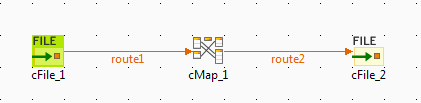
The following scenario creates a three-component Route, in which a cFile component visits a local file directory to copy its
contents, performs a transformation using a cMap
component, and then sends the files in the input directory to an output cFile component that writes the files in another
directory.
use_case-cmap.png

Copying an editable version of the example files

  1. In the Mapping perspective, in
    the Data Mapper view, expand the Hierarchical Mapper node and the Other Projects folder, right-click Examples and then select Copy in the contextual menu.

  2. In the Data Mapper view, right-click at the
    root of the Hierarchical Mapper node, and then
    select Paste in the contextual menu.

    This copies an editable version of all the read-only example files to your
    local workspace.

Adding and linking the components

  1. Click the point in the design workspace where you want to add the first
    component, start typing cFile, and then click
    the name of the component when it appears in the list proposed in order to
    select it.

  2. Do the same to add a cMap component and a
    second cFile component as well.

  3. Connect the cFile_1 component to the
    cMap component using a Row > Route link, then connect the cMap component to the cFile_2 component using a second Row >
    Route
    link.

Defining the properties of cFile_1

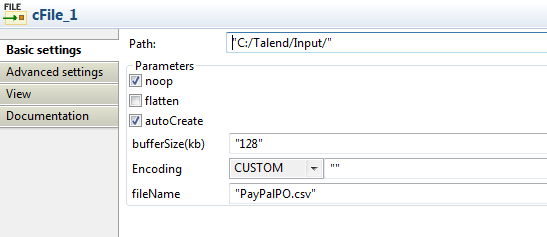
  1. Select the cFile_1 component to define its
    properties.
    use_case-cmap2.png

  2. In the Path field, browse to or enter the
    path to where the input file is located.

  3. In the fileName field, enter the name of the
    input file: PayPalPO.csv in this
    example.

  4. Leave the other parameters unchanged.

Defining the properties of cMap

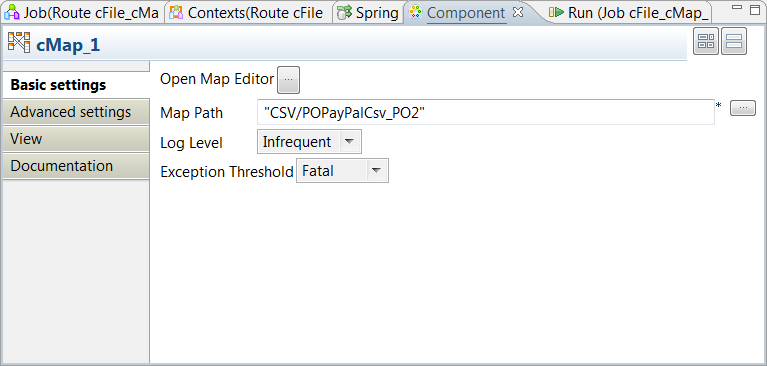
  1. Select the cMap component to define its
    properties.
    use_case-cmap3.png

  2. Click the […] button next to the Map Path field to open the picker and select the map
    to use, Maps/CSV/POPayPalCsv_PO2, then click
    OK. This map transforms a CSV file into an
    XML file.
Defining the properties of cFile_2

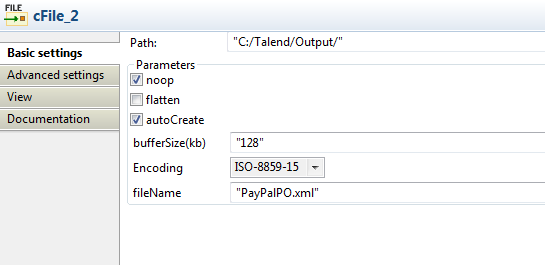
  1. Select the cFile_2 component to define its
    properties.

    use_case-cmap4.png

  2. In the Path field, browse to or enter the
    path to where the output file is to be located.

  3. In the fileName field, enter a name for the
    output file with the extension .xml.

  4. Leave the other parameters unchanged.

Saving and executing the Route

  1. Press Ctrl+S to save your Route.

  2. In the Run tab, click Run to execute the Route.

  3. Browse to the output directory on your file system to check that the input
    files have been transformed and written in the output directory.


Document get from Talend https://help.talend.com
Thank you for watching.
Subscribe
Notify of
guest
0 Comments
Inline Feedbacks
View all comments
0
Would love your thoughts, please comment.x
()
x