|
Component |
Routing |
|
|
Function |
cMessageFilter filters the content of messages according to For more information on the |
|
|
Purpose |
Use cMessageFilter to eliminate unwanted messages from a |
|
|
Basic |
Language |
Select the language of the expression you use to |
|
|
Expression |
Type in the expression to use to filter the |
| Add Namespaces |
This option appears when XPath is Select this check box to add namespaces for the Xpath expression. |
|
|
Usage |
cMessageFilter is used as a middle component in a |
|
| Connections | Filter | Select this link to route the filtered messages to the next endpoint. |
| Route | Select this link to route all the messages from the sender to the next endpoint. |
|
|
Limitation |
n/a |
|
In this use case, we filter XML messages that are sent from the sending endpoint according
to a defined criterion: only the XML files in which the value of the
city node is Paris are sent to a folder
named Paris_only.
Of the four XML files used in this scenario, Message_1.xml and Message_4.xml
contain the city name of Paris. The following is an
example:
|
1 2 3 4 5 |
<person> <firstName>Pierre</firstName> <lastName>Dupont</lastName> <city>Paris</city> </person> |
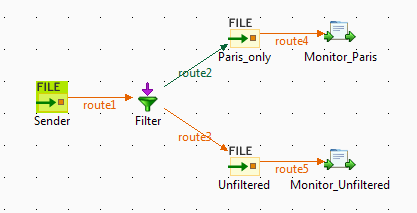
This scenario requires one cMessageFilter
component to filter the messages from the sender, one cFile component as the message sender, one cFile component to receiver the messages containing Paris, one cFile
component to receiver all the messages from the sender, and two cProcessor components to monitor the messages routed to
the two receivers.
-
From the Messaging folder of the
Palette, drop three cFile components onto the design workspace, and
label them Sender, Paris_only, and Unfiltered respectively to better identify their
roles. -
From the Routing folder, drop a cMessageFilter component onto the design workspace, and
label it Filter. -
From the Processor folder, drop two
cProcessor components onto the design
workspace, and label them Monitor_Paris
and Monitor_Unfiltered
respectively. -
Right-click the cFile component labeled
Sender, select Row > Route from the
contextual menu and click the cMessageFilter component. -
Right-click the cMessageFilter component,
select Row > Filter from the contextual menu and click the cFile component labeled Paris_only. This endpoint will retrieve the messages that
meet the defined criterion. -
Right-click the cMessageFilter component,
select Row > Route from the contextual menu and click the cFile component labeled Unfiltered. This endpoint will collect all the messages,
including those meeting the filter criterion. This connection is
optional. -
Right-click the cFile component labeled
Paris_only, select Row > Route from
the contextual menu and click the cProcessor component labeled Monitor_Paris. Repeat this step to connect the cFile component labeled Unfiltered to the cProcessor component labeled Monitor_Unfiltered.
-
Double-click the cFile component labeled
Sender to open its Basic settings view in the Component tab.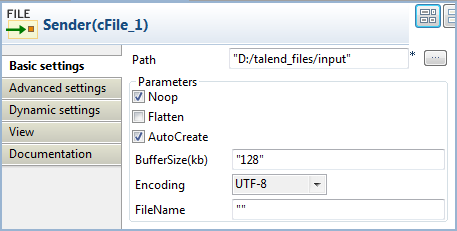
-
In the Path field, specify the file path
to message source. -
From the Encoding list, select the
encoding type of your message files. Leave the other parameters as they
are. -
Double-click the cMessageFilter component
to open its Basic settings view in the
Component tab.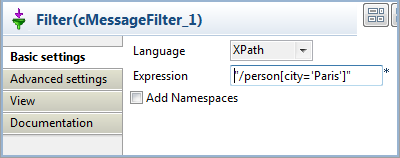
-
Select the language of the expression you want to use to filter your
messages, and enter an expression to define a criterion according to which
you want to filter your messages.In this scenario, we want to sort out the XML files containing a city node
with the value of Paris, so we select XPath
from the Language list, and fill the in the
Expression field with this expression:
"/person[city='Paris']". -
Double-click the cFile component labeled
Paris_only to open its Basic settings view in the Component view, and specify the path for the messages
meeting the filter criterion in the Path
field.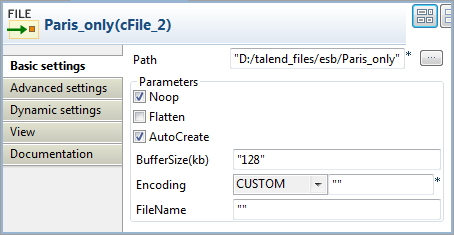
Repeat this step to define the path for all the messages from the sender
in the cFile component labeled Unfiltered. -
Double-click the cProcessor component labeled Monitor_Paris to open its Basic settings view in the Component view, and customize the code in the Code area to display the file names of the
messages that meet the filter criterion on the console:12System.out.println("Message sent to folder Paris_only: "+exchange.getIn().getHeader("CamelFileName"));Repeat this step to customize the code in the cProcessor
component labeled Monitor_Unfiltered to
display the file names of all the messages from the sender. -
Press Ctrl+S to save your Route.
-
To have a look at the generated code, click the Code tab at the bottom of the design workspace.
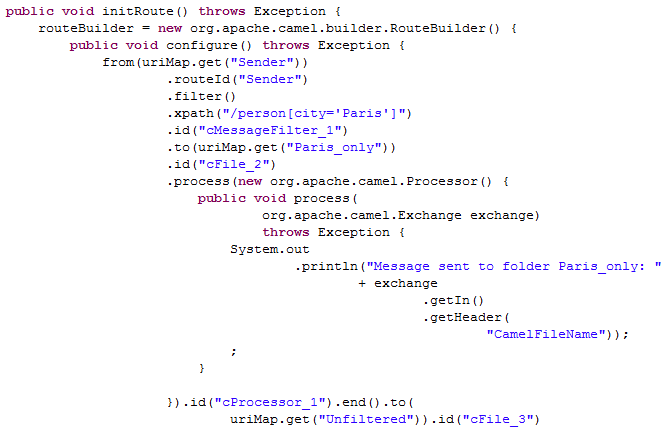
As shown in this piece of code, messages
fromthe sender are filtered by
cMessageFilter_1according to
.xpath("/person[city='Paris']")and the messages matching
the filter are send.tothe endpointParis_only,
while all messages are sent.tothe endpoint
Unfiltered. -
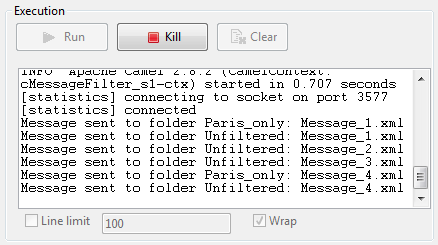
Click the Run view to display it and
click the Run button to launch the
execution of your Route.You can also press F6 to execute it.
RESULT: The messages are filtered according to the defined criterion and the messages
containing “Paris” are redirected to the Paris_only folder, all the messages, including
those containing “Paris“, are sent to the Unfiltered folder.