|
Component family |
XML/Unstructured > EDIFACT |
|
|
Function |
This component reads a United Nations/Electronic Data Interchange |
|
|
Purpose |
This component is used to transform an EDIFACT message file into |
|
|
Basic settings |
Schema and Edit |
A schema is a row description, it defines the number of fields to The schema of this component is fixed and read-only, with only |
|
|
EDI filename |
Filepath to the EDIFACT message file to be transformed. |
|
|
EDI version |
Select the EDIFACT version of the input file. |
|
|
Ignore new line |
Select this check box to skip carriage returns in the input |
|
|
Die on error |
Select this check box to stop Job execution when an error is |
|
Advanced settings |
tStatCatcher Statistics |
Select this check box to gather the Job processing metadata at a |
|
Global Variables |
ERROR_MESSAGE: the error message generated by the A Flow variable functions during the execution of a component while an After variable To fill up a field or expression with a variable, press Ctrl + For further information about variables, see Talend Studio |
|
|
Usage |
This component is usually linked to an output component to gather |
|
|
Limitation |
n/a |
|
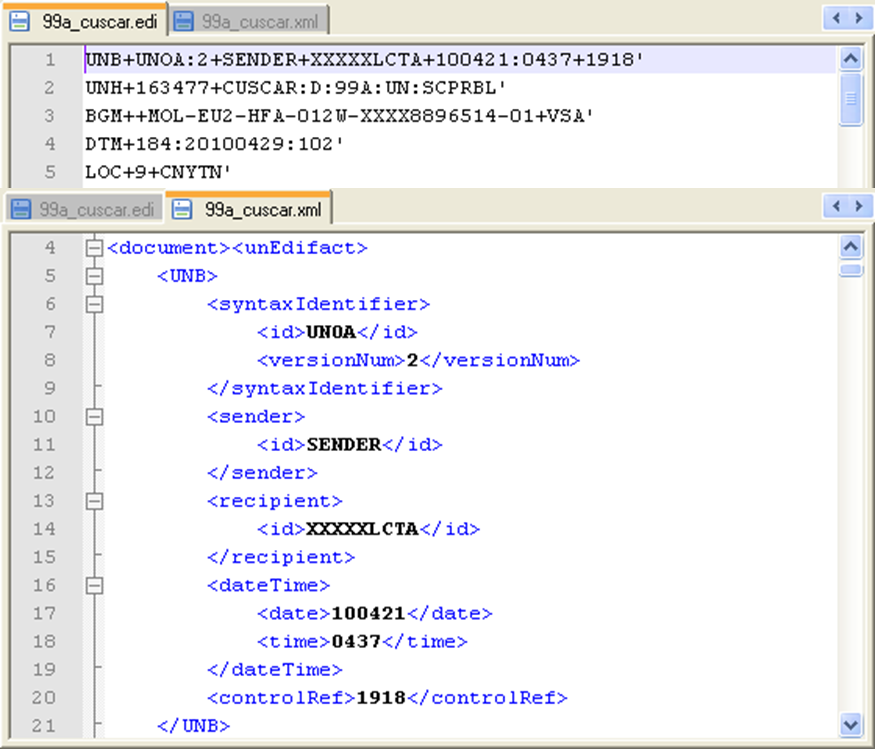
This scenario describes a simple Job that reads a UN/EDIFACT Customs Cargo (CUSCAR)
message file and saves it as an XML file.
-
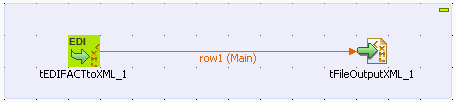
Drop the tEDIFACTtoXML component and the
tFileOutputXML component from the Palette to the design workspace. -
Connect the tEDIFACTtoXML component and the
tFileOutputXML component using a Row > Main
connection. -
Double-click the tEDIFACTtoXML component to
show its Basic settings view.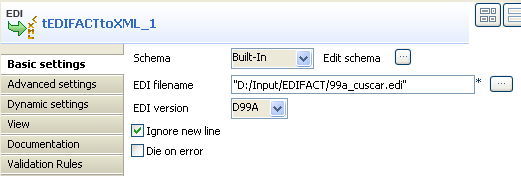
-
Fill the EDI filename field with the full
path to the input EDIFACT message file.In this use case, the input file is
99a_cuscar.edi. -
From EDI version list, select the EDIFACT
version of the input file, D99A in this use case. -
Select the Ignore new line check box to skip
the carriage return characters in the input file during the
transformation. -
Leave the other parameters as they are.
-
Double-click the tFileOutputXML component to
show its Basic settings view.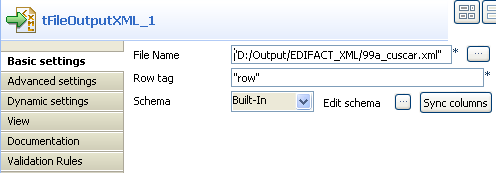
-
Fill the File Name field with the full path
to the output XML file you want to generate.In this use case, the output XML is
99a_cuscar.xml. -
Leave the other parameters as they are.
-
Save your Job and press F6 to run it.
The input EDIFACT CUSCAR message file is transformed into the XML format and
the output XML file is generated as defined.