Configuring and executing the first Job
In the first Job, a string message is created using a tRowGenerator and put on a JBoss server using a tMomOutput. An intermediary tLogRow component displays the flow being passed.
-
Drop the three components required for the first Job from the Palette onto the design workspace and right-click
to connect them using a Main row
link.
-
Double-click on tRowGenerator to set the
schema to be randomly generated.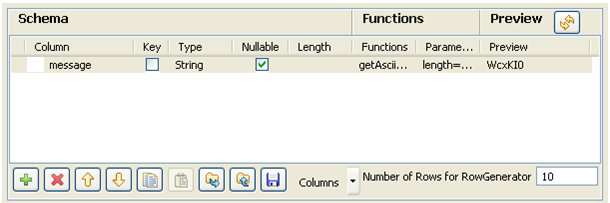
-
Set just one column called message. This is the
message to be put on the MOM queue. -
This column is of String type and is
nullable. To produce the data, use a preset function which concatenates
randomly chosen ascii characters to form a 6-char string. This function is
getAsciiRandomString. (Java version). Click the Preview
button to view a random sample of data generated. -
Set the Number of rows to be generated to
10.Click OK to validate. -
The tLogRow is only used to display a
intermediary state of the data to be handled. In this example, it doesn’t
require any specific configuration. -
Then select the tMomOutput
component.
-
In this case, the MQ server to be used is
JBoss.In the Host and Port fields, fill in the relevant connection
information. -
Select the Message type from the list.
The message can be of Queue or Topic type. In this example, select the Queue type from the list. -
In the To field, type in the message
source information strictly respecting the syntax expected by the server.
This should match the Message Type you selected, such as:
queue/A.Note:The message name is case-sensitive, therefore
queue/Aand
Queue/Aare different. -
Then click Sync Columns to pass on the
schema from the preceding component. The schema being read-only, it cannot
be changed. The data posted onto the MQ comes from the first schema column
encountered. -
Press F6 to execute the Job and view the
data flow being passed on in the console, thanks to the tLogRow component.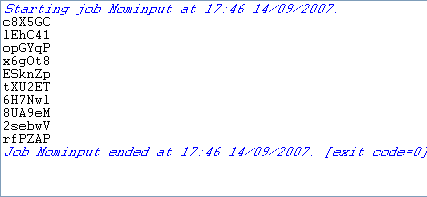
Document get from Talend https://help.talend.com
Thank you for watching.
Subscribe
Login
0 Comments