Configuring the input component
-
Double-click tNamedPipeOpen to define its
propeties in its Basic settings view.Fill in the Name field with the name of a
named-pipe and select Delete if already
exist to avoid duplicate named-pipe.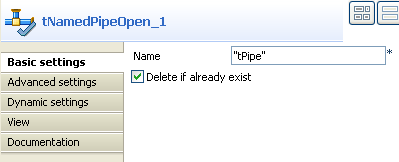
-
Double-click tParallelize to define its
properties in its Basic settings
view.Select end of all subjobs from the
Wait for list.Fill in the Sleep Duration field with
100 to set the sleep duration.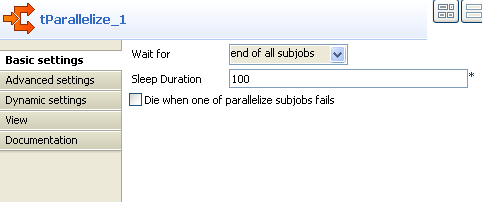
-
Double-click tFileInputDelimited to
define its properties in its Basic settings
view.Fill in the File name/Stream
field with the following expression to use the name of the existing
named-pipe defined in the Basic settings
view of tNamedPipeOpen:1((String)globalMap.get("tNamedPipeOpen_1_PIPE_NATIVE_NAME"))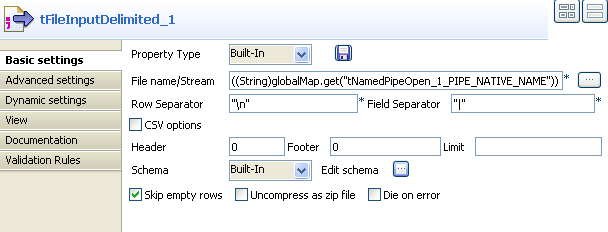
-
Click the three-dot button next to Edit
schema.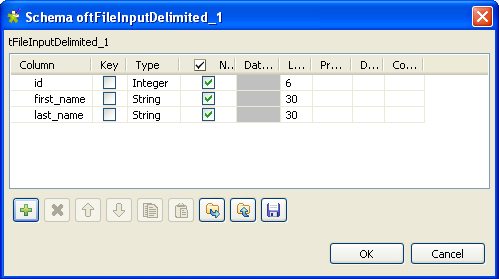
-
Click the plus button to add three columns for tFileInputDelimited. Fill the three Column fields with id,
first_name and last_name and
set the Type of id to
Integer. Keep the rest of the settings
as default. -
Click OK to save the settings for the
schema. -
Keep the rest of the settings in the Basic
settings view of tFileInputDelimited as default. -
Double-click tSleep and fill the
Pause (in seconds) field with
1. -
Double-click tRowGenerator to define its
properties in its Basic settings
view. -
Click RowGenerator Editor to define the
schema.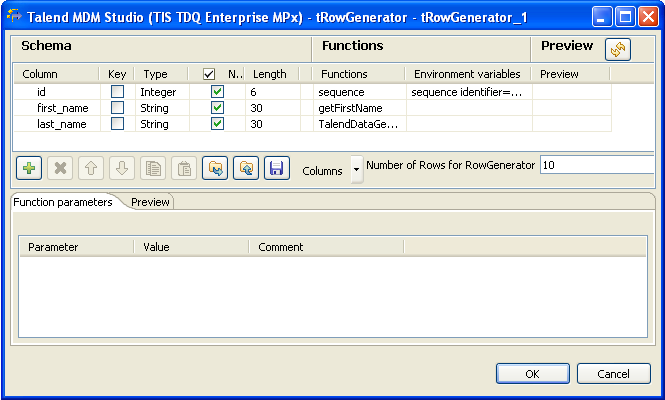
-
Click the plus button to add three columns for tRowGenerator. Fill the three Column fields with id,
first_name and last_name and
set the Type of id to
Integer. Keep the rest of the settings of Type as default. -
Select sequence from the list in the
Functions field for
id. -
Select getFirstName from the list in the
Functions field for Column
first_name. -
Select
TalendDataGenerator.getLastName from the list
in the Functions field for Column
last_name. -
Select id, fill the Value field under Function
parameters tab with s1 for sequence identifier, 1001
for start value and 1
for step. - Click OK to save the settings.
Document get from Talend https://help.talend.com
Thank you for watching.
Subscribe
Login
0 Comments