Configuring the input components
-
Double-click PreferredSubject to open its
Basic settings view.
-
In the Default Table Name field, enter an
input table name. In this example, it is PreferredSubject. -
Click the […] button next to Edit schema to define the schema of the input table
PreferredSubject in the schema
editor. Click the [+] button to add four columns,
SeqID with the DB Type set to INTEGER, StuName,
Subject, and Detail with the DB Type set to VARCHAR.Click OK to validate these changes and close
the schema editor. -
Connect PreferredSubject to ELTMap using the Link > PreferredSubject
(Table) link. -
Double-click CourseScore to open its
Basic settings view.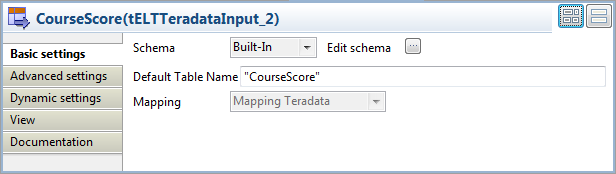
-
In the Default Table Name field, enter an
input table name. In this example, it is CourseScore. -
Click the […] button next to Edit schema to define the schema of the input table
CourseScore in the schema editor.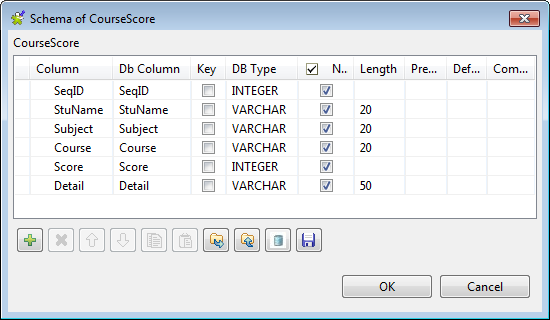 Click the [+] button to add six columns,
SeqID and Score with the DB Type set to INTEGER, StuName, Subject, Course
and Detail with the DB Type set to VARCHAR.Click OK to validate these changes and close
the schema editor. -
Connect CourseScore to ELTSubqueryMap using the Link > CourseScore (Table)
link.
Document get from Talend https://help.talend.com
Thank you for watching.
Subscribe
Login
0 Comments