Configuring the Job for aggregating and filtering data in multiple SAP tables
-
Click the tELTSAPMap component and then the
Component tab to open its Basic
settings view.
-
Select Repository from the Property
Type drop-down list and click the […]
button near to Property Type and in the pop-up dialog box
select the SAP connection node that has been created in the
Repository tree view. When done, click
OK and all SAP connection configuration fields will
be automatically filled. -
In the FTP host, FTP port,
FTP user, FTP password and
FTP directory fields, enter the FTP connection
information. The tELTSAPMap component will read all data
files generated by the SAP system via this FTP connection. -
In the Data filename prefix field, specify the prefix of
the files generated by the SAP system. -
Click the […] button next to SAP Map
Editor to open its map editor.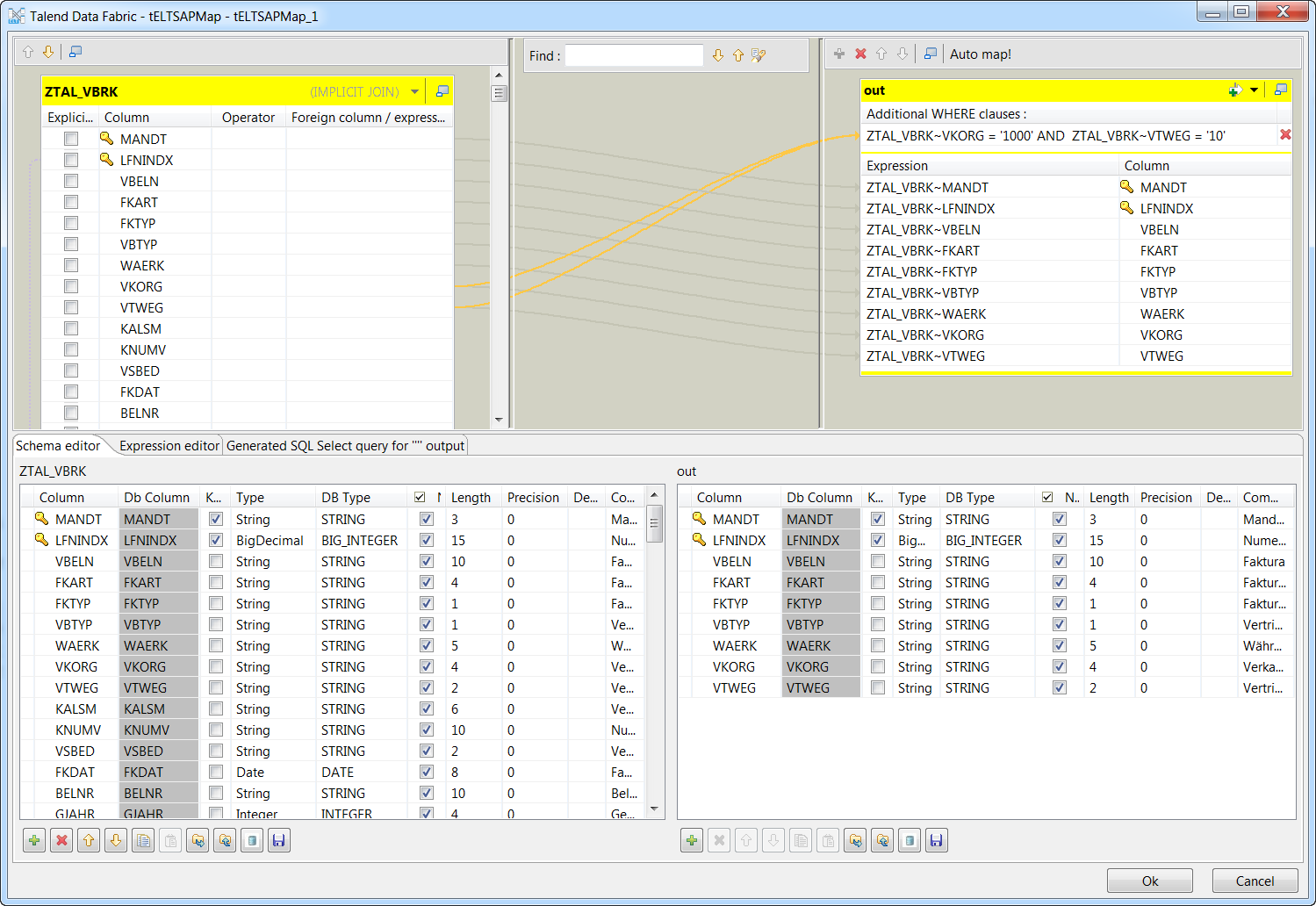
-
On the top left panel, drag and drop the node LFNINDX in
the ZTAL_VBRK table onto the node
LFNINDX in the ZTAL_VBRP table
to create an inner join between the two tables. -
Drag and drop the nodes MANDT,
LFNINDX, VBELN,
FKART, FKTYP,
VBTYP, WAERK,
VKORG, VTWEG in the
ZTAL_VBRK table on the top left panel onto the
out table on the top right panel, and only the data
of those columns will be retrieved and written into the output CSV file. -
Click the Add clause row button on the top right corner
of the out table and then click Add a WHERE
clause. In the Additional WHERE clauses
field displayed, enter the clause used to filter the rows of data to be
retrieved. In this example, it is ZTAL_VBRK~VKORG = '1000' AND
ZTAL_VBRK~VTWEG = '10', which will filter only the rows of data
with the value of VKORG set to
1000 and the value of VTWEG
set to 10. -
Click Generated SQL Select query for “” output at the
bottom and you will see the generated SQL SELECT query used to aggregate and
filter the data from the two tables.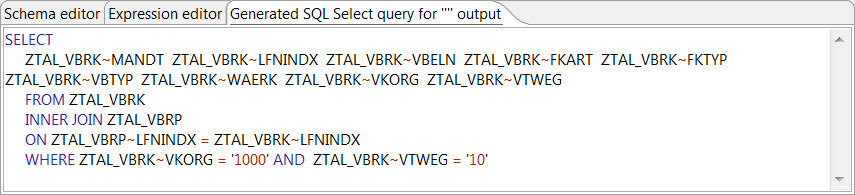
When done, click OK to close the map editor.
-
Double-click the tFileOutputDelimited component to open
its Basic settings view. In the File
Name field, specify the path to the file into which the
aggregated and filtered data will be written, D:/out.csv
in this example. Then click the Sync columns button to
retrieve the schema from its previous component.
Document get from Talend https://help.talend.com
Thank you for watching.
Subscribe
Login
0 Comments