Configuring the Job for catching the message triggered by the tDie component
Configure the components used in the Job that catches the message
triggered by the tDie component and then displays
the message on the console.
triggered by the tDie component and then displays
the message on the console.
-
Double-click the tRowGenerator
component to open its row generator editor.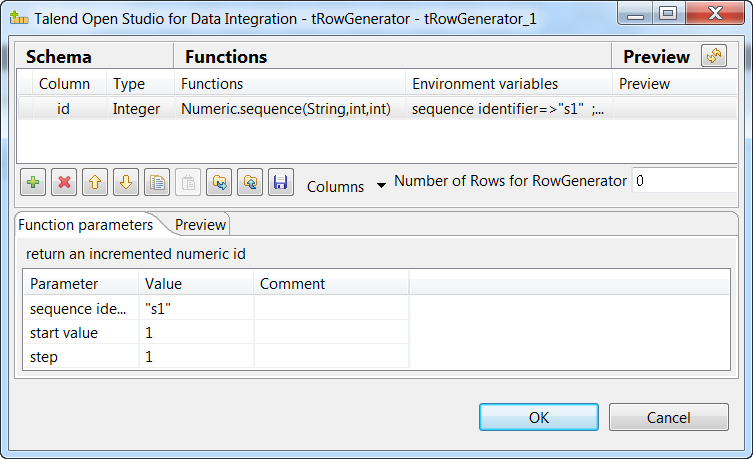
- Define the schema by adding one column id of Integer type, and select the predefined function Numeric.sequence(String,int,int) in the Functions column.
- Enter the number of rows to be generated in the Number of Rows for RowGenerator field, 0 in this example. When done, click OK to close the dialog box.
-
Double-click the tFileOutputDelimited
component to open its Basic settings view, and in
the File Name field, specify the path to the file
that will hold the data to be generated. -
Click the If connection, and in the
Condition field on the Basic settings view, specify the condition based on which the
tDie component will be triggered. In this
example, it is ((Integer)globalMap.get(“tRowGenerator_1_NB_LINE”)) <=0, which
means the tDie component will be triggered when the
number of rows to be generated is less than or equal to zero. -
Double-click the tDie component to
open its Basic settings view, and in the Die message field, enter the message to be triggered
before the Job is killed. In this example, it is no row
generated.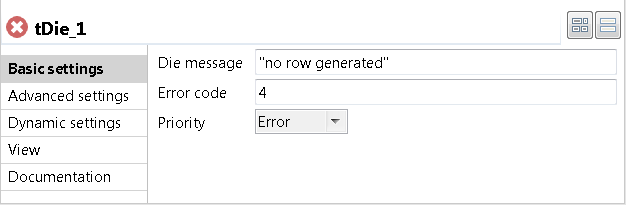
-
Double-click the tJava component to
open its Basic settings view, and in the Code field, enter1System.out.println("The number of rows generated is " + ((Integer)globalMap.get("tRowGenerator_1_NB_LINE")) + ". #This message will not be displayed if no row is generated.");Note that this message will be displayed only when the number of rows generated is
greater than zero. In this example, the number of rows to be generated is 0, so the Job will be killed and this message will not
be displayed. -
Double-click the tLogCatcher component
to open its Basic settings view and select the
Catch tDie check box to catch the message
triggered by the tDie component.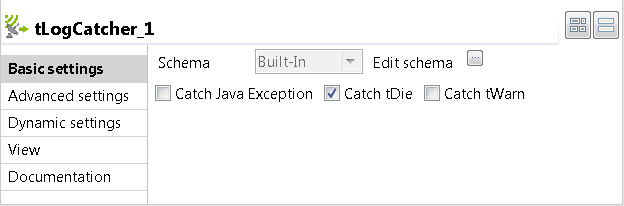
-
Double-click the tLogRow component to
open its Basic settings view, and then select
Table (print values in cells of a table) in the
Mode area for better readability of the
result.
Document get from Talend https://help.talend.com
Thank you for watching.
Subscribe
Login
0 Comments