Configuring the process of extracting the XML fields of interest
To do this, proceed as follows
-
Double click tExtractXMLField to open
its Component view.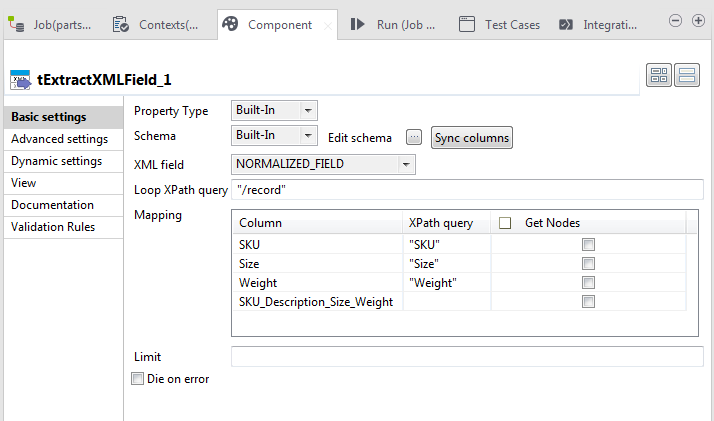
-
Next to Edit schema, click the
three-dot button to open the schema editor.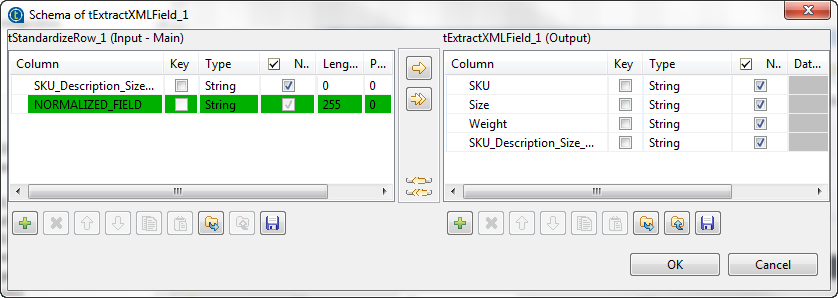
-
On the left side of this editor, select the
SKU_Description_Size_Weight row. -
Click the

button to add this row to the right side of the
editor. -
On the right side of this editor, click the plus button on the bottom
toolbar three times to add three rows. -
Rename the three rows as SKU,
Size, Weight, all of which
are tags of the normalized XML data. -
Click OK to validate this editing and
accept the schema propagation prompted by the pop-up dialog box. Four
rows are automatically filled in the Mapping table on the Component view. -
In the XML field field of the
Component view, select the desired
XML field of the incoming data. In this example, it is
Normalized_field. -
In the Loop XPath Query field, type
in the name of the XML Tree root tag to replace the default value. In
this example, type in"/record". -
In the XPath query column of the
Mapping table, type in the XML Tree
tags corresponding to desired normalized data between quotation marks.
In this example, they are"SKU","Size",
"Weight".
Document get from Talend https://help.talend.com
Thank you for watching.
Subscribe
Login
0 Comments