Configuring the process of standardizing the unstructured data
To do this, proceed as follows:
-
Connect the tFixedFlowInput component to
the tStandardizeRow component with a
Row > Main link. -
Double-click the tStandardizeRow
component to display its Basic settings
view.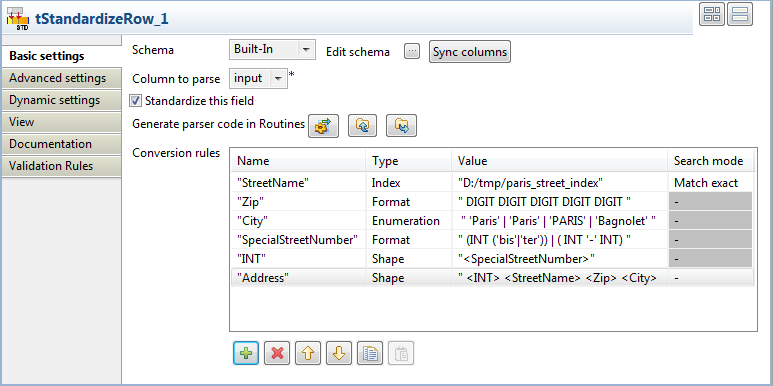 The advanced rule types are always executed after the ANTLR specific rules
regardless of rule order. -
In the Column to parse list, select
input. -
Select the Standardize this field check
box. -
In the Conversion rules
table, click six times on the [+] button
to add six columns. Name them and configure them as shown in the capture. For
“StreetName” rule:- Select the Index type in the Type field.
-
Enter the path to your index in the Value field.
Before the path, enter the protocol: file:// or
hdfs:// if the index is on a cluster. -
Select Match exact as the search mode from the
Search mode list.By using the Match exact mode, you will extract
from the input flow only the strings that exactly match the street name
indexes. For further information about available search modes, see Search modes for Index rules
Then the other rules are:Name
Type
Value
“Zip”
Format
" DIGIT DIGIT DIGIT

										DIGIT DIGIT "
“City” Enumeration " 'Paris' | 'Paris'
| 'PARIS' | 'Bagnolet' "“SpecialStreetNumber” Format " (INT
('bis'|'ter')) | ( INT '-' INT) "“INT” Shape "<SpecialStreetNumber>"“Address” Shape " <INT>
<StreetName> <Zip> <City> "As advanced rule types are always executed after the ANTLR specific
rules, the basic rules “Zip”,
“City” and “SpecialStreetNumber”
are executed first followed by “INT” and
“Address”, the advanced rules. -
Click the Generate parser code in
Routines button in order to generate the code in the
Routines.If you do not click on this button, the Job will not be executed. -
In the Advanced settings view, leave the
options selected by default in the Output
format area as they are.The Max edits for fuzzy
match is set to 1 by default. -
In the design workspace, right-click the tStandardizeRow component to connect it to the tLogRow below with a Row > Reject
link. -
Double-click the tLogRow component linked
to the tStandardizeRow component to display
its Basic settings view.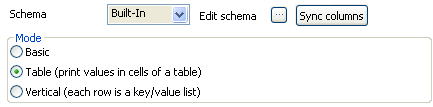
-
In the Mode area, select the Table (print values in cells of a table)
option.
Then continue to configure the process of filtering and extracting the data of
interest.