Configuring the tPaloCube component
- Drop tPaloCube from the Palette onto the design workspace.
-
Double-click tPaloCube to open its
Component view.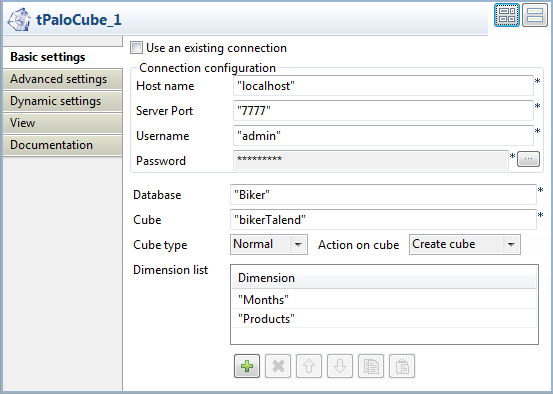
-
In the Host name field, type in the host
name or the IP address of the host server, localhost
for this example. -
In the Server Port field, type in the
listening port number of the Palo server. In this scenario, it is
7777. -
In the Username field and the Password field, type in the authentication
information. In this example, both of them are
admin. -
In the Database field, type in the
database name in which you want to create the cube,
Biker in this example. -
In the Cube field, type in the name you
want to use for the cube to be created, for example, bikerTalend
. -
In the Cube type field, select the
Normal type from the drop-down list for
the cube to be created, meaning this cube will be normal and default. -
In the Action on cube field, select the
action to be performed. In this scenario, select Create cube. -
Under the Dimension list table, click the
plus button twice to add two rows into the table. -
In the Dimension list table, type in the
name for each newly added row to replace the default row name. In this
scenario, type in Months for the first row and
Products for the second. These two dimensions exist
already in the Biker database where the new cube will be created.
Document get from Talend https://help.talend.com
Thank you for watching.
Subscribe
Login
0 Comments