Configuring the tRESTRequest component
-
Drop the following components from the Palette onto the design workspace: a tRESTRequest, two tXMLMap and
two tRESTResponse. -
Double-click tRESTRequest in the design
workspace to display its Basic settings
view.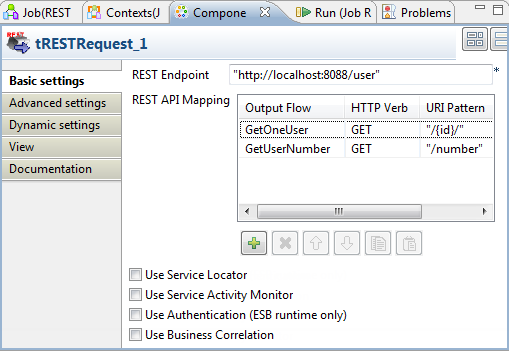
-
Fill the REST Endpoint field with the URI
location where the REST-ful web service will be accessible for requests. For
example, “http://192.168.0.235:8088/user”.Note:If you want your service to be available on both HTTP and HTTPS, fill the
field with a relative path. For example, if you type in “/test”, your service will be available on both
http://<DefaultHTTPEnpointAddress>/test and https://<DefaultHTTPSEnpointAddress>/test, provided that
you have configured your Runtime container to support HTTPS. For more
information, see the Talend ESB Container
Administration Guide. -
Click the [+] button to add one line in the
REST API Mapping table. -
Select the newly-added line and click the […] button in the Output Flow
column to add a schema for the output flow.In this scenario, the output flow will be named as
GetOneUser.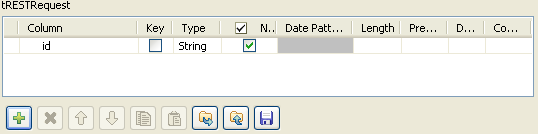 Then click the [+] button to add a new line
id to the schema in the dialog box. - Click OK to save the schema.
- Select GET from the list in the HTTP Verb column.
-
Fill the field in the URI Pattern column with
"/{id}/". -
In the same way, add another line in the REST API
Mapping table and name this schema GetUserNumber. Add a line string of String type to the
schema. Enter query in the Comment field to get the number parameter in the
request.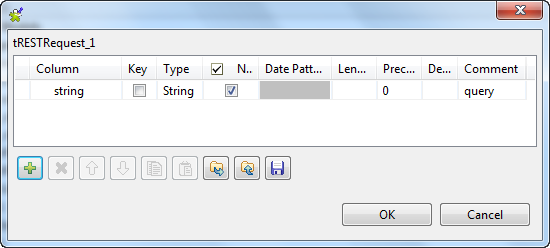 Select GET from the list in the HTTP Verb column. Fill the field in the URI Pattern column with
"/number".
Document get from Talend https://help.talend.com
Thank you for watching.
Subscribe
Login
0 Comments