Configuring the tPaloDimension component
-
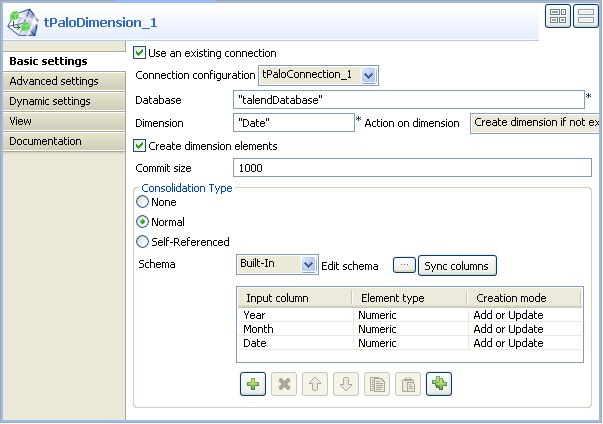
On the workspace, double-click tPaloDimension to open its Component view.
-
Select the Use an existing connection
check box. Then tPaloConnection_1 displays
automatically in the Connection
configuration field. -
In the Database field, type in the
database in which the new dimension is created,
talendDatabase for this scenario. -
In the Dimension field, type in the name
you want to use for the dimension to be created, for example,
Date. -
In the Action on dimension field, select
the action to be performed. In this scenario, select Create dimension if not exist. -
Select the Create dimension elements
check box. -
In the Consolidation Type area, select
the Normal check box. -
Under the element hierarchy table in the Consolidation Type area, click the plus button to add three
rows into the table. -
In the Input column column of the element
hierarchy table, select Year from the drop-down list
for the first row, Month for the second and
Date for the third. This determinates levels of
elements from different columns of the input schema.
Document get from Talend https://help.talend.com
Thank you for watching.
Subscribe
Login
0 Comments