Configuring tMicrosoftCrmOutput
-
Double-click tMicrosoftCrmOutput to display
the component Basic settings view and define
its properties.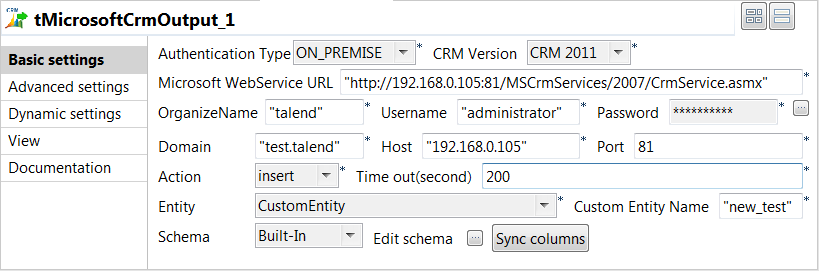
-
Enter the Microsoft Web Service URL as well as the user name and password in
the corresponding fields. -
In the OrganizeName field, enter the name
that is given the right to access the Microsoft CRM database. -
In the Domain field, enter the domain name of
the server on which Microsoft CRM is hosted, and then enter the host IP address
and the listening port number in the corresponding fields. -
In the Action list, select the operation you
want to carry on. In this example, we want to insert data in a custom entity in
Microsoft Crm. -
In the Time out field, set the amount of time
(in seconds) after which the Job will time out. -
In the Entity list, select one among those
offered. In this example, CustomEntity is selected.Note:If CustomEntity is selected, a Custom Entity Name field displays where you need to enter a
name for the custom entity.The Schema is then automatically set
according to the entity selected. If needed, click Edit
schema to display a dialog box where you can modify this schema
and remove the columns that you do not need in the output. -
Click Sync columns to retrieve the schema
from the preceding component.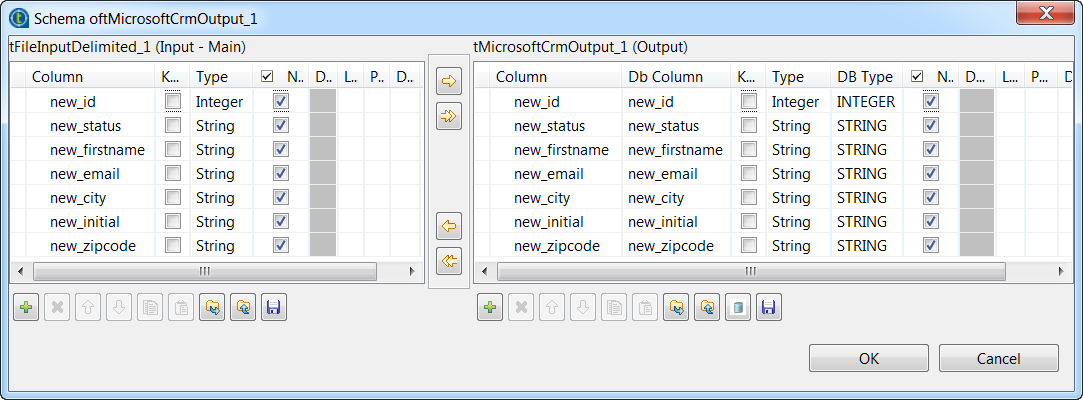
Document get from Talend https://help.talend.com
Thank you for watching.
Subscribe
Login
0 Comments