Configuring tSqoopMerge
-
Double-click tSqoopMerge to open its
Component view.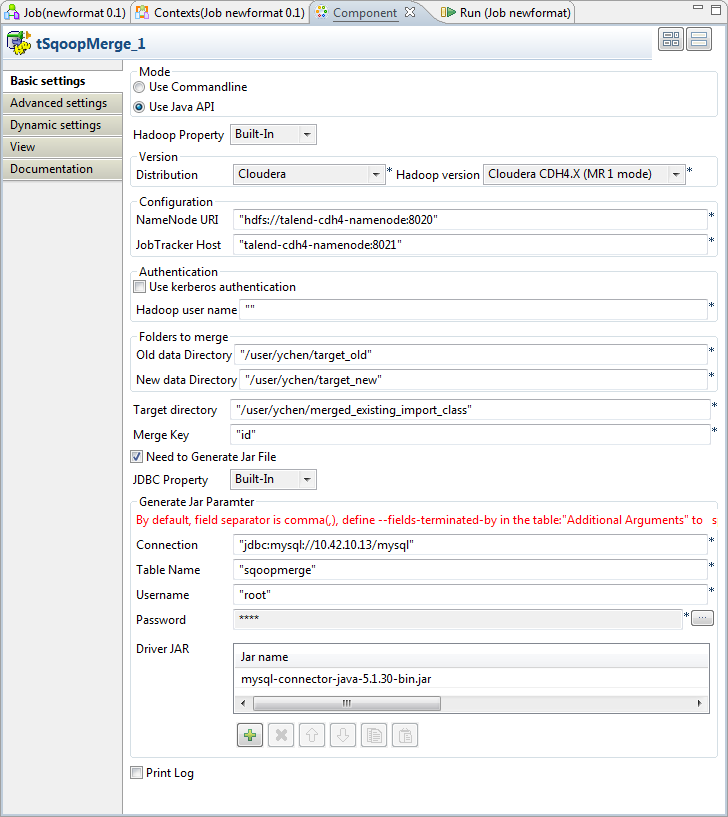
- In the Mode area, select Use Java API.
-
In the Version area, select the Hadoop
distribution to be used and its version. If you cannot find from the list
the distribution corresponding to yours, select Custom so as to connect to a Hadoop distribution not
officially supported in the Studio.For a step-by-step example about how to use this Custom option, see Connecting to a custom Hadoop distribution. -
In the NameNode URI
field, enter the location of the master node, the NameNode, of the distribution
to be used. For example, hdfs://talend-cdh4-namenode:8020. If you are using WebHDFS, the location should be
webhdfs://masternode:portnumber; if this WebHDFS is secured
with SSL, the scheme should be swebhdfs and you need to use
a tLibraryLoad in the Job to load the library required by
the secured WebHDFS. -
In the Resource Manager
field, enter the location of the ResourceManager of your distribution. -
If the distribution to be used requires Kerberos authentication, select
the Use Kerberos authentication check box
and complete the authentication details. Otherwise, leave this check box
clear.If you need to use a Kerberos keytab file to log in, select Use a keytab to authenticate. A keytab file contains
pairs of Kerberos principals and encrypted keys. You need to enter the principal to
be used in the Principal field and the access
path to the keytab file itself in the Keytab
field. This keytab file must be stored in the machine in which your Job actually
runs, for example, on a Talend
Jobserver.Note that the user that executes a keytab-enabled Job is not necessarily
the one a principal designates but must have the right to read the keytab file being
used. For example, the user name you are using to execute a Job is user1 and the principal to be used is guest; in this
situation, ensure that user1 has the right to read the keytab
file to be used. -
In the Old data directory and the
New data directory fields, enter the
path, or browse to the directory in HDFS where the older and the newer
datasets are stored, respectively. -
In the Target directory field, enter the
path, or browse to the folder you need to store the merge result in. -
In the Merge key field, enter the column
to be used as the key for the merge. In this scenario, the column is
id. -
Select Need to generate the JAR file to
display the connection parameters to the source database table. -
In the Connection field, enter the URI of
the MySQL database where the source table is stored. For example, jdbc:mysql://10.42.10.13/mysql. -
In the Table Name field, enter the name
of the source table. In this scenario, it is sqoopmerge. - In Username and Password, enter the authentication information.
-
Under the Driver JAR table, click the
[+] button to add one row, then in this
row, click the […] button to display the
drop-down list and select the jar file to be used from that list. In this
scenario, it is mysql-connector-java-5.1.30-bin.jar.If the […] button does not appear,
click anywhere in this row to make it displayed. -
If the field delimiter of the source table is not comma (,), you still need
to specify the delimiter in the Additional
Arguments table in the Advanced
settings tab. The argument to be used is codegen.output.delimiters.field for the
Use Java API mode or –fields-terminated-by for the Use Commandline mode.