Configuring tXMLMap for transformation
-
Double-click the tXMLMap component to open its Map Editor.
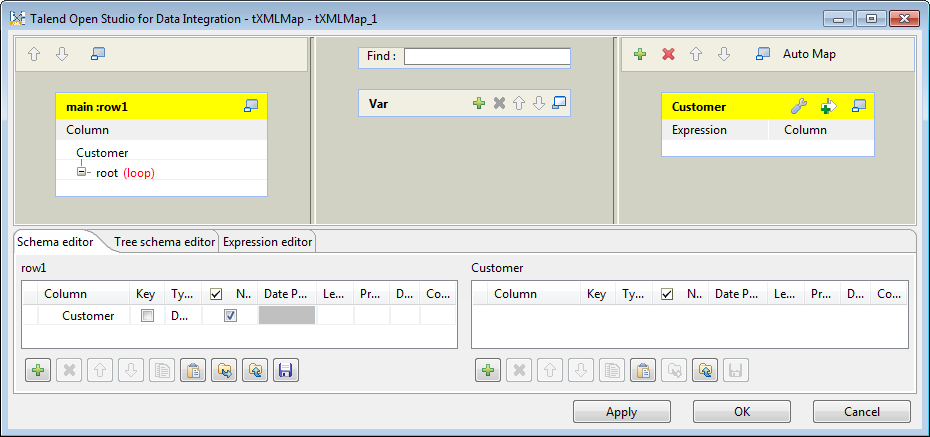 Note that the input area is already filled with the default basic XML
structure and the top table is the main input table. -
In the row1 input table, right-click the Customer node and from the contextual menu select
Import From File. In the pop-up dialog box,
browse to the XML source file to import therefrom the XML tree structure used by
the data to be received by tXMLMap. In this
scenario, the XML source file is Customer.xml, which is the
input data to the tFileInputXML component
labelled Customers.Note:You can also import an XML tree from an XSD file. When importing either an
input or an output XML tree structure from an XSD file, you can choose an
element as the root of your XML tree. For more information on importing an
XML tree structure from an XSD file, see
Talend Studio
User Guide. -
In the imported XML tree, right-click the Customer node
and from the contextual menu select As loop
element to set it as the loop element.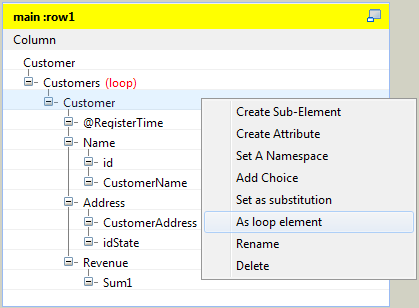
-
On the lower part of this map editor, click the Schema
editor tab to display the corresponding view. Then on the right
side of this view, add one column Customer_States of
Document type to the
Customer schema table. The corresponding XML root is
added automatically to the Customer output
table on the top right side which represents the output flow.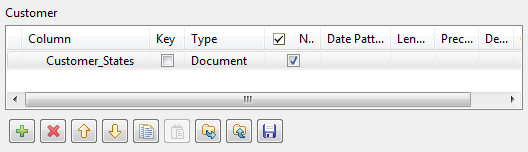
-
In the Customer output table, right-click the Customer_States node and from the contextual menu select
Import From File. In the pop-up dialog box,
browse to the XML file from which the XML tree structure is imported. In this
scenario, it is Customer_State.xml.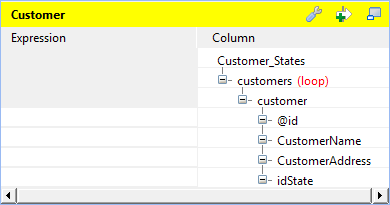
-
Right-click the customer node and from the contextual
menu select As loop element to set it as the
loop element. -
In the row1 input table, click the
id node and drop it to the Expression column in the row of the @id node in the Customer
output table. Do the same to map CustomerName to
CustomerName, CustomerAddress to
CustomerAddress, and idState to
idState from the input table to the output
table.Note:In some circumstances, you may have to keep empty elements in your output XML tree. If
so, you can use tXMLMap to manage them. For
further information about how to manage empty elements using tXMLMap, see
Talend Studio
User Guide. -
On the top of the Customer output table,
click the wrench icon and set the value of the All in
one property to true to generate
a single XML flow. For further information about the All
in one feature, see
Talend Studio User
Guide.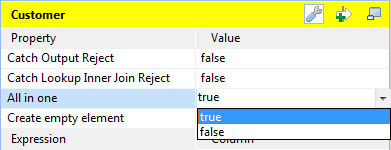
-
Click OK to validate the changes and close
the Map Editor.Note:If you close the Map Editor without having set the
required loop elements as described earlier in this scenario, the root
element will be automatically set as the loop element.