Creating an MDM connection to retrieve entities
Establishing the connection
Make sure the MDM server with which you need to communicate the update message is
up and running.
- In the Integration perspective of Talend Studio , expand the Metadata node in the Repository.
-
Right-click the Talend
MDM item and select Create MDM
connection.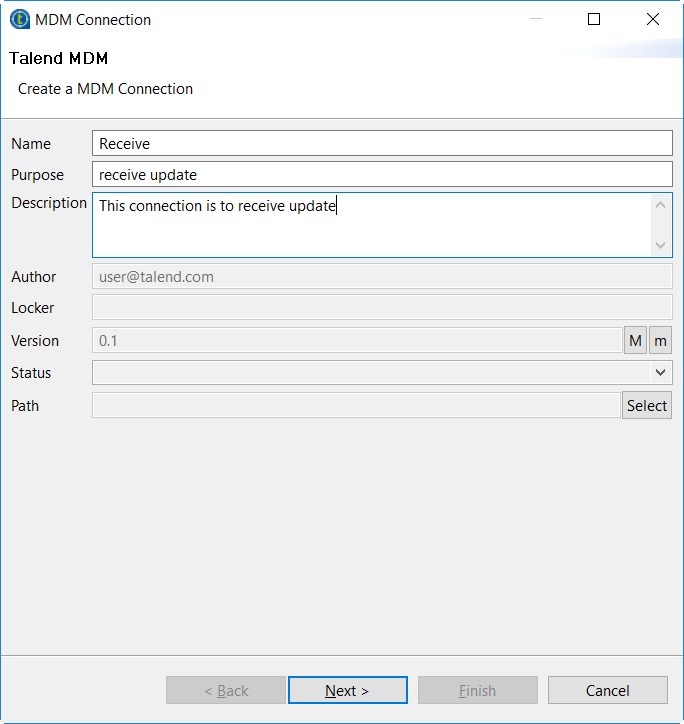
-
Enter the Name you
want to use for this connection and if required, added the Purpose and the Description in the corresponding fields.For example, name this connection
Receive. -
In the Next step,
enter the credentials for connecting to the MDM server which holds the
record to be updated.Once you click the Check button
and the connection is shown successful, the Next button becomes clickable.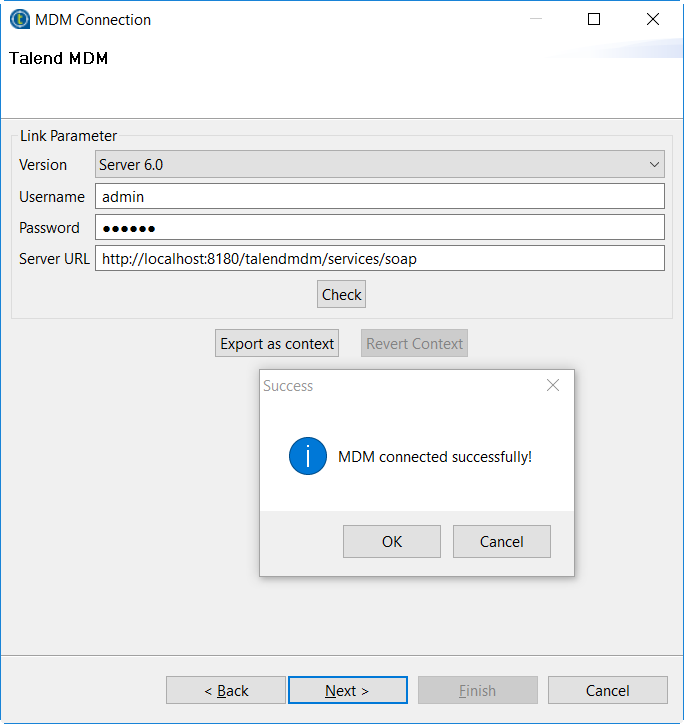
-
In the Next step,
select the Data model and the
Data Container used by the record
to be updated.In this scenario, the model and the container are both
Product. -
Click Finish to
validate the creation.The connection created is displayed under the Metadata node in the Repository.
Retrieving entities
-
Right-click the connection created and from the contextual
menu, select Retrieve Entity. -
Select Receive MDM
in the dialog box and click Next to
continue.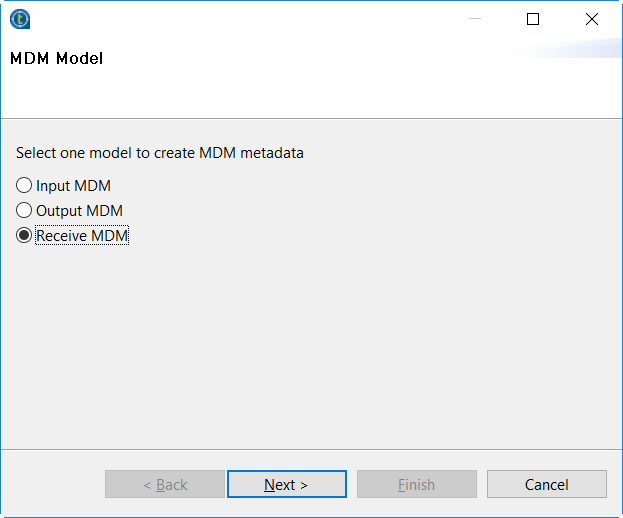
-
Select the entity to be retrieved, and click
Next.In this scenario, select Product, and the
Name field is populated automatically.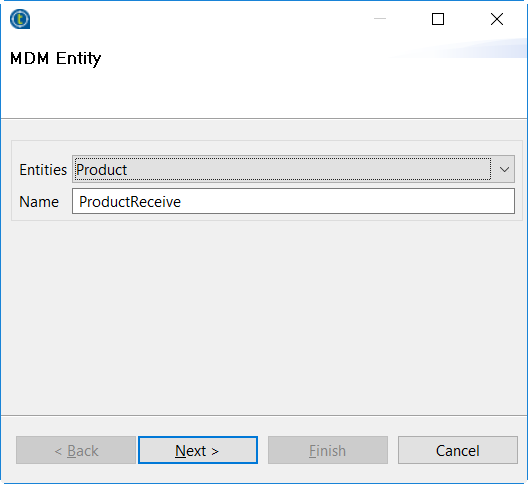
-
Drop the elements you need to retrieve from the Source Schema area to the Target Schema area.
In this scenario, the Features element is the
field to be looped and the Id,
Name and Description
elements are the fields to be extracted.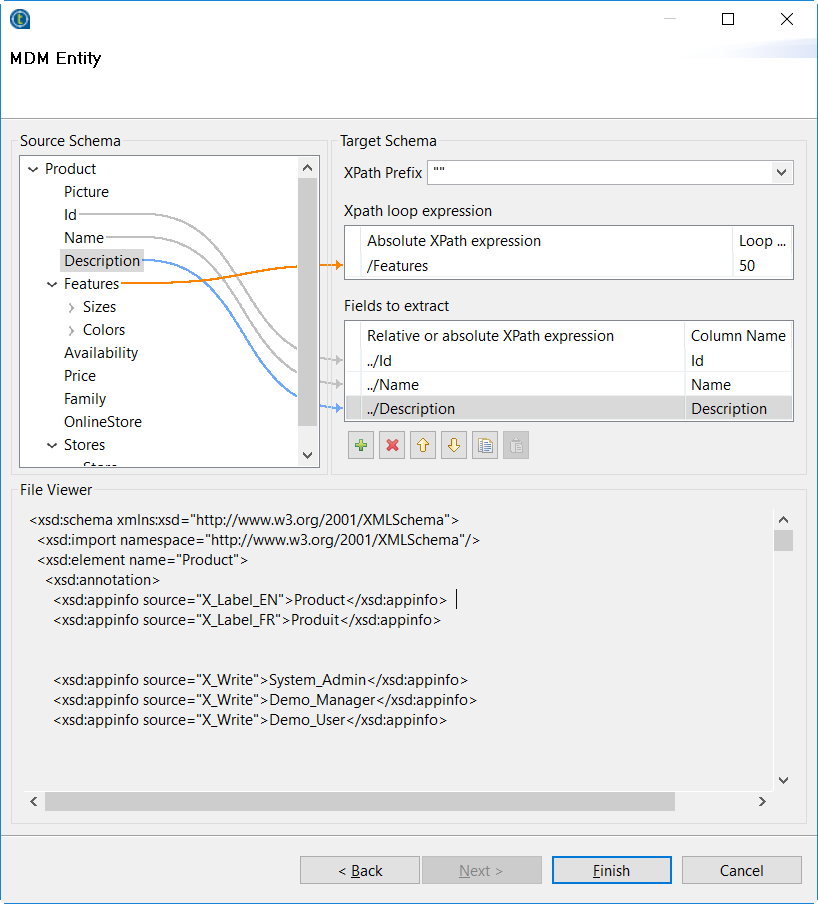
-
Keep the default schema description and click Finish to finalize retrieving the schema of
the Product entity.You can see more information about the data
container and the data model used by Talend MDM on Talend Help Center (https://help.talend.com).
Document get from Talend https://help.talend.com
Thank you for watching.
Subscribe
Login
0 Comments