Creating an SAP connection and importing the IDoc structures
-
In the Integration perspective, in the Repository view, expand Metadata, right-click SAP
Connections and then, in the contextual menu, click Create SAP connection. The [SAP
Connection] wizard opens. -
Enter a name for your connection in the Name
field, for instance SAPServerConnection, and then
click Next. -
In the next screen of the wizard, enter the appropriate connection parameters to
connect to your SAP server, and then click Finish
to create the connection.If you do not have this information, contact the administrator of your SAP server
for help.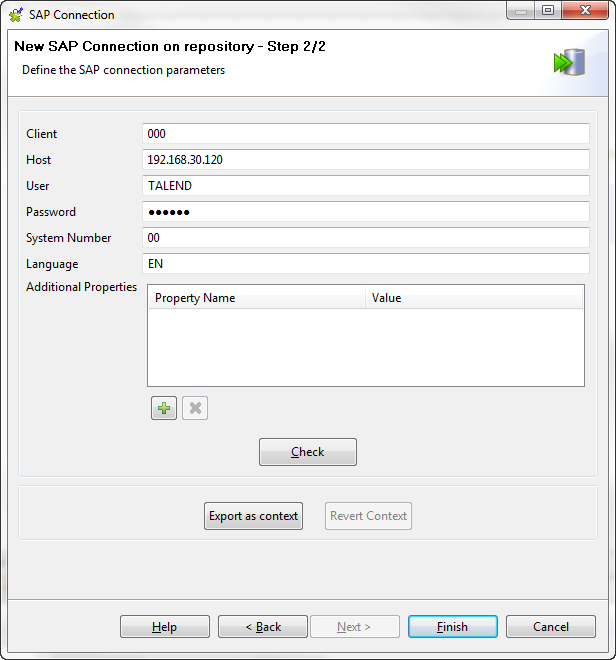
-
In the Repository view, under Metadata, expand SAP
Connections, right-click the connection you just created and then, in
the contextual menu, select Import Data Mapper IDoc
Structures. -
In the [Search SAP for IDoc types] wizard that
opens, enter some search criteria to reduce the number of results returned or leave
all fields blank to return all available IDocs, and then click Search.
- Select the structure or structures you want to import, and then click Next.
-
Enter IDocs in the Structure name field to import the structure into a folder called
IDocs, and then click Next and then Finish to complete
the import process.
Document get from Talend https://help.talend.com
Thank you for watching.
Subscribe
Login
0 Comments