Defining parsing rules to standardize data
-
Double-click tStandardizeRow to display
the component Basic settings view.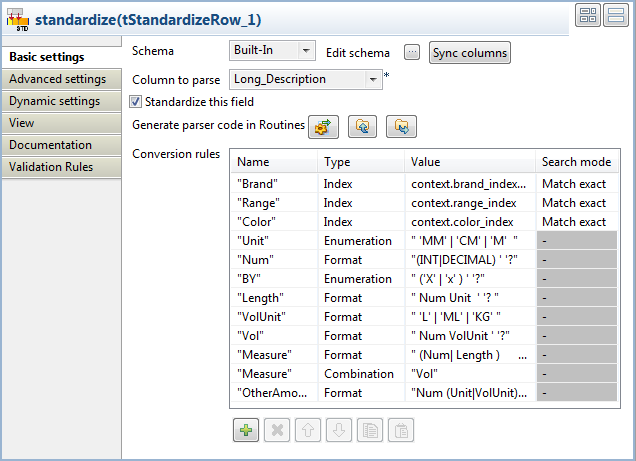 This component helps you to define the rules necessary to standardize the
unstructured input flow and generates the brand, range, color and unit in
XML format. -
From the Column to parse
list, select Long_Description. -
Select the Standardize this field check
box. -
Define your rules as the following:
-
In the Conversion rules table, click on the
[+] button to add the columns necessary to define
the rules.This scenario focuses on the rules of the type
Index. For detail examples about the other
rule types defined in the capture above, please refer to the other
tStandardizeRow scenarios. -
Define three rules as Brand,
Range and Color. -
From the Type list, select
Index and fill in the
Value field with the context variable of the
indexes you generated.For further informastion about how to create and use context
variables, see
Talend Studio User Guide. -
From the Search mode list, select
Match exact. Search modes are only applicable to
the Index rules.Using the Match exact mode, you will extract
from the input flow only the strings that exactly match the brand,
range and color index strings you generated with the
tSynonymOutput component. For further
information about available search modes, see Search modes for Index rules
-
In the Conversion rules table, click on the
-
Click the Generate parser code in
Routines button in order to generate the code under the
Routines folder in the DQ Repository tree view of the
Profiling
perspective.This step is mandatory, otherwise the Job will not be executed. -
In the Advanced settings view, leave the
options selected by default in the Output
format area as they are.The Max edits for fuzzy
match is set to 1 by default. -
Double-click tLogRow and define the
component settings in the Basic settings
view. -
In the Mode area, select the Table (print values in cells of a table)
option.This component displays the tokens from the input flow that could not be
analysed and matched to any of the index strings.
Document get from Talend https://help.talend.com
Thank you for watching.
Subscribe
Login
0 Comments