Defining the match rule
-
In the tMatchGroup basic settings, click
Preview to open the configuration wizard
and define the matching key and the survivorship function.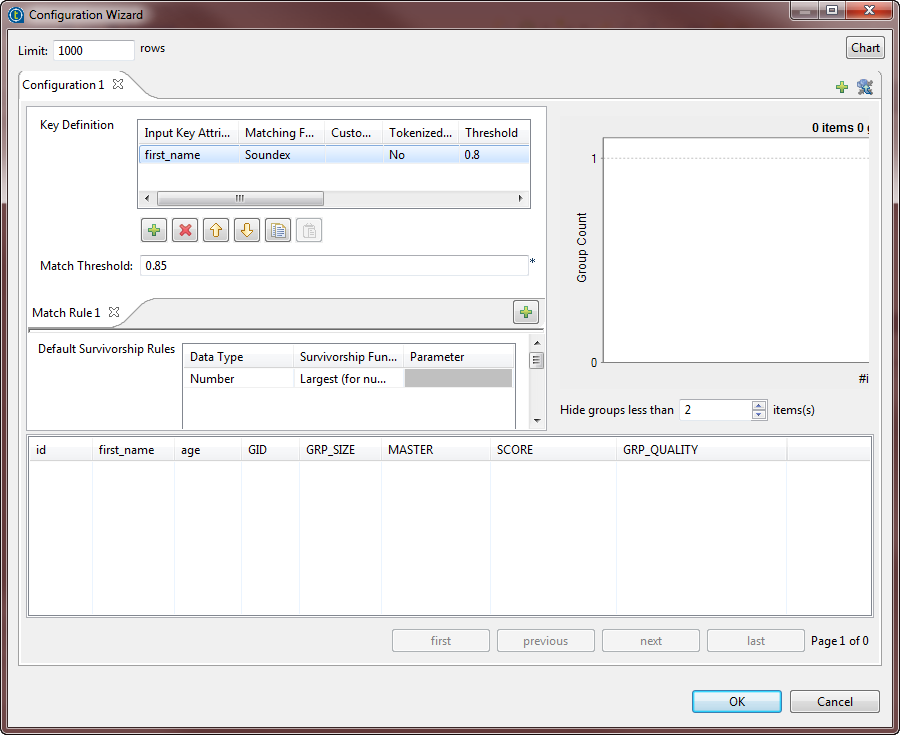 You can use the configuration wizard to import match rules created and tested
in the studio and stored in the repository, and use them in your match Jobs. For
further information, see Importing match rules from the studio repository.It is important to have the same type of the matching algorithm selected in
the basic settings of the component and defined in the configuration wizard.
Otherwise the Job runs with default values for the parameters which are not
compatible between the two algorithms. -
Define the match rule as the following:
-
In the Key definition table, click
the [+] button to add a line in the
table. Click in the Input Key Attribute
column and select the column on which you want to do the matching
operation, first_name in this scenario. -
Click in the Matching Function column
and select Soundex from the list. This
method matches processed entries according to a standard English
phonetic algorithm which indexes strings by sound, as pronounced in
English. -
From the Tokenized measure list,
select not to use a tokenized distance for the selected
algorithm. -
Set the Threshold to 0.8 and the Confidence Weight to 1.
-
Select Null Match None in the
Handle Null column in order to have
matching results where null values have minimal effect. -
Select Most common in the Matching Function column. This method
validates the most frequent name value in each group of
duplicates.
-
-
Define the survivorship rule as the following:
-
In the Default Survivorship Rules
table, click the [+] button to add a
line in the table. Click in the Data
Type column and select Number. -
Click in the Survivorship Function
column and select Largest (for numbers)
from the list. This method validates the largest numerical value in each
group.
-
-
Set the Hide groups of less than parameter in
order to decide what groups to show in the result chart and matching table. This
parameter enables you to hide groups of small group size. -
Click the Chart button in the wizard to
execute the Job in the defined configuration and have the results directly in
the wizard.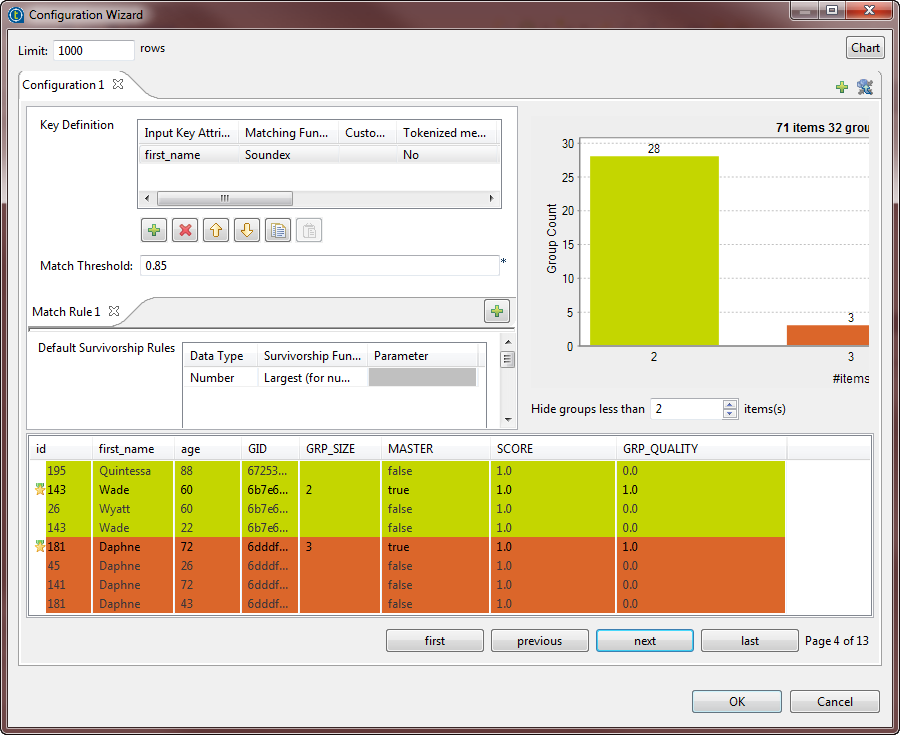 The matching chart gives a global picture about the duplicates in the analyzed
data. The matching table indicates the details of the items in each group,
colors the groups in accordance with their color in the matching chart and
indicates with true the records which are
master records. The master record in each group is the result of merging two
similar records according to the phonetic algorithm and survivorship rule. The
master record is a new record that does not exist in the input data. - Click OK to close the wizard.