Loading the source data into a newly created EXASolution database table
-
Double-click the tEXABulkExec component to
open its Basic settings view.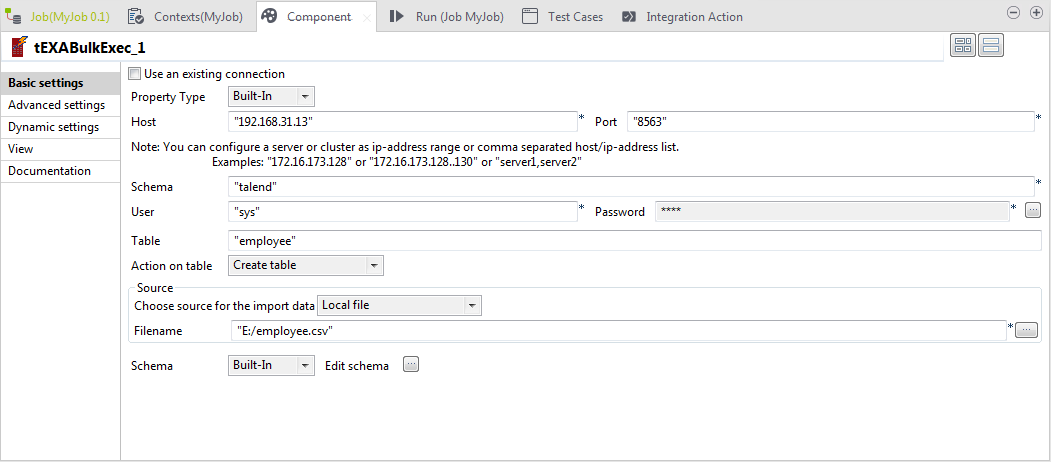
-
Fill in the Host, Port, Schema, User and Password
fields with your EXASolution database connection details. -
In the Table field, enter the name of the
table into which the source data will be written. In this example, the target
database table is named “employee” and it
does not exist. -
Select Create table from the Action on table list to create the specified
table. -
In the Source area, select Local file as the source for the input data, and then
specify the file that contains the source data. In this example, it is “E:/employee.csv”. -
Click the […] button next to Edit schema to open the [Schema] dialog box and define the schema, which should be the
same as that of the tFixedFlowInput
component.Then click OK to validate these changes and
close the dialog box. -
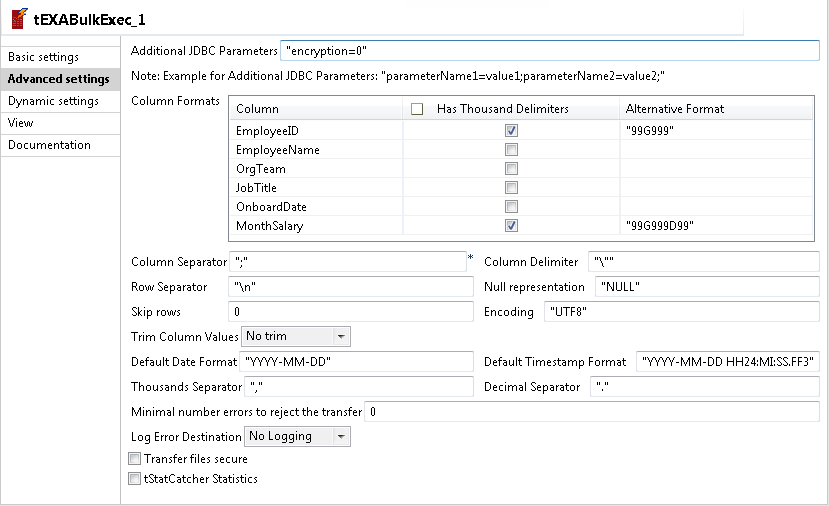
Click Advanced settings to open the Advanced settings view of the tEXABulkExec component.
-
In the Column Formats table, for the two
numeric fields EmployeeID and MonthSalary, select the corresponding check boxes
in the Has Thousand Delimiters column, and then
define their format model strings in the corresponding fields of the Alternative Format column. In this example, “99G999” for EmployeeID and “99G999D99”
for MonthSalary. -
Make sure that the Thousands Separator and
Decimal Separator fields have values
identical to those of the tFileOutputDelimited
component and keep the default settings for the other options.
Document get from Talend https://help.talend.com
Thank you for watching.
Subscribe
Login
0 Comments