Mapping the output data flow
-
Right-click the second tXMLMap, select Row > *New Output*
(Main) from the contextual menu and click the first tLogRow. In the pop-up dialog box, enter
DATA and then click OK. The second tXMLMap will be connected to the first tLogRow using a connection named DATA (Main order:1). -
Do the same to connect the second tXMLMap to the second
tLogRow using a connection named
FIELDS (Main order:2), and to the
third tLogRow using a connection named
OPTIONS (Main order:3). -
Double-click the second tXMLMap to open its map editor.
In the main:row2 table on the left side,
right-click the node doc and select
Import From Repository from the
contextual menu. In the pop-up [Metadata]
dialog box, select Output_Schema in the
folder RFC_READ_TABLE and click OK to close the dialog box. The schema is added
to the XML tree.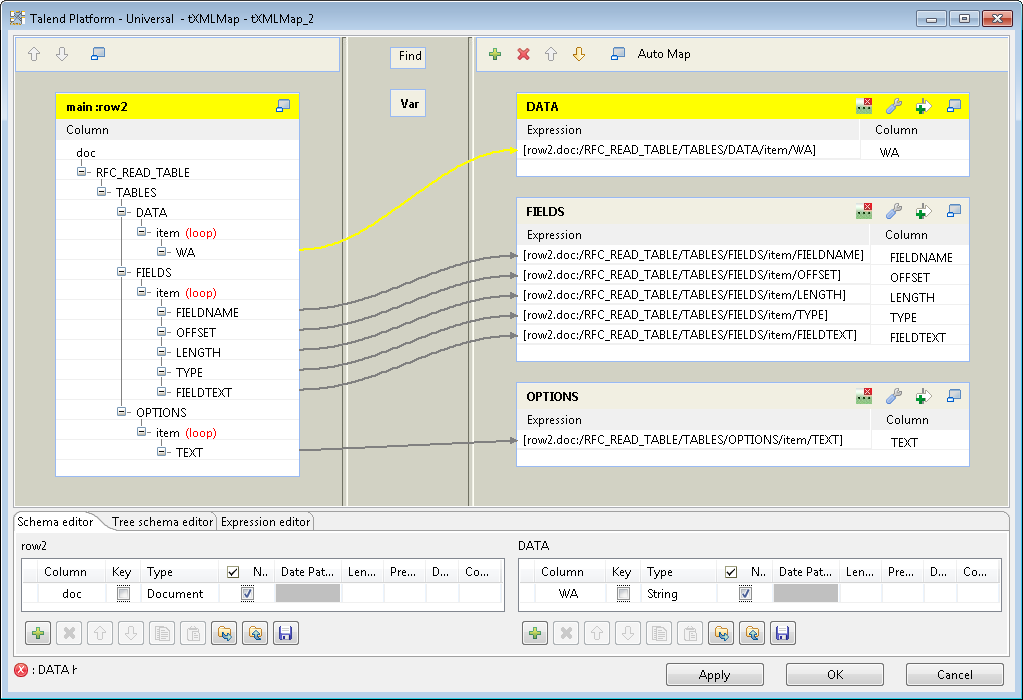
- Drag and drop the node WA under the DATA element in the input table main:row2 on the left side into the DATA table on the right side.
-
Do the same to drag and drop the nodes FIELDNAME,
OFFSET, LENGTH, TYPE, and
FIELDTEXT under the FIELDS element in the input table main:row2 on the left side into the FIELDS table on the right side, and drag and
drop the node TEXT under the OPTIONS element in the input table main:row2 on the left side into the OPTIONS table on the right side. -
Right-click the item node under the DATA node and select As
loop element from the contextual menu to set it as the loop
element. -
Do the same to set the item nodes under
the FIELDS and OPTIONS nodes as the loop element. -
Click the set Loop Function button on the
upper-right corner in the DATA table to
configure the source loop.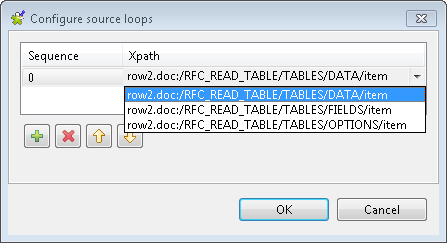 Click the [+] button to add a row, and then click in the
Xpath field and select the source loop
row2.doc:/RFC_READ_TABLE/TABLES/DATA/item from the drop-down
list. When done, click OK to close the
dialog box. -
Do the same to set the source loop for the FIELDS and
OPTIONS tables to row2.doc:/RFC_READ_TABLE/TABLES/FIELDS/item and
row2.doc:/RFC_READ_TABLE/TABLES/OPTIONS/item
respectively. - Click OK to close the map editor.
Document get from Talend https://help.talend.com
Thank you for watching.
Subscribe
Login
0 Comments