Obtaining an access token for Google Drive
To use Google Drive API, you need first to obtain the access token by completing the
following steps using Google Chrome:
-
Go to the Google API Console
and select an existing project or create a new one. In this example, we create a
new project TalendProject.
-
Go to the Library page and in the right
panel, click Drive API and then click ENABLE to enable the Google Drive API that allows
clients to access resources from Google Drive.
-
Go to the Credentials page, click OAuth consent screen in the right panel and set a
product name in the Product name shown to users
field. In this example, it is TalendProduct.
When done, click Save to save the
change.
-
Click Create credentials > OAuth client ID, and in the Create client ID page, create a new client ID TalendWebClient with Application type set to Web
application and Authorized redirect
URIs set to https://developers.google.com/oauthplayground. The created OAuth client ID and client secret will be used for obtaining the
access token.
-
Go to the Google
Developers OAuth 2.0 Playground, click OAuth
2.0 Configuration and select Use your own
OAuth credentials check box, enter the OAuth client ID and client
secret you have already created in the OAuth Client
ID and OAuth Client secret
fields respectively.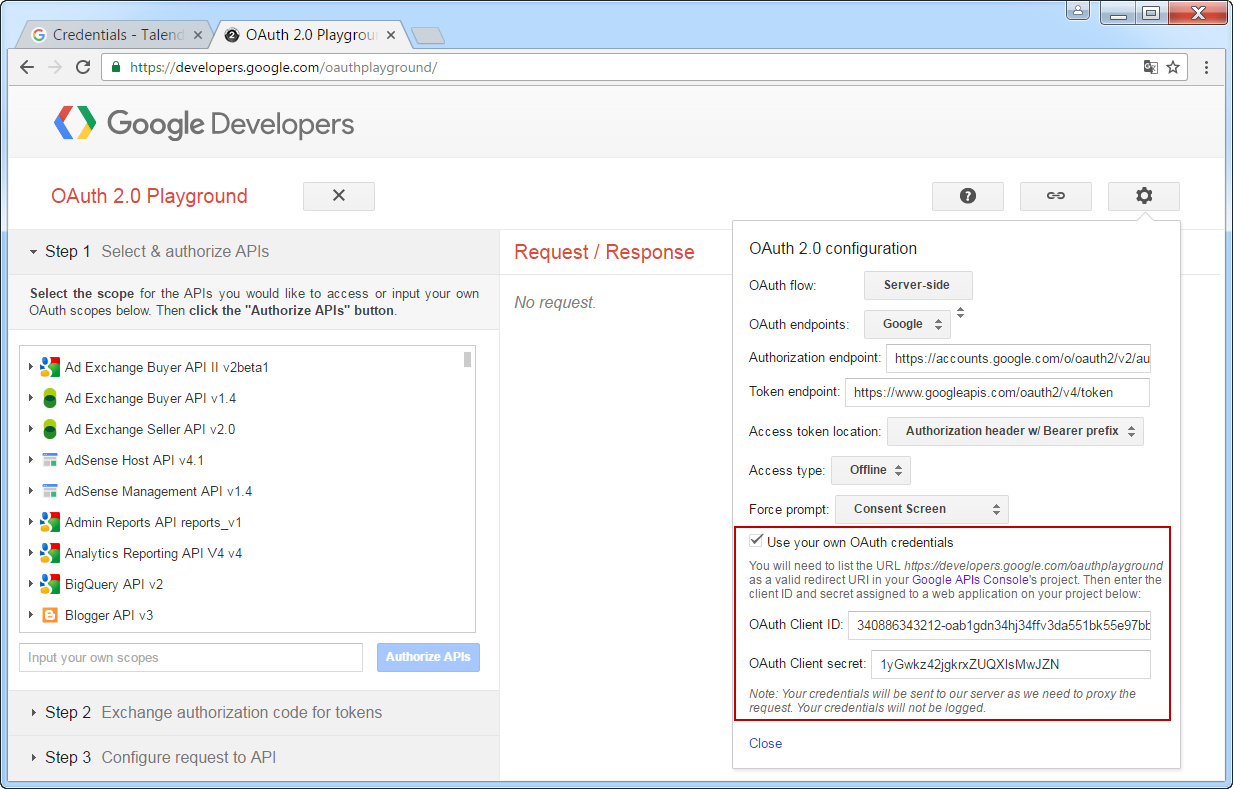
-
In OAuth 2.0 Playground Step 1, select the
scope https://www.googleapis.com/auth/drive
for the Google Drive API and click Authorize
APIs, then click Allow to
generate the authorization code.
-
In OAuth 2.0 Playground Step 2, click
Exchange authorization code for tokens to
generate the OAuth access token. The OAuth access token is displayed on the right panel as shown in below
figure. Note that the access token expires in every 3600 seconds. You can click
Refresh access token in OAuth 2.0 Playground Step 2 to refresh it.
Document get from Talend https://help.talend.com
Thank you for watching.
Subscribe
Login
0 Comments