Preparing a file and uploading the file to S3
-
Double-click tRowGenerator to open its
RowGenerator Editor.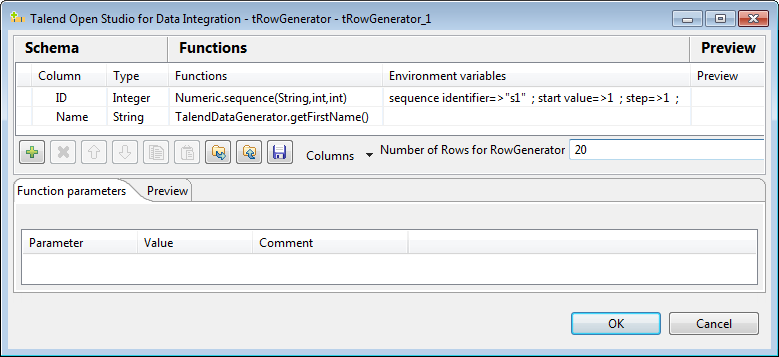
- Click the [+] button to add two columns: ID of Integer type and Name of String type.
-
Click the cell in the Functions column and select a
function from the list for each column. In this example, select Numeric.sequence to generate sequence numbers for
the ID column and select TalendDataGenerator.getFirstName to generate
random first names for the Name
column. -
In the Number of Rows for RowGenerator field, enter the
number of data rows to generate. In this example, it is 20. -
Click OK to close the schema editor and
accept the propagation prompted by the pop-up dialog box. -
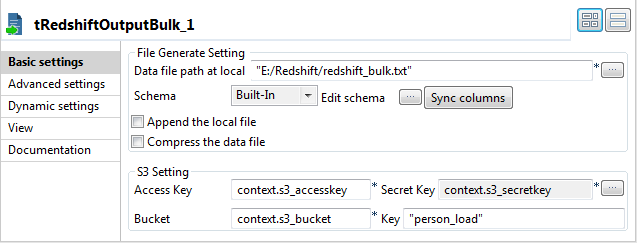
Double-click tRedshiftOutputBulk to open its Basic settings view on the Component tab.
-
In the Data file path at local field,
specify the local path for the file to be generated. In this example, it is
E:/Redshift/redshift_bulk.txt. -
In the Access Key field, press Ctrl + Space and from the list select context.s3_accesskey to fill in this
field.Do the same to fill the Secret Key field
with context.s3_accesskey and the
Bucket field with context.s3_bucket. -
In the Key field, enter a new name for the file to be
generated after being uploaded on Amazon S3. In this example, it is
person_load.
Document get from Talend https://help.talend.com
Thank you for watching.
Subscribe
Login
0 Comments