Preparing features for KMeans
-
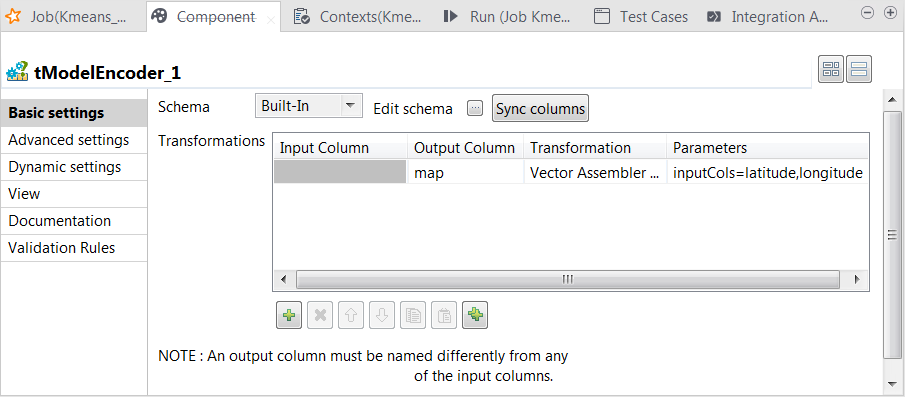
Double-click the tModelEncoder component to open its Component view.
-
Click the […] button
next to Edit schema and on the tModelEncoder side of the pop-up schema dialog box,
define the schema by adding one column named map of
Vector type. -
Click OK to validate these changes and accept
the propagation prompted by the pop-up dialog box. -
In the Transformations
table, add one row by clicking the [+]
button and then proceed as follows:-
In the Output column column, select the column
that carry the features. In this scenario, it is
map. -
In the Transformation column, select the
algorithm to be used for the transformation. In this scenario, it is
Vector assembler. -
In the Parameters column, enter the parameters
you want to customize for use in the Vector assembler algorithm. In this
scenario, enter
inputCols=latitude,longitude.
In this transformation, tModelEncoder combines all feature vectors into one single
feature column. -
In the Output column column, select the column
-
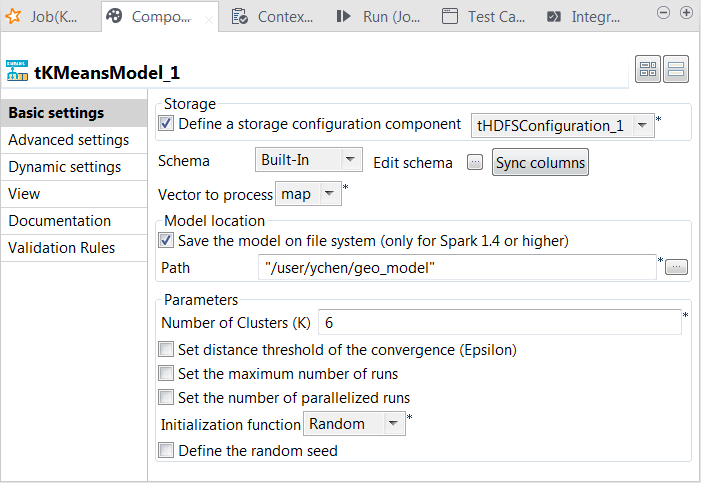
Double-click tKMeansModel to open its Component view.
-
Select the Define a storage configuration
component check box and select the tHDFSConfiguration component to be used. -
From the Vector to
process list, select the column that provides the feature vectors to
be analyzed. In this scenario, it is map, which combines
all features. -
Select the Save the model on file system
check box and in the HDFS folder field that
is displayed, enter the directory you want to use to store the generated
model. -
In the Number of cluster
field, enter the number of decision trees you want tKMeans to build. You need to try different numbers to run the
current Job to create the clustering model several times; after comparing the
evaluation results of every model created on each run, you can decide the number
you need to use. For example, put 6.You need to write the evaluation code yourself. - From the Initialization function, select Random. In general, this mode is used for simple datasets.
- Leave the other parameters as they are.
Document get from Talend https://help.talend.com
Thank you for watching.
Subscribe
Login
0 Comments