Setting up the input records
-
Double-click tFixedFlowInput to open its
Component view.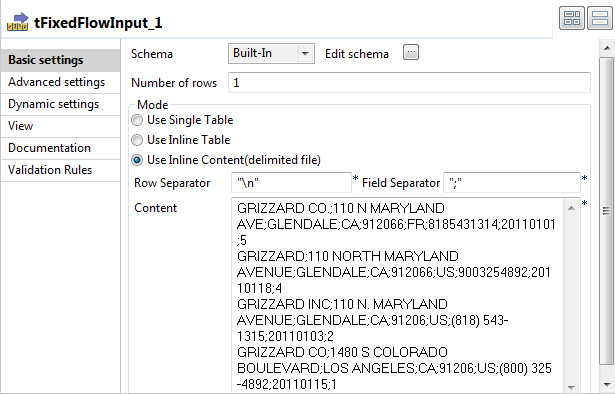
-
Click the three-dot button next to Edit
schema to open the schema editor.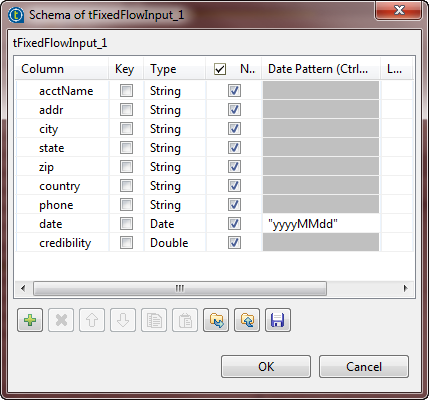
-
Click the plus button nine times to add nine rows and rename these rows
respectively. In this example, they are: acctName, addr, city, state,
zip, country, phone, data, credibility. They are the nine columns of the schema of the
input data. -
In the Type column, select the data types
for the rows of interest. In this example, select Date for the data column
and Double for the credibility column.Note:Be aware of setting the proper data type so that later you are able to
define the validation rules easily. -
In the Date Pattern column, type in the
data pattern to reflect the date format of interest. In this scenario, this
format is yyyyMMdd. -
Click OK to validate these changes and
accept the propagation prompted by the pop-up dialog box. -
In the Mode area of the Basic settings view, select Use Inline Content (delimited file) to enter the input data
of interest. -
In the Content field, enter the input
data to be processed. This data should correspond to the schema you have
defined and in this example, the contents of the data are:1234GRIZZARD CO.;110 N MARYLAND AVE;GLENDALE;CA;912066;FR;8185431314;20110101;5GRIZZARD;110 NORTH MARYLAND AVENUE;GLENDALE;CA;912066;US;9003254892;20110118;4GRIZZARD INC;110 N. MARYLAND AVENUE;GLENDALE;CA;91206;US;(818) 543-1315;20110103;2GRIZZARD CO;1480 S COLORADO BOULEVARD;LOS ANGELES;CA;91206;US;(800) 325-4892;20110115;1
Document get from Talend https://help.talend.com
Thank you for watching.
Subscribe
Login
0 Comments