Step 1: Configuring CDC
Before being able to retrieve modified data from the LEADFACT
table, you must:
- first set up the DB connection dedicated to CDC,
-
second, set up a DB connection to the source data and identify the table
to catch, -
finally, set the connection between the CDC and the data.
To do that:
-
In the Repository tree view and under
Metadata, create a connection to your
database dedicated to CDC, cdc_publisher in this
scenario.Note:Ensure that the DB connection for CDC is on the same server with the
source data to which changes are to be captured. -
In the Repository tree view and under
Metadata, create a connection to the
source data warehouse and identify the table to catch,
LEADFACT in this scenario. -
Right-click the connection to the orcle database and
select Retrieve schema from the drop-down
menu to retrieve the schema of the table to catch. -
Right-click CDC Foundation of the
cdc-data connection and select Create CDC in the drop-down menu.The [Create Change Data Capture] dialog
box displays
-
Click the three-dot button next to the Set link
Connection field and select the connection that corresponds
to CDC, cdc_publisher in this example. - In the Options area, select the Log mode check box.
-
Click Create Subscriber. The [Create Subscriber and Execute SQL Script] dialog
box displays.
- Click Execute and then Close to close the dialog box.
-
Click Finish to validate the creation of
the subscriber table.In the CDC Foundation folder, the
relevant subscriber table displays.You must specify which table the subscriber wants to subscribe to and
then -
Right-click the LEADFACT schema of the
cdc-data connection and select Add CDC in the drop-down list. The [Create Subscriber and Execute SQL Script] dialog
box displays.Note:For Oracle databases and in
Talend Studio
version 3.2 or subsequent versions,
the CDC system creates an alias for the source table(s) monitored. This
avoids problems relating to identifier length upon creation of the table
of changes and its associated view. For CDC systems which are already in
place, the table names are maintained.
-
Click Execute and then Close to validate the subscription.
In the CDC Foundation folder, the two
created tables display and the schema node of the catched table is marked
with a green CDC symbol.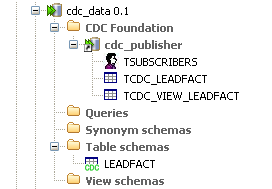
Document get from Talend https://help.talend.com
Thank you for watching.
Subscribe
Login
0 Comments