tESBProviderResponse
Serves a Talend
Job cycle result as a response message.
It acts as a service provider
response builder at the end of each Talend Job cycle.
tESBProviderResponse Standard properties
These properties are used to configure tESBProviderResponse running in the Standard Job framework.
The Standard
tESBProviderResponse component belongs to the ESB family.
This component is relevant only when used with one of the
Talend
solutions with ESB, as it should be used with the Service Repository node and the Data Service creation related wizard(s).
Basic
settings
|
Schema and Edit |
A schema is a row description. It defines the number of fields (columns) to Click Edit schema to make changes to the schema.
Click Sync |
|
|
Built-in: |
|
|
Repository: |
Advanced
settings
|
tStatCatcher |
Select this check box to gather the Job |
Global
Variables
|
Global |
NB_LINE: the number of rows processed. This is an After
ERROR_MESSAGE: the error message generated by the A Flow variable functions during the execution of a component while an After variable To fill up a field or expression with a variable, press Ctrl + For further information about variables, see |
Usage
|
Usage rule |
The tESBProviderResponse component should |
|
Limitation |
A JDK is required for this component to |
Scenario: Returning Hello world response
This scenario applies only to a Talend solution with ESB.
The Jobs, which are built upon the components under the ESB/Web Services
family, act as the implementations of web services defined in the Services node of the Repository. They
require the creation of and association with relevant services. For more information
about services, see the related topics in the
Talend Studio User
Guide.
In this scenario, a provider Job and a consumer Job are needed. In the
meantime, the related service should already exist in the Services node, with the WSDL URI being
http://127.0.0.1.8088/esb/provider/?WSDL, the
port name being TEST_ProviderJobSoapBinding and the operation being
invoke(anyType):anyType.
The provider Job consists of a tESBProviderRequest, a tESBProviderResponse, a tXMLMap, and two tLogRow components.

-
Drop the following components from the Palette onto the design workspace: a
tESBProviderRequest, a tESBProviderResponse, a tXMLMap, and two tLogRow. -
In the design workspace, double-click tESBProviderRequest_1 to display its
Component view and
set its Basic
settings.

-
Select Repository from the
Property Type list
and click the three-dot button to choose the service, to the
granularity of port name and operation.

-
Click OK.
-
Click the three-dot button next to Edit
schema to view its schema.

-
Connect tESBProviderRequest_1
to tLogRow_1. -
Double-click tLogRow_1 to
display its Component view
and set its Basic
settings.

-
Click the three-dot button next to Edit
schema and define the schema as
follow.
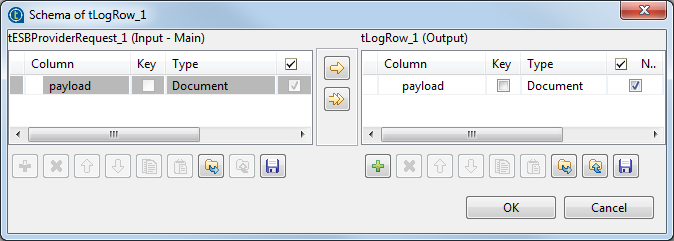
-
Connect tLogRow_1 to
tXMLMap_1. -
Connect tXMLMap_1 to
tLogRow_2 and name
this row as payload. -
In the design workspace, double-click tXMLMap_1 to open the Map Editor.
-
On the lower right part of the map editor, click the plus
button to add one row to the payload
table and name this row as
payload. -
In the Type column of this
payload row, select Document as the data type.
The corresponding XML root is added automatically to the top
table on the right side which represents the output
flow. -
In the payload table, right-click
root to open the contextual
menu. -
From the contextual menu, select Create
Sub-Element and type in
response in the popup dialog
box. -
Right-click the response node and select
As loop element
from the contextual menu. -
Repeat this operation to create a sub-element
request of the
root node in the input table
and set the request node as loop
element. -
Click the request node in the input table
and drop it to the Expression column in the row of the
response node in the output
table.

-
Click OK to validate the
mapping and close the map editor. -
In the design workspace, double-click tLogRow_2 to display its Component view and set its
Basic
settings.

-
Click the three-dot button next to Edit
schema and define the schema as
follow.

-
Connect tLogRow_2 to
tESBProviderResponse_1. -
In the design workspace, double-click tESBProviderResponse_1 to open its
Component view and
set its Basic
settings.

-
Click the three-dot button next to Edit
schema and define the schema as
follow.

-
Save the provider Job.
The consumer Job consists of a tFixedFlowInput, a tXMLMap, a tESBConsumer, and two tLogRow
components.

-
Drop the following components from the Palette onto the design workspace: a
tFixedFlowInput, a
tXMLMap, a
tESBConsumer, and
two tLogRow. -
Double-click tFixedFlowInput_1 in the design
workspace to display its Component view and set its Basic settings.

-
Click the three-dot button next to Edit
schema.

-
Click the plus button to add a new line of string type and
name it payloadString. -
Click OK.
-
In the Number of rows field,
set the number of rows as 1. -
In the Mode area, select
Use Single Table
and inputworldin quotations into the
Value field. -
Connect tFixedFlowInput to
tXMLMap. -
Connect tXMLMap to tESBConsumer and name this
row as payload. -
In the design workspace, double-click tXMLMap_1 to open the Map Editor.
-
In the payload table, right-click
root to open the contextual
menu. -
From the contextual menu, select Create
Sub-Element and type in
request in the popup dialog
box. -
Right-click the request node and select
As loop element
from the contextual menu. -
Click the payloadstring node in the input
table and drop it to the Expression column in the row of the
request node in the output
table.

-
Click OK to validate the
mapping and close the Map
Editor. -
Start the Provider Job. In the executing log you can
see:123...web service [endpoint: http://127.0.0.1:8088/esb/provider] published... -
In the tESBConsumer_1
Component view, set its
Basic
settings.

-
Click the three-dot button next to the Service Configuration to open the
editor.

-
In the WSDL field, type in:
http://127.0.0.1:8088/esb/provider/?WSDL -
Click the Refresh button to retrieve port name and operation
name. -
Click OK.
-
In the Basic settings of the
tESBConsumer, set the Input Schema as follows:

-
Set the Response Schema as
follows:

-
Set the Fault Schema as
follows:

-
Connect tESBConsumer_1 to
tLogRow_1 and
tLogRow_2. -
In the design workspace, double-click tLogRow_1 to display its Component view and set its
Basic
settings.

-
Click the three-dot button next to Edit
Schema and define the schema as
follow.

-
In the Job Design, double-click tLogRow_2 to display its Component view and set its
Basic
settings.

-
Click the three-dot button next to Edit
Schema and define the schema as
follow:

-
Save the consumer Job.
-
Run the provider Job. In the execution log you will
see:2011-04-21 15:28:26.874:INFO::jetty-7.2.2.v20101205
2011-04-21 15:28:27.108:INFO::Started
SelectChannelConnector@127.0.0.1:8088
web service [endpoint: http://127.0.0.1:8088/esb/provider]
published -
Run the consumer Job. In the execution log of the Job you will
see:1234567891011121314Starting job CallProvider at 15:29 21/04/2011.[statistics] connecting to socket on port 3690[statistics] connectedTEST_ProviderJobTEST_ProviderJobSoapBingding|{http://talend.org/esb/service/job}TEST_ProviderJob{http://talend.org/esb/service/job}TEST_ProviderJobSoapBindinginvoke[tLogRow_2] payload: <?xml version="1.0" encoding="UTF-8"?><response xmlns="http://talend.org/esb/service/job">Hello, world!</response>[statistics] disconnectedJob ConsumerJob ended at 15:29 21/04/2011. [exit code=0] -
In the provider’s log you will see the trace log:
123456789[tLogRow_1] payload: <?xml version="1.0" encoding="UTF-8"?><request>world</request>### world[tLogRow_2] content: world[tLogRow_3] payload: <?xml version="1.0" encoding="UTF-8"?><response xmlns="http://talend.org/esb/service/job">Hello, world!</response>web service [endpoint: http://127.0.0.1:8088/esb/provider] unpublished[statistics] disconnectedJob ProviderJob ended at 15:29 21/04/2011. [exit code=0]