tPigJoin
Performs inner joins and outer joins of two files based on join keys to create data
that will be used by Pig.
The tPigJoin performs join of two
files based on join keys.
tPigJoin Standard properties
These properties are used to configure tPigJoin running in the Standard Job framework.
The Standard
tPigJoin component belongs to the Big Data and the Processing families.
The component in this framework is available when you are using one of the Talend solutions with Big Data.
Basic settings
|
Schema and Edit |
A schema is a row description. It defines the number of fields (columns) to Click Edit schema to make changes to the schema.
Note:
To make this component work, two schemas must be set: the |
|
|
Built-in: The schema will be |
|
|
Repository: The schema already |
|
Schema and Edit |
A schema is a row description. It defines the number of fields (columns) to Click Edit schema to make changes to the schema.
Note:
To make this component work, two schemas must be set: the |
|
|
Built-in: The schema will be |
|
|
Repository: The schema already |
|
Filename |
Fill in the path of the Lookup |
|
Field Separator |
Enter character, string or regular expression to separate fields for the transferred |
|
Join key |
Click the plus button to add lines to set the Join key for Input |
|
Join mode |
Select a join mode from the list:
inner-join: Select this mode to
left-outer-join: Select this mode
right-outer-join: Select this mode
full-outer-join: Select this mode For further information about inner join and outer join, |
Advanced settings
|
Optimize the join |
Select this check box to optimize the performance of joins using http://pig.apache.org/docs/r0.8.1/piglatin_ref1.html#Specialized+Joins |
|
Use partitioner |
Select this check box to specify the Hadoop Partitioner that http://hadoop.apache.org/docs/r2.2.0/api/org/apache/hadoop/mapred/Partitioner.html |
|
Increase parallelism |
Select this check box to set the number of reduce tasks for the |
|
tStatCatcher Statistics |
Select this check box to gather the Job processing metadata at the |
Global Variables
|
Global Variables |
ERROR_MESSAGE: the error message generated by the A Flow variable functions during the execution of a component while an After variable To fill up a field or expression with a variable, press Ctrl + For further information about variables, see |
Usage
|
Usage rule |
This component is commonly used as intermediate step together with |
|
Prerequisites |
The Hadoop distribution must be properly installed, so as to guarantee the interaction
For further information about how to install a Hadoop distribution, see the manuals |
|
Limitation |
Knowledge of Pig scripts is required. |
Scenario: Joining two files based on an exact match and saving the result to a local
file
This scenario applies only to a Talend solution with Big Data.
This scenario describes a four-component Job that combines data of an input file and a
reference file that matches a given join key, removes unwanted columns, and then saves
the final result to a local file.
The main input file contains the information about people’s IDs, first names, last
names, group IDs, and salaries, as shown below:
|
1 2 3 4 5 6 7 8 9 10 |
1;Woodrow;Johnson;3;1013.39 2;Millard;Monroe;2;8077.59 3;Calvin;Eisenhower;3;6866.88 4;Lyndon;Wilson;3;5726.28 5;Ronald;Garfield;2;4158.58 6;Rutherford;Buchanan;3;2897.00 7;Calvin;Coolidge;1;6650.66 8;Ulysses;Roosevelt;2;7854.78 9;Grover;Tyler;1;5226.88 10;Bill;Tyler;2;8964.66 |
The reference file contains only the information of group IDs and group names:
|
1 2 |
1;group_A 2;group_B |
Dropping and linking the components
-
Drop the following components from the Palette to the design workspace: tPigLoad, tPigJoin,
tPigFilterColumns, and tPigStoreResult. -
Connect these components in a series using Row >
Pig Combine connections.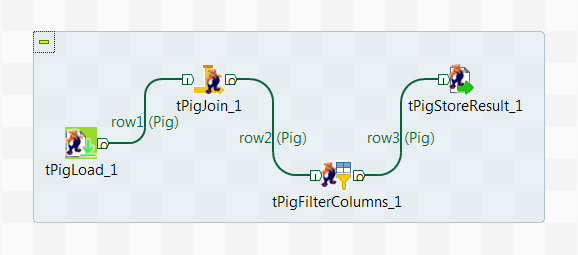
Configuring the components
Loading the main input file
-
Double-click tPigLoad to open its
Basic settings view.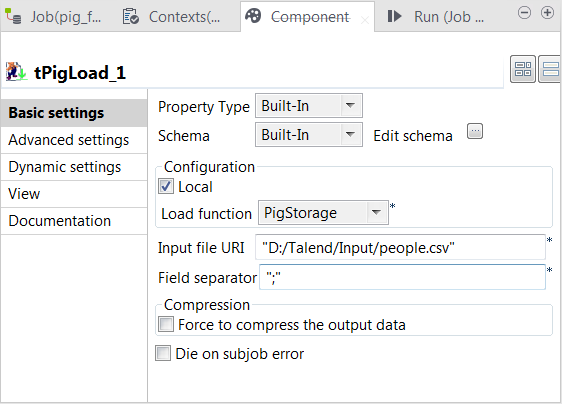
-
Click the […] button next to Edit schema to open the [Schema] dialog box.
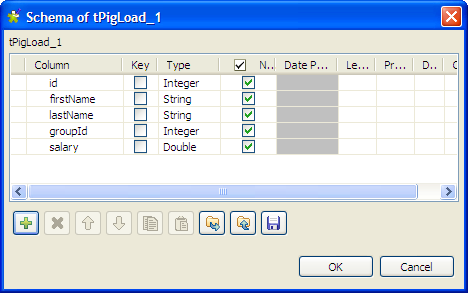
-
Click the [+] button to add columns, name
them and define the column types according to the structure of the input
file. In this example, the input schema has five columns: id (integer), firstName (string), lastName (string), groupId (integer), and salary (double).Then click OK to validate the setting and
close the dialog box. - Click Local in the Mode area.
- Select PigStorage from the Load function list.
-
Fill in the Input file URI field with the
full path to the input file, and leave the rest of the setting as they
are.
Loading the reference file and setting up an inner join
-
Double-click tPigJoin to open its
Basic settings view.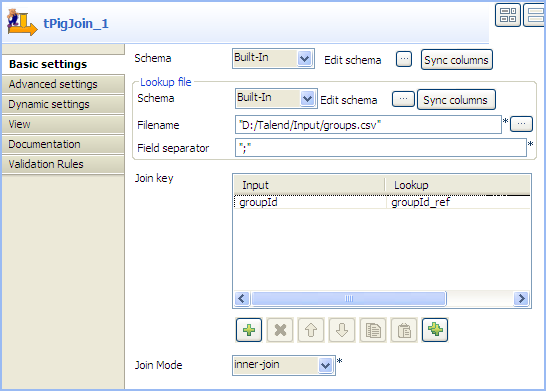
-
Click the […] for the main schema to
open the [Schema] dialog box.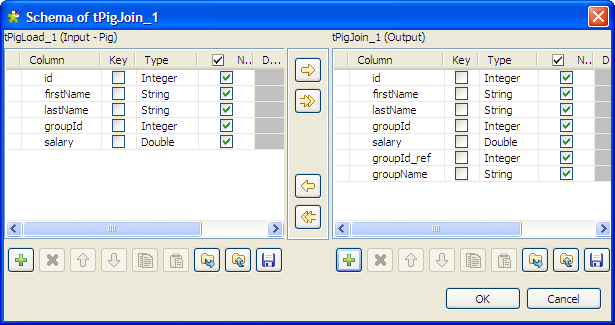
-
Check that input schema is correctly retrieved from the preceding
component. If needed, click the [->>]
button to copy all the columns of the input schema to the output schema.
-
Click the [+] button under the output
panel to add new columns according to the data structure of the reference
file, groupId_ref (integer) and groupName (string) in this example. Then click
OK to close the dialog box. -
Click the […] for the schema lookup
flow to open the [Schema] dialog
box.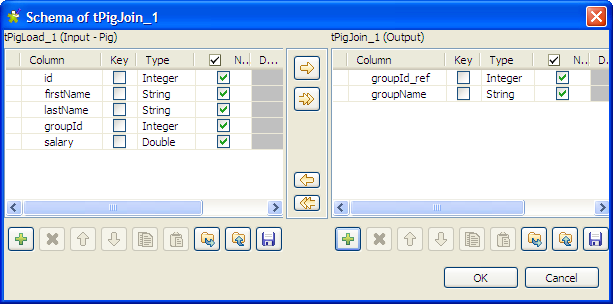
-
Click the [+] button under the output
panel to add two columns: groupId_ref
(integer) and groupName (string), and
then click OK to close the dialog
box. -
In the Filename field, specify the full
path to the reference file. -
Click the [+] button under the Join key table to add a new line, and select
groupId and groupId_ref
respectively from the Input and Lookup lists to match data from the main input
flow with data from the lookup flow based on the group ID. - From the Join Mode list, select inner-join.
Defining the final output schema and the output file
-
Double-click tPigFilterColumns to open
its Basic settings view.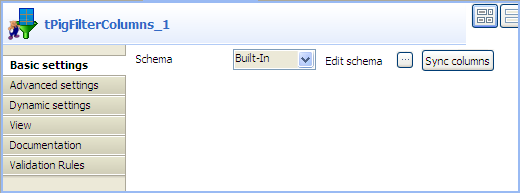
-
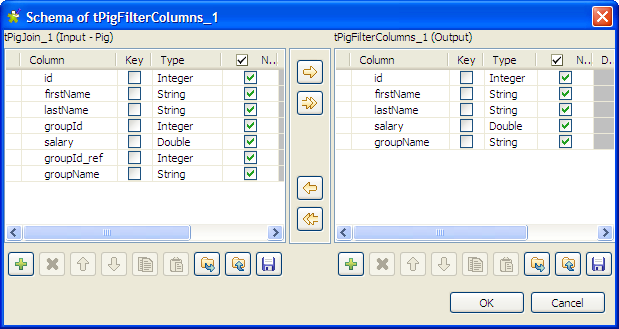
Click the […] button next to Edit schema to open the [Schema] dialog box.
-
From the input schema, select the columns you want to include in your
result file by clicking them one after another while pressing the Shift key, and click the
[->] button to copy them to the output schema. Then, click
OK to validate the schema setting and
close the dialog box.In this example, we want the result file to include all the information
except the group IDs. -
Double-click tPigStoreResult to open its
Basic settings view.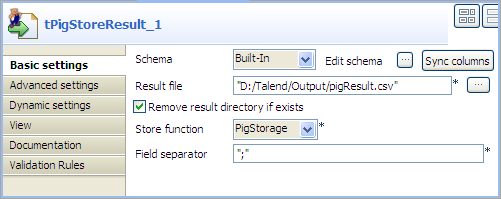
-
Click Sync columns to retrieve the schema
structure from the preceding component. -
Fill in the Result file field with the
full path to the result file, and select the Remove
result file directory if exists check box. -
Select PigStorage from the Store function list, and leave rest of the
settings as they are.
Saving and executing the Job
- Press Ctrl+S to save your Job.
-
Press F6 or click Run on the Run tab to run
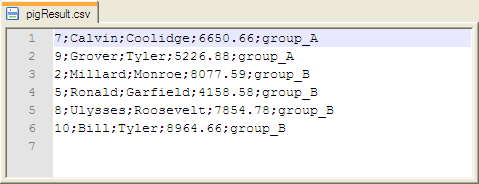
the Job.The result file includes all the information related to people of group A
and group B, except their group IDs.