August 16, 2023

tPigLoad – Docs for ESB 6.x

tPigLoad

Loads original input data to an output stream in just one single transaction, once
the data has been validated.

The tPigLoad
sets up a connection to the data source for a current transaction.

tPigLoad Standard properties

These properties are used to configure tPigLoad running in the Standard Job framework.

The Standard
tPigLoad component belongs to the Big Data and the Processing families.

The component in this framework is available when you are using one of the Talend solutions with Big Data.

Basic settings

Property type

Either Built-In or Repository.


Built-In: No property data stored centrally.


Repository: Select the repository file where the
properties are stored.

The properties are stored centrally under the Hadoop
Cluster
node of the Repository
tree.

The fields that come after are pre-filled in using the fetched
data.

For further information about the Hadoop
Cluster
node, see the Getting Started Guide.

Schema and Edit
Schema

A schema is a row description. It defines the number of fields (columns) to
be processed and passed on to the next component. The schema is either Built-In or stored remotely in the Repository.

Click Edit schema to make changes to the schema.
If the current schema is of the Repository type, three
options are available:

  • View schema: choose this option to view the
    schema only.

  • Change to built-in property: choose this
    option to change the schema to Built-in for
    local changes.

  • Update repository connection: choose this
    option to change the schema stored in the repository and decide whether to propagate
    the changes to all the Jobs upon completion. If you just want to propagate the
    changes to the current Job, you can select No
    upon completion and choose this schema metadata again in the [Repository Content] window.


Built-In: You create and store the
schema locally for this component only. Related topic: see
Talend Studio

User Guide.


Repository: You have already created
the schema and stored it in the Repository. You can reuse it in various projects and
Job designs. Related topic: see
Talend Studio

User Guide.

Local

Click this radio button to run Pig scripts in Local mode. In this mode, all files are
installed and run from your local host and file system.

Tez

Click this radio button to run the Pig Job on the Tez framework.

This Tez mode is available only when you are using one of the following distributions:

  • Hortonworks: V2.2 +.

  • Custom: this option allows you connect to a distribution supporting Tez but not
    officially supported by
    Talend
    .

Before using Tez, ensure that the Hadoop cluster you are using supports Tez. You will need to configure the access to the relevant Tez libraries via the Advanced settings view of this component.

For further information about Pig on Tez, see Apache’s related documentation in https://cwiki.apache.org/confluence/display/PIG/Pig+on+Tez.

Map/Reduce

Click this radio button to run Pig scripts in Map/Reduce mode.

Once selecting this mode, you need to complete the fields in the
Configuration area that appears:

  • Distribution and
    Version:

    Select the cluster you are using from the drop-down list. The options in the
    list vary depending on the component you are using. Among these options, the following
    ones requires specific configuration:

    • If available in this Distribution drop-down list, the Microsoft HD Insight option allows you to
      use a Microsoft HD Insight cluster. For this purpose, you need to configure
      the connections to the WebHCat service, the HD Insight service and the
      Windows Azure Storage service of that cluster in the areas that are
      displayed. A demonstration video about how to configure this connection is
      available in the following link: https://www.youtube.com/watch?v=A3QTT6VsNoM.

    • If you select Amazon
      EMR
      , you can find more details about how
      to configure an Amazon EMR cluster in Talend Help Center (https://help.talend.com)
      .

    • The Custom option
      allows you to connect to a cluster different from any of the distributions
      given in this list, that is to say, to connect to a cluster not officially
      supported by
      Talend
      .

    1. Select Import from existing
      version
      to import an officially supported distribution as base
      and then add other required jar files which the base distribution does not
      provide.

    2. Select Import from zip to
      import the configuration zip for the custom distribution to be used. This zip
      file should contain the libraries of the different Hadoop elements and the index
      file of these libraries.

      In
      Talend

      Exchange, members of
      Talend
      community have shared some ready-for-use configuration zip files
      which you can download from this Hadoop configuration
      list and directly use them in your connection accordingly. However, because of
      the ongoing evolution of the different Hadoop-related projects, you might not be
      able to find the configuration zip corresponding to your distribution from this
      list; then it is recommended to use the Import from
      existing version
      option to take an existing distribution as base
      to add the jars required by your distribution.

      Note that custom versions are not officially supported by

      Talend
      .
      Talend
      and its community provide you with the opportunity to connect to
      custom versions from the Studio but cannot guarantee that the configuration of
      whichever version you choose will be easy, due to the wide range of different
      Hadoop distributions and versions that are available. As such, you should only
      attempt to set up such a connection if you have sufficient Hadoop experience to
      handle any issues on your own.

      Note:

      In this dialog box, the active check box must be kept
      selected so as to import the jar files pertinent to the connection to be
      created between the custom distribution and this component.

      For a step-by-step example about how to connect to a custom
      distribution and share this connection, see Connecting to a custom Hadoop distribution.

    Along with the evolution of Hadoop, please note the following changes:

    1. If you use Hortonworks Data
      Platform V2.2
      , the configuration files of your cluster might
      be using environment variables such as ${hdp.version}. If this is your situation, you need to set the mapreduce.application.framework.path property in
      the Hadoop properties table of this
      component with the path value explicitly pointing to the MapReduce framework
      archive of your cluster. For
      example:
    2. If you use Hortonworks Data
      Platform V2.0.0
      , the type of the operating system for
      running the distribution and a
      Talend
      Job must be the same, such as Windows or Linux. Otherwise, you
      have to use
      Talend
      Jobserver to execute the Job in the same type of operating
      system in which the Hortonworks Data Platform
      V2.0.0
      distribution you are using is run.

  • Use Kerberos
    authentication
    :

    If you are accessing the Hadoop cluster running
    with Kerberos security, select this check box, then, enter the Kerberos
    principal name for the NameNode in the field displayed. This enables you to use
    your user name to authenticate against the credentials stored in Kerberos.

    • If this cluster is a MapR cluster of the version 4.0.1 or later, you can set the MapR
      ticket authentication configuration in addition or as an alternative by following the
      explanation in Connecting to a security-enabled MapR.

      Keep in mind that this configuration generates a new MapR security ticket for the username
      defined in the Job in each execution. If you need to reuse an existing ticket issued for the
      same username, leave both the Force MapR ticket
      authentication
      check box and the Use Kerberos
      authentication
      check box clear, and then MapR should be able to automatically
      find that ticket on the fly.

    In addition, since this component performs Map/Reduce computations, you
    also need to authenticate the related services such as the Job history server and
    the Resource manager or Jobtracker depending on your distribution in the
    corresponding field. These principals can be found in the configuration files of
    your distribution. For example, in a CDH4 distribution, the Resource manager
    principal is set in the yarn-site.xml file and the Job history
    principal in the mapred-site.xml file.

    This check box is available depending on the Hadoop distribution you are
    connecting to.

    The HBase related principals are required by the HBaseStorage function only.

  • Use a keytab to
    authenticate
    :

    Select the Use a keytab to authenticate
    check box to log into a Kerberos-enabled system using a given keytab file. A keytab
    file contains pairs of Kerberos principals and encrypted keys. You need to enter the
    principal to be used in the Principal field and
    the access path to the keytab file itself in the Keytab field. This keytab file must be stored in the machine in
    which your Job actually runs, for example, on a Talend Jobserver.

    Note that the user that executes a keytab-enabled Job is not necessarily
    the one a principal designates but must have the right to read the keytab file being
    used. For example, the user name you are using to execute a Job is user1 and the principal to be used is guest; in this
    situation, ensure that user1 has the right to read the keytab
    file to be used.

  • NameNode URI:

    Type in the location of the NameNode corresponding to the Map/Reduce version to be
    used. If you are using WebHDFS, the location should be
    webhdfs://masternode:portnumber; if this WebHDFS is secured
    with SSL, the scheme should be swebhdfs and you need to use
    a tLibraryLoad in the Job to load the library required by
    the secured WebHDFS.

  • JobTracker host:

    Type in the location of the ResourceManager corresponding to the Map/Reduce
    version to be used.

    In JobHistory, you can easily find the execution status of your Pig Job because the name of
    the Job is automatically created by concatenating the name of the project that contains the
    Job, the name and version of the Job itself and the label of the first tPigLoad component used in it. The naming convention of a Pig Job in JobHistory
    is ProjectName_JobNameVersion_FirstComponentName.

    Then you can continue to set the following parameters depending on the
    configuration of the Hadoop cluster to be used (if you leave the check box of a
    parameter clear, then at runtime, the configuration about this parameter in the
    Hadoop cluster to be used will be ignored ):

    1. Select the Set resourcemanager
      scheduler address
      check box and enter the Scheduler address in
      the field that appears.

    2. Select the Set jobhistory
      address
      check box and enter the location of the JobHistory
      server of the Hadoop cluster to be used. This allows the metrics information of
      the current Job to be stored in that JobHistory server.

    3. Select the Set staging
      directory
      check box and enter this directory defined in your
      Hadoop cluster for temporary files created by running programs. Typically, this
      directory can be found under the yarn.app.mapreduce.am.staging-dir property in the configuration files
      such as yarn-site.xml or mapred-site.xml of your distribution.

    4. Allocate proper memory volumes to the Map and the Reduce
      computations and the ApplicationMaster
      of YARN by selecting the Set memory
      check box in the Advanced settings
      view.

    5. Select the Set Hadoop
      user
      check box and enter the user name under which you
      want to execute the Job. Since a file or a directory in Hadoop has its
      specific owner with appropriate read or write rights, this field allows
      you to execute the Job directly under the user name that has the
      appropriate rights to access the file or directory to be processed.

    6. Select the Use datanode
      hostname
      check box to allow the Job to access datanodes via
      their hostnames. This actually sets the dfs.client.use.datanode.hostname property to true. When connecting to a S3N filesystem, you must select this check
      box.

    For further information about these parameters, see the documentation or
    contact the administrator of the Hadoop cluster to be used.

  • User name:

    Enter the user name under which you want to execute the Job. Since a file or a directory in
    Hadoop has its specific owner with appropriate read or write rights, this field allows you
    to execute the Job directly under the user name that has the appropriate rights to access
    the file or directory to be processed. Note that this field is available depending on the
    distribution you are using.

WebHCat configuration

Enter the address and the authentication information of the WebHCat service
of the Microsoft HD Insight cluster to be used. The Studio uses this service to
submit the Job to the HD Insight cluster.

In the Job result folder field, enter
the location in which you want to store the execution result of a Job in the Azure
Storage to be used.

HDInsight configuration

Enter the authentication information of the HD Insight cluster to be
used.

Windows Azure Storage
configuration

Enter the address and the authentication information of the Azure Storage
account to be used.

In the Container field, enter the name
of the container to be used.

In the Deployment Blob field, enter the
location in which you want to store the current Job and its dependent libraries in
this Azure Storage account.

Inspect the classpath for
configurations

Select this check box to allow the component to check the configuration
files in the directory you have set with the $HADOOP_CONF_DIR
variable and directly read parameters from these files in this directory. This
feature allows you to easily change the Hadoop configuration for the component to
switch between different environments, for example, from a test environment to a
production environment.

In this situation, the fields or options used to configure Hadoop
connection and/or Kerberos security are hidden.

If you want to use certain parameters such as the Kerberos parameters but
these parameters are not included in these Hadoop configuration files, you need to
create a file called talend-site.xml and put this file into the
same directory defined with $HADOOP_CONF_DIR. This talend-site.xml file should read as follows:

The parameters read from these configuration files override the default
ones used by the Studio. When a parameter does not exist in these configuration
files, the default one is used.

Load function

Select a load function for data to be loaded:

  • PigStorage: Loads
    data in UTF-8 format.

  • BinStorage: Loads
    data in machine-readable format.

  • TextLoader: Loads
    unstructured data in UTF-8 format.

  • HCatLoader: Loads
    data from HCataLog managed tables using Pig scripts.

    This function is available only when you have selected
    HortonWorks as the Hadoop distribution to be used from
    the Distribution and
    the Version fields
    displayed in the Map/Reduce mode. For further information
    about HCatLoader, see http://hive.apache.org/javadocs/hcat-r0.5.0/api/org/apache/hcatalog/pig/HCatLoader.html.

  • HBaseStorage: Loads
    data from HBase. Then you need to complete the HBase
    configuration in the HBase
    configuration
    area displayed.

  • SequenceFileLoader:
    Loads data of the SequenceFile formats. Then you need to
    complete the configuration of the file to be loaded in
    the Sequence Loader
    Configuration
    area that appears. This
    function is for the Map/Reduce mode only.

  • RCFilePigStorage:
    Loads data of the RCFile format. This function is for
    the Map/Reduce mode
    only.

  • AvroStorage: Loads
    Avro files. For further information about AvroStorage,
    see Apache’s documentation on https://cwiki.apache.org/confluence/display/PIG/AvroStorage.
    This function is for the Map/Reduce mode only.

  • ParquetLoader: Loads
    Parquet file. This function is for the Map/Reduce mode only.

  • Custom: Loads data
    using any user-defined load function. To do this, you
    need to register, in the Advanced
    settings
    tab view, the jar file
    containing the function to be used, and then, in the
    field displayed next to this Load
    function
    field, specify that function.

    For example, after registering a jar file called
    piggybank.jar,
    you can enter org.apache.pig.piggybank.storage.XMLLoader(‘attr’)
    as (xml:chararray)
    to use the custom
    function, XMLLoader
    contained in that jar file. For further information
    about this piggybank.jar file, see https://cwiki.apache.org/confluence/display/PIG/PiggyBank.

Note that when the file format to be used is PARQUET, you
might be prompted to find the specific Parquet jar file and install it into the Studio.

  • When the connection mode to Hive is Embedded,
    the Job is run in your local machine and calls this jar installed in the
    Studio.

  • When the connection mode to Hive is Standalone, the Job is run in the server hosting Hive and this
    jar file is sent to the HDFS system of the cluster you are connecting to.
    Therefore, ensure that you have properly defined the NameNode URI in the
    corresponding field of the Basic settings
    view.

This jar file can be downloaded from Apache’s site. You can find more details about how to install external modules in Talend Help Center (https://help.talend.com).

Input file URI

Fill in this field with the full local path to the input file.

Note:

This field is not available when you select HCatLoader from the Load function list or when you
are using an S3 endpoint.

Use S3 endpoint

Select this check box to read data from a given Amazon S3 bucket
folder.

Once this Use S3 endpoint check box is
selected, you need to enter the following parameters in the fields that appear:

  • S3 bucket name and folder:
    enter the bucket name and its folder from which you need to read data.
    You need to separate the bucket name and the folder name using a slash
    (/).

  • Access key and Secret key: enter the authentication
    information required to connect to the Amazon S3 bucket to be used.

    To enter the password, click the […] button next to the
    password field, and then in the pop-up dialog box enter the password between double quotes
    and click OK to save the settings.

Note that the format of the S3 file is S3N (S3 Native Filesystem).

HCataLog Configuration

Fill the following fields to configure HCataLog managed tables on
HDFS (Hadoop distributed file system):

Distribution and Version:

Select the cluster you are using from the drop-down list. The options in the
list vary depending on the component you are using. Among these options, the following
ones requires specific configuration:

  • If available in this Distribution drop-down list, the Microsoft HD Insight option allows you to
    use a Microsoft HD Insight cluster. For this purpose, you need to configure
    the connections to the WebHCat service, the HD Insight service and the
    Windows Azure Storage service of that cluster in the areas that are
    displayed. A demonstration video about how to configure this connection is
    available in the following link: https://www.youtube.com/watch?v=A3QTT6VsNoM.

  • If you select Amazon
    EMR
    , you can find more details about how
    to configure an Amazon EMR cluster in Talend Help Center (https://help.talend.com)
    .

  • The Custom option
    allows you to connect to a cluster different from any of the distributions
    given in this list, that is to say, to connect to a cluster not officially
    supported by
    Talend
    .

Along with the evolution of Hadoop, please note the following changes:

  1. If you use Hortonworks Data
    Platform V2.2
    , the configuration files of your cluster might
    be using environment variables such as ${hdp.version}. If this is your situation, you need to set the mapreduce.application.framework.path property in
    the Hadoop properties table of this
    component with the path value explicitly pointing to the MapReduce framework
    archive of your cluster. For
    example:
  2. If you use Hortonworks Data
    Platform V2.0.0
    , the type of the operating system for
    running the distribution and a
    Talend
    Job must be the same, such as Windows or Linux. Otherwise, you
    have to use
    Talend
    Jobserver to execute the Job in the same type of operating
    system in which the Hortonworks Data Platform
    V2.0.0
    distribution you are using is run.

HCat metastore: Enter the
location of the HCatalog’s metastore, which is actually Hive’s
metastore, a system catalog. For further information about Hive and
HCatalog, see http://hive.apache.org/.

Database: The database in which
tables are placed.

Table: The table in which data is
stored.

Partition filter: Fill this field
with the partition keys to list partitions by filter.

Note:

HCataLog Configuration area
is enabled only when you select HCatLoader from the Load
function
list. For further information about the
usage of HCataLog, see https://cwiki.apache.org/confluence/display/Hive/HCatalog.
For further information about the usage of Partition filter, see https://cwiki.apache.org/confluence/display/HCATALOG/Design+Document+-+Java+APIs+for+HCatalog+DDL+Commands.

Field separator

Enter character, string or regular expression to separate fields for the transferred
data.

Note:

This field is enabled only when you select PigStorage from the Load function list.

Compression

Select the Force to compress the output data check box to
compress the data when the data is outputted by tPigStoreResult at the end of a Pig process.

Hadoop provides different compression formats that help reduce the space needed for storing
files and speed up data transfer. When you need to write and compress data using the Pig
program, by default you have to add a compression format as a suffix to the path pointing to
the folder in which you want to write data, for example, /user/ychen/out.bz2. However, if you select this check box, the output data
will be compressed even if you do not add any compression format to that path, such as
/user/ychen/out.

Note:

The output path is set in the Basic settings view of
tPigStoreResult.

HBase configuration

This area is available to the HBaseStorage function. The
parameters to be set are:

Zookeeper quorum:

Type in the name or the URL of the Zookeeper service you use to coordinate the transaction
between your Studio and your database. Note that when you configure the Zookeeper, you might
need to explicitly set the zookeeper.znode.parent
property to define the path to the root znode that contains all the znodes created and used
by your database; then select the Set Zookeeper znode
parent
check box to define this property.

Zookeeper client port:

Type in the number of the client listening port of the Zookeeper service you are
using.

Table name:

Enter the name of the HBase table you need to load data
from.

Load key:

Select this check box to load the row key as the first column of
the result schema. In this situation, you must have created this
column in the schema.

Mapping:

Complete this table to map the columns of the table to be used with the schema columns you
have defined for the data flow to be processed.

Sequence Loader configuration

This area is available only to the SequenceFileLoader function. Since a SequenceFile
record consists of binary key/value pairs, the parameters to be set
are:

Key column:

Select the Key column of a key/value record.

Value column

Select the Value column of a key/value record.

Die on subjob error

This check box is cleared by default, meaning to skip the row on
subjob error and to complete the process for error-free rows.

Advanced settings

Tez lib

Select how the Tez libraries are accessed:

  • Auto install: at runtime, the Job uploads and deploys the Tez
    libraries provided by the Studio into the directory you specified in the Install folder in HDFS field, for example, /tmp/usr/tez.

    If you have set the tez.lib.uris property in the properties
    table, this directory overrides the value of that property at runtime. But the other
    properties set in the properties table are still effective.

  • Use exist: the Job accesses the Tez libraries already
    deployed in the Hadoop cluster to be used. You need to enter the path pointing to
    those libraries in the Lib path (folder or file)
    field.

  • Lib jar: this table appears when you have selected Auto install from the Tez
    lib
    list and the distribution you are using is Custom. In this table, you need to add the Tez libraries to be
    uploaded.

Hadoop Properties

Talend Studio
uses a default configuration for its engine to perform
operations in a Hadoop distribution. If you need to use a custom configuration in a specific
situation, complete this table with the property or properties to be customized. Then at
runtime, the customized property or properties will override those default ones.

  • Note that if you are using the centrally stored metadata from the Repository, this table automatically inherits the
    properties defined in that metadata and becomes uneditable unless you change the
    Property type from Repository to Built-in.

For further information about the properties required by Hadoop and its related systems such
as HDFS and Hive, see the documentation of the Hadoop distribution you
are using or see Apache’s Hadoop documentation on http://hadoop.apache.org/docs and then select the version of the documentation you want. For demonstration purposes, the links to some properties are listed below:

Register jar

Click the [+] button to add rows to the table and from these rows, browse to the jar
files to be added. For example, in order to register a jar file called piggybank.jar, click the [+] button once to add one row, then click this row to display the […] browse button, and click this button to browse to the piggybank.jar file following the [Select
Module]
wizard.

Define functions

Use this table to define UDFs (User-Defined Functions), especially
those requiring alias such as Apache DataFu Pig functions, to be
executed when loading data.

Click the

Button_Plus.png

button to add as many rows as you need and
specify an alias and a UDF in the relevant fields for each row.

If your Job includes a tPigMap
component, once you have defined UDFs for this component in the
tPigMap, this table is
automatically filled. Likewise, once you have defined UDFs in this
table, the Define functions table
in the tPigMap component’s Map
Editor is automatically filled.

For information on how to define UDFs when mapping Pig flows, see
the section on mapping Big Data flows of the
Talend Open Studio for Big Data Getting Started
Guide

.

For more information on Apache DataFu Pig, see http://datafu.incubator.apache.org/.

Pig properties


Talend Studio
uses a default
configuration for its Pig engine to perform operations. If you need to use a custom
configuration in a specific situation, complete this table with the property or properties
to be customized. Then at runtime, the customized property or properties will override those
default ones.

For example, the default_parallel key used in Pig could
be set as 20.

HBaseStorage configuration

Add and set more HBaseStorage loader options in this table. The
options are:

gt: the minimum key value;

lt: the maximum key value;

gte: the minimum key value
(included);

lte: the maximum key value
(included);

limit: maximum number of rows to
retrieve per region;

caching: number of rows to
cache;

caster: the converter to use for
reading values out of HBase. For example,
HBaseBinaryConverter.

Define the jars to register for
HCatalog

This check box appears when you are using tHCatLoader, while you can leave it clear as the
Studio registers the required jar files automatically. In case any
jar file is missing, you can select this check box to display the
Register jar for HCatalog table
and set the correct path to that missing jar.

Path separator in server

Leave the default value of the Path separator in
server
as it is, unless you have changed the separator used by your
Hadoop distribution’s host machine for its PATH variable or in other words, that
separator is not a colon (:). In that situation, you must change this value to the
one you are using in that host.

Mapred job map memory mb and
Mapred job reduce memory
mb

If the Hadoop distribution to be used is Hortonworks Data Platform V1.2 or Hortonworks
Data Platform V1.3, you need to set proper memory allocations for the map and reduce
computations to be performed by the Hadoop system.

In that situation, you need to enter the values you need in the Mapred
job map memory mb
and the Mapred job reduce memory
mb
fields, respectively. By default, the values are both 1000 which are normally appropriate for running the
computations.

If the distribution is YARN, then the memory parameters to be set become Map (in Mb), Reduce (in Mb) and
ApplicationMaster (in Mb), accordingly. These fields
allow you to dynamically allocate memory to the map and the reduce computations and the
ApplicationMaster of YARN.

tStatCatcher Statistics

Select this check box to gather the Job processing metadata at the
Job level as well as at each component level.

Global Variables

Global Variables

ERROR_MESSAGE: the error message generated by the
component when an error occurs. This is an After variable and it returns a string. This
variable functions only if the Die on error check box is
cleared, if the component has this check box.

A Flow variable functions during the execution of a component while an After variable
functions after the execution of the component.

To fill up a field or expression with a variable, press Ctrl +
Space
to access the variable list and choose the variable to use from it.

For further information about variables, see
Talend Studio

User Guide.

Usage

Usage rule

This component is always used to start a Pig process and needs
tPigStoreResult at the end to
output its data.

In the Map/Reduce mode, you need
only configure the Hadoop connection for the first tPigLoad component of a Pig process (a
subjob), and any other tPigLoad
component used in this process reuses automatically that connection
created by that first tPigLoad
component.

Prerequisites

The Hadoop distribution must be properly installed, so as to guarantee the interaction
with
Talend Studio
. The following list presents MapR related information for
example.

  • Ensure that you have installed the MapR client in the machine where the Studio is,
    and added the MapR client library to the PATH variable of that machine. According
    to MapR’s documentation, the library or libraries of a MapR client corresponding to
    each OS version can be found under MAPR_INSTALL
    hadoophadoop-VERSIONlib
    ative
    . For example, the library for
    Windows is lib
    ativeMapRClient.dll
    in the MapR
    client jar file. For further information, see the following link from MapR: http://www.mapr.com/blog/basic-notes-on-configuring-eclipse-as-a-hadoop-development-environment-for-mapr.

    Without adding the specified library or libraries, you may encounter the following
    error: no MapRClient in java.library.path.

  • Set the -Djava.library.path argument, for example, in the Job Run VM arguments area
    of the Run/Debug view in the [Preferences] dialog box in the Window menu. This argument provides to the Studio the path to the
    native library of that MapR client. This allows the subscription-based users to make
    full use of the Data viewer to view locally in the
    Studio the data stored in MapR.

For further information about how to install a Hadoop distribution, see the manuals
corresponding to the Hadoop distribution you are using.

Limitation

Knowledge of Pig scripts is required. If you select HCatLoader as
the load function, knowledge of HCataLog DDL(HCataLog Data
Definition Language, a subset of Hive Data Definition Language) is
required. For further information about HCataLog DDL, see https://cwiki.apache.org/confluence/display/Hive/HCatalog.

Scenario: Loading an HBase table

This scenario applies only to a Talend solution with Big Data.

This scenario uses tPigLoad and tPigStoreResult to read data from HBase and to write them to
HDFS.

use_case-tpigload1.png

The HBase table to be used has three columns: id,
name and age,
among which id and age belong to the column family, family1 and name to the column
family, family2.

The data stored in that HBase table are as follows:

To replicate this scenario, perform the following operations:

Linking the components

  1. In the
    Integration
    perspective
    of
    Talend Studio
    ,
    create an empty Job, named hbase_storage
    for example, from the Job Designs node in
    the Repository tree view.

    For further information about how to create a Job, see the
    Talend Studio

    User
    Guide
    .
  2. Drop tPigLoad and tPigStoreResult onto the workspace.
  3. Connect them using the Row > Pig
    combine
    link.

Configuring tPigLoad

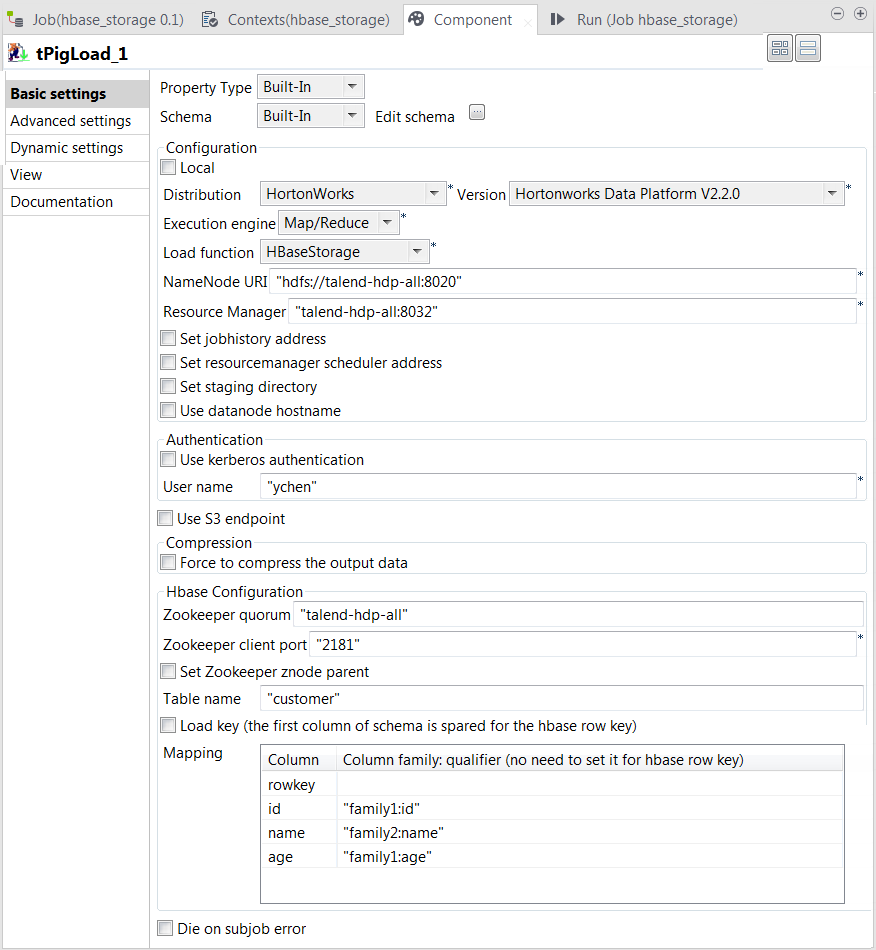
  1. Double-click tPigLoad to open its
    Component view.
    use_case-tpigload2.png

  2. Click the

    dotbutton.png

    button next to Edit
    schema
    to open the schema editor.

  3. Click the

    Button_Plus.png

    button four times to add four rows and rename them:
    rowkey, id, name and age. The rowkey column put at the top of the schema to store the
    HBase row key column, but in practice, if you do not need to load the row
    key column, you can create only the other three columns in your
    schema.
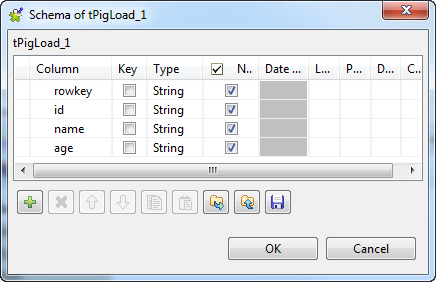
    use_case-tpigload3.png

  4. Click OK to validate these changes and
    accept the propagation prompted by the pop-up dialog box.
  5. In the Mode area, select Map/Reduce, as we are using a remote Hadoop
    distribution.
  6. In the Distribution and the Version fields, select the Hadoop distribution
    you are using. In this example, we are using HortonWorks Data Platform V1.
  7. In the Load function field, select
    HBaseStorage. Then, the corresponding
    parameters to set appear.
  8. In the NameNode URI and
    the Resource Manager fields, enter the
    locations of those services, respectively. If you are using WebHDFS, the location should be
    webhdfs://masternode:portnumber; if this WebHDFS is secured
    with SSL, the scheme should be swebhdfs and you need to use
    a tLibraryLoad in the Job to load the library required by
    the secured WebHDFS.
  9. In the Zookeeper quorum and the Zookeeper client port fields, enter the location
    information of the Zookeeper service to be used.
  10. If the Zookeeper znode parent location has been defined in the Hadoop
    cluster you are connecting to, you need to select the Set zookeeper znode parent check box and enter the value of
    this property in the field that is displayed.
  11. In the Table name field, enter the name
    of the table from which tPigLoad reads the
    data.
  12. Select the Load key check box if you need
    to load the HBase row key column. In this example, we select it.
  13. In the Mapping table, four rows have been
    added automatically. In the Column
    family:qualifier
    column, enter the HBase columns you need to
    map with the schema columns you defined. In this scenario, we put family1:id for the id column, family2:name
    for the name column and family1:age for the age column.

Configuring tPigStoreResult

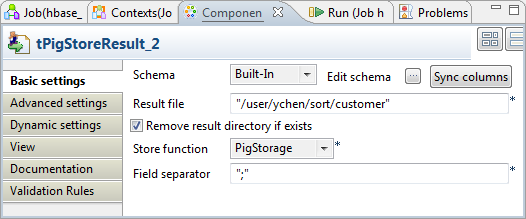
  1. Double-click tPigStoreResult to open its
    Component view.
    use_case-tpigload4.png

  2. In the Result file field, enter the
    directory where you need to store the result. As tPigStoreResult reuses automatically the connection created
    by tPigLoad, the path in this scenario is
    the directory in the machine hosting the Hadoop distribution to be
    used.
  3. Select Remove result directory if
    exists
    .
  4. In the Store function field, select
    PigStorage to store the result in the
    UTF-8 format.

Executing the Job

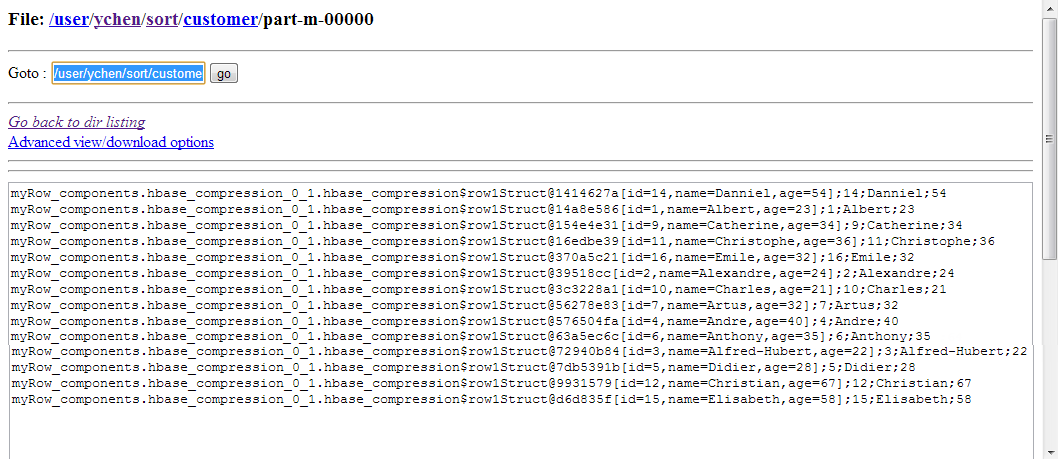
Then you can press F6 run this Job.

Once done, you can verify the result in the HDFS system used.
use_case-tpigload5.png

If you need to obtain more details about the Job, it is recommended to use the web
console of the Jobtracker provided by the Hadoop distribution you are using.

In JobHistory, you can easily find the execution status of your Pig Job because the name of
the Job is automatically created by concatenating the name of the project that contains the
Job, the name and version of the Job itself and the label of the first tPigLoad component used in it. The naming convention of a Pig Job in JobHistory
is ProjectName_JobNameVersion_FirstComponentName.


Document get from Talend https://help.talend.com
Thank you for watching.
Subscribe
Notify of
guest
0 Comments
Inline Feedbacks
View all comments
0
Would love your thoughts, please comment.x
()
x