tS3BucketExist properties
Verifies if the specified bucket exists on Amazon
S3.
“Bucket” is a term used by AWS for top level folders on S3,
which can contain sub folders and store all your data (objects).
tS3BucketExist Standard properties
These properties are used to configure tS3BucketExist running in the Standard Job framework.
The Standard
tS3BucketExist component belongs to the Cloud family.
The component in this framework is generally available.
Basic settings
|
Use existing connection |
Select this check box and in the Component |
|
Access Key |
The Access Key ID that uniquely identifies an AWS Account. For how to |
|
Secret Key |
The Secret Access Key, constituting the security credentials in To enter the secret key, click the […] button next to |
|
Inherit credentials from AWS role |
Select this check box to obtain AWS security credentials from Amazon EC2 |
|
Assume role |
Select this check box and specify the values for the following parameters used to
create a new assumed role session.
For more information about assuming roles, see AssumeRole. |
|
Region |
Specify the AWS region by selecting a region name from the list or entering |
|
Bucket |
Name of the bucket, namely the top level folder, on the S3 |
|
Die on error |
This check box is cleared by default, meaning to skip the row on error |
Advanced settings
|
Config client |
Select this check box to configure client parameters.
Client parameter: select client
Value: enter the parameter Not available when Use existing |
|
STS Endpoint |
Select this check box and in the field displayed, specify the AWS Security Token This check box is available only when the Assume |
|
tStatCatcher Statistics |
Select this check box to collect log data at the component |
Global Variables
|
Global Variables |
BUCKET_EXIST: the existence of a specified bucket. This
BUCKET_NAME: the name of a specified bucket. This is an
ERROR_MESSAGE: the error message generated by the A Flow variable functions during the execution of a component while an After variable To fill up a field or expression with a variable, press Ctrl + For further information about variables, see |
Usage
|
Usage rule |
This component is usually used with other S3 components, e.g. |
|
Dynamic settings |
Click the [+] button to add a Once a dynamic parameter is defined, the Component List box in the Basic For examples on using dynamic parameters, see Scenario: Reading data from databases through context-based dynamic connections and Scenario: Reading data from different MySQL databases using dynamically loaded connection parameters. For more information on Dynamic |
|
Limitation |
Due to license incompatibility, one or more JARs required to use this component are not |
Scenario: Verifing the absence of a bucket, creating it and listing all the S3
buckets
In this scenario, tS3BucketExist is used to verify
the absence of a bucket, tS3BucketCreate to create that
bucket upon confirmation, and tS3BucketList to list all
the buckets on Amazon S3.
Linking the components
-
Drop tS3Connection, tS3BucketExist, tS3BucketCreate, tS3BucketList, tIterateToFlow and tLogRow
onto the workspace. - Link tS3Connection to tS3BucketExist using the OnSubjobOk trigger.
- Link tS3BucketExist to tS3BucketCreate using the Run if trigger.
- Link tS3BucketCreate to tS3BucketList using the OnSubjobOk trigger.
- Link tS3BucketList to tIterateToFlow using the Row > Iterate connection.
-
Link tIterateToFlow to tLogRow using the Row >
Main connection.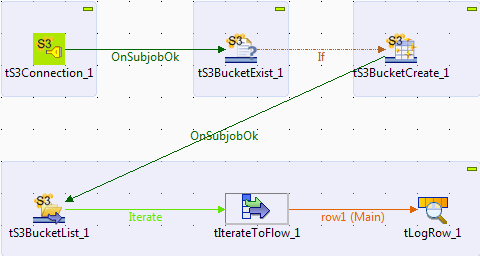
Configuring the components
-
Double-click tS3Connection to open its
Basic settings view.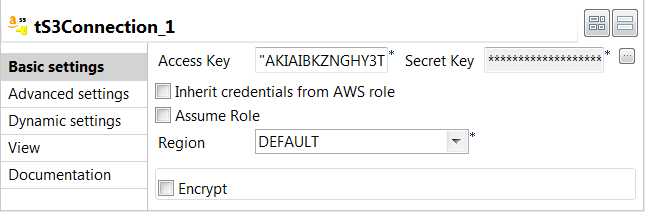
-
In the Access Key and Secret Key fields, enter the authentication
credentials. -
Double-click tS3BucketExist to open its
Basic settings view.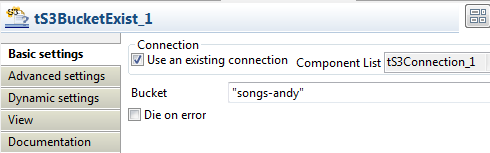
-
Select the Use existing connection check
box to reuse the connection. -
In the Bucket field, enter the bucket
name to check if it exists. -
Double-click the If link to define the
condition.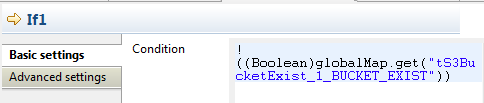
-
In the Condition box, enter the
expression:1!((Boolean)globalMap.get("tS3BucketExist_1_BUCKET_EXIST"))This way, the rest of the Job will be executed if the specified bucket
does not exist. -
Double-click tS3BucketCreate to open its
Basic settings view.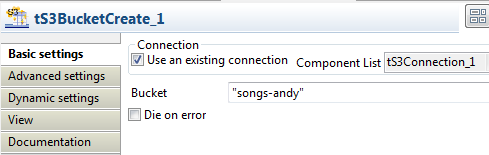 Select the Use existing connection check
box to reuse the connection.In the Bucket field, enter the bucket
name to create. -
Double-click tS3BucketList to open its
Basic settings view.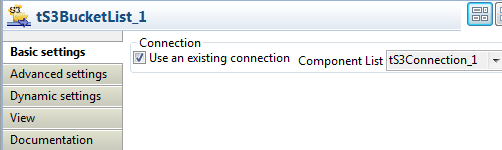 Select the Use existing connection check
box to reuse the connection. -
Double-click tIterateToFlow to open its
Basic settings view.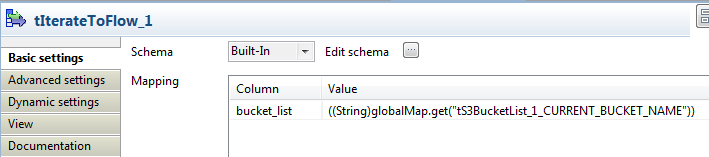
-
Click Edit schema to open the schema
editor.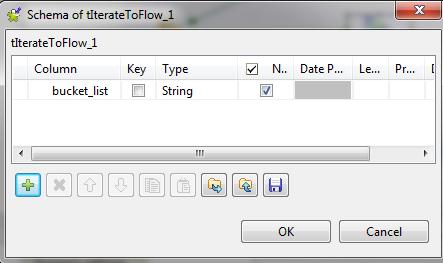 Click the [+] button to add one column,
namely bucket_list of the String
type.Click Ok to validate the setup and close
the schema editor. - In the Mapping area, press Ctrl + Space in the Value field to choose the variable tS3BucketList_1_CURRENT_BUCKET_NAME.
-
Double-click tLogRow to open its
Basic settings view.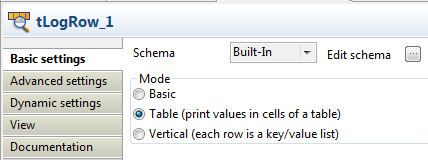 Select Table (print values in cells of a
table) for a better display of the results.
Executing the Job
- Press Ctrl + S to save the Job.
-
Press F6 to run the Job.
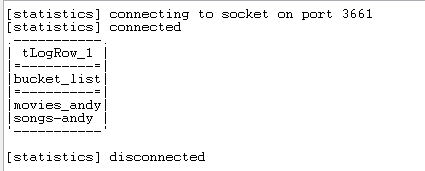 As shown above, the bucket is created and all the buckets are
listed. -
Go to the S3 web console:
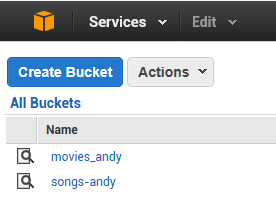 As shown above, the bucket has been created on the S3 server.
 -
Refresh the S3 Browser client:
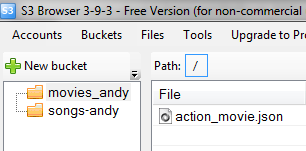 This shows that the S3 Create action was performed successfully.