tSchemaComplianceCheck
Ensures the data quality of any source data against a reference data source.
tSchemaComplianceCheck validates all input rows against a
reference schema or check types, nullability, length of rows against reference values.
The validation can be carried out in full or partly.
Depending on the Talend solution you
are using, this component can be used in one, some or all of the following Job
frameworks:
-
Standard: see tSchemaComplianceCheck Standard properties.
The component in this framework is generally available.
-
MapReduce: see tSchemaComplianceCheck MapReduce properties.
The component in this framework is available only if you have subscribed to one
of the
Talend
solutions with Big Data.
tSchemaComplianceCheck Standard properties
These properties are used to configure tSchemaComplianceCheck running in the Standard Job framework.
The Standard
tSchemaComplianceCheck component belongs to the Data Quality family.
The component in this framework is generally available.
Basic settings
|
Base Schema and Edit schema |
A schema is a row description. It defines the number of fields (columns) to It describes the structure and nature of your data to be processed as |
|
|
Built-In: You create and store the |
|
|
Repository: You have already created |
|
Check all columns from schema |
Select this option to carry out all checks on all |
|
Custom defined |
Select this option to carry out particular checks on |
|
Checked Columns |
In this table, define what checks are to be carried |
|
|
Column: Displays the |
|
|
Type: Select the |
|
Date pattern: Define |
|
|
Nullable: Select the |
|
|
Undefined or empty: |
|
|
|
Max length: Select |
|
Use another schema for compliance |
Define a reference schema as you expect the data to It can be |
|
Trim the excess content of column when |
With any of the three modes of tSchemaComplianceCheck, select this check box to truncate the Note:
This option is applicable only on data of String type. |
Advanced settings
|
Use Fastest Date Check |
Select this check box to perform a fast date format |
|
Ignore TimeZone when Check Date |
Select this check box to ignore the time zone setup Not available when the Check all columns from schema mode is selected. |
|
Treat all empty string as NULL |
Select this check box to treat any empty fields in By |
|
tStatCatcher Statistics |
Select this check box to collect log data at the component level. |
Global
Variables
|
Global |
ERROR_MESSAGE: the error message generated by the A Flow variable functions during the execution of a component while an After variable To fill up a field or expression with a variable, press Ctrl + For further information about variables, see |
Usage
|
Usage rule |
This component is an |
Scenario: Validating data against schema
This scenario applies only to a subscription-based Talend Platform solution or Talend Data Fabric.
This scenario presents a Job that checks the type, nullability and length of data from
an incoming flow against a defined reference schema, and displays the validation results
on the Run console.
The incoming flow comes from a simple CSV file that contains heterogeneous data
including wrong data type, data exceeding the maximum length, wrong ID and null values
in non-nullable columns, as shown below:
|
1 2 3 4 5 6 7 8 9 10 11 |
ID;Name;BirthDate;State;City 1;Dwight;06-04-2008;Delaware;Concord 2;Warren;25-10-2008;Montana 3;Benjamin;17-08-2008;Washington;Austin 4;Harry;14-04-2008;Kansas;Annapolis 5;Ulysses;2007-04-12;Michigan;Raleigh 6;James;19-08-2007;Delaware;Charleston .7;Bill;20-04-2007;Illinois;Bismarck 8;Ulysses;04-12-2008;;Saint Paul 9;Thomas;09-05-2008;Maryland;Albany 10;Ronald;11-02-2008;Florida;Hartford |
Setting up the Job
- Drop the following components: a tFileInputDelimited, a tSchemaComplianceCheck, and two tLogRow components from the Palette to the design workspace.
-
Connect the tFileInputDelimited component
to the tSchemaComplianceCheck component
using a Row > Main connection. -
Connect the tSchemaComplianceCheck
component to the first tLogRow component
using a Row > Main connection. This
output flow will gather the valid data. -
Connect the tSchemaComplianceCheck
component to the second tLogRow component
using a Row > Rejects connection. This
second output flow will gather the non-compliant data. It passes two
additional columns to the next component: ErrorCode and
ErrorMessage. These two read-only columns provide
information about the rejected data to ease error handling and
troubleshooting if needed.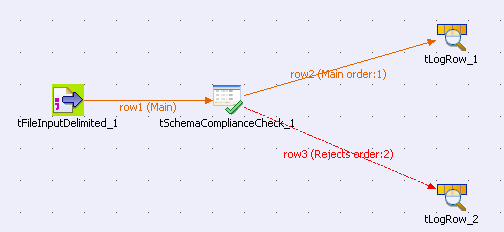
Configuring the components
-
Double-click the tFileInputDelimited
component to display its Basic settings
view and define the basic parameters including the input file name and the
number of header rows to skip.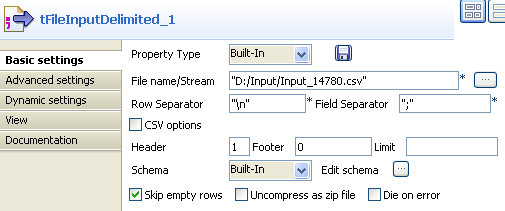
-
Click the […] button next to Edit schema to describe the data structure of the
input file. In this use case, the schema is made of five columns:
ID, Name,
BirthDate, State, and
City.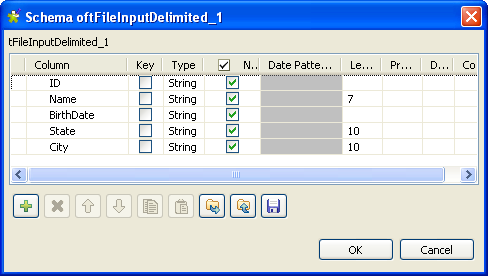
-
Fill the Length field for the
Name, State and
City columns with 7,
10 and 10 respectively. Then
click OK to close the schema dialog box and
propagate the schema. -
Double-click the tSchemaComplianceCheck
component to display its Basic settings
view, wherein you will define most of the validation parameters.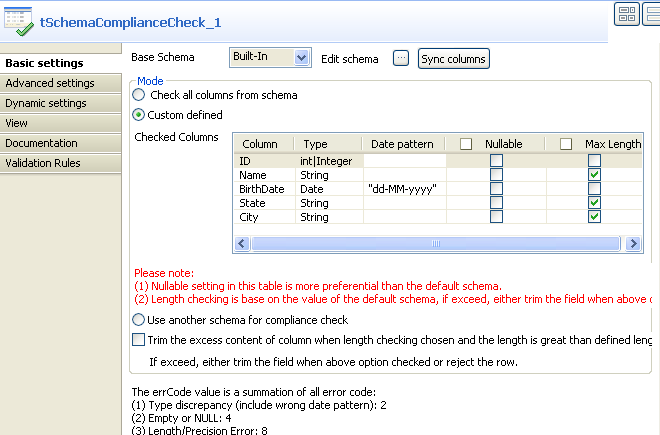
-
Select the Custom defined option in the
Mode area to perform custom defined
checks.In this example, we use the Checked
columns table to set the validation parameters. However, you
can also select the Check all columns from
schema check box if you want to perform all the checks (type,
nullability and length) on all the columns against the base schema, or
select the Use another schema for compliance
check option and define a new schema as the expected
structure of the data. -
In the Checked Columns table, define the
checks to be performed. In this use case:– The type of the ID column should be Int.– The length of the Name, State
and City columns should be checked.– The type of the BirthDate column should be
Date, and the expected date pattern is
dd-MM-yyyy.– All the columns should be checked for null values, so clear the
Nullable check box for all the
columns.Note:To send rows containing fields exceeding the defined maximum length to
the reject flow, make sure that the Trim the
excess content of column when length checking chosen and the length
is greater than defined length check box is cleared. -
In the Advanced settings view of the
tSchemaComplianceCheck component,
select the Treat all empty string as NULL
option to sent any rows containing empty fields to the reject flow. -
To view the validation result in tables on the Run console, double-click each tLogRow component and select the Table option in the Basic
settings view.
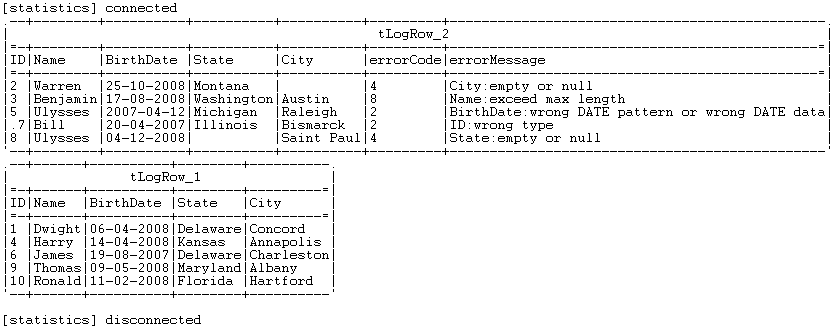
Executing the Job
rejected data respectively.
tSchemaComplianceCheck MapReduce properties
These properties are used to configure tSchemaComplianceCheck running in the MapReduce Job framework.
The MapReduce
tSchemaComplianceCheck component belongs to the Data Quality family.
The component in this framework is available only if you have subscribed to one
of the
Talend
solutions with Big Data.
Basic settings
|
Base Schema and Edit schema |
A schema is a row description. It defines the number of fields (columns) to It describes the structure and nature of your data to be processed as |
|
|
Built-In: You create and store the |
|
|
Repository: You have already created |
|
Check all columns from schema |
Select this option to carry out all checks on all columns against |
|
Custom defined |
Select this option to carry out particular checks on particular |
|
Checked Columns |
In this table, define what checks are to be carried out on which |
|
|
Column: Displays the columns |
|
|
Type: Select the type of data |
|
Date pattern: Define the expected |
|
|
Nullable: Select the check box in |
|
|
Undefined or empty: Select the |
|
|
|
Max length: Select the check box |
|
Use another schema for compliance check |
Define a reference schema as you expect the data to be, in order It can be restrictive on data type, null values, and/or |
|
Trim the excess content of column when length checking |
With any of the three modes of tSchemaComplianceCheck, select this check box to Note:
This option is applicable only on data of String type. |
Advanced settings
|
Use Fastest Date Check |
Select this check box to perform a fast date format check using |
|
Ignore TimeZone when Check Date |
Select this check box to ignore the time zone setup upon date Not available when the Check all columns |
|
Treat all empty string as NULL |
Select this check box to treat any empty fields in any columns as By default, this check box is selected. When it is cleared, the |
Global Variables
|
Global Variables |
ERROR_MESSAGE: the error message generated by the A Flow variable functions during the execution of a component while an After variable To fill up a field or expression with a variable, press Ctrl + For further information about variables, see |
Usage
|
Usage rule |
In a It does not support data of the Object and the List For further information about a Note that in this documentation, unless otherwise |
Related scenarios
No scenario is available for the Map/Reduce version of this component yet.