
|
Component family |
Databases/LDAP |
|
|
Function |
tLDAPInput reads a directory and |
|
|
Purpose |
tLDAPInput executes an LDAP query |
|
|
Basic settings |
Property type |
Either Built-in or Since version 5.6, both the Built-In mode and the Repository mode are |
|
|
|
Built-in: No property data stored |
|
|
|
Repository: Select the repository |
|
|
 |
Click this icon to open a database connection wizard and store the For more information about setting up and storing database |
|
|
Use an existing connection |
Select this check box and in the Component List click the NoteWhen a Job contains the parent Job and the child Job, Component |
|
|
Host |
LDAP Directory server IP address. |
|
|
Port |
Listening port number of server. |
|
|
Base DN |
Path to the user’s authorised tree leaf. NoteTo retrieve the full DN information, enter a field named |
|
|
Protocol |
Select the protocol type on the list. LDAP : no encryption is used
LDAPS: secured LDAP. When this
TLS: certificate is used When this |
|
|
Authentication User and |
Select the Authentication check To enter the password, click the […] button next to the |
|
|
Filter |
Type in the filter as expected by the LDAP directory db. |
|
|
Multi valued field separator |
Type in the value separator in multi-value fields. |
|
|
Alias dereferencing |
Select the option on the list. Never
Always: Always dereference
Never: Never dereferences
Searching:Dereferences aliases only
Finding: Dereferences aliases only |
|
|
Referral handling |
Select the option on the list:
Ignore: does not handle request
Follow:does handle request |
|
|
Limit |
Fill in a limit number of records to be read If needed. |
|
|
Time Limit |
Fill in a timeout period for the directory. access |
|
|
Paging |
Specify the number of entries returned at a time by the LDAP |
|
|
Die on error |
This check box is selected by default. Clear the check box to skip |
|
|
Schema and Edit |
A schema is a row description. It defines the number of fields to be processed and passed on Since version 5.6, both the Built-In mode and the Repository mode are Click Edit schema to make changes to the schema. If the
This component offers the advantage of the dynamic schema feature. This allows you to This dynamic schema feature is designed for the purpose of retrieving unknown columns WarningOnly three data types are supported here: String, byte[], and |
|
|
|
Built-in: The schema is created |
|
|
|
Repository: The schema already |
|
Global Variables |
NB_LINE: the number of rows processed. This is an After RESULT_NAME: the name of the current LDAP entry ERROR_MESSAGE: the error message generated by the A Flow variable functions during the execution of a component while an After variable To fill up a field or expression with a variable, press Ctrl + For further information about variables, see Talend Studio |
|
|
Usage |
This component covers all possible LDAP queries. Note: Press Ctrl + Space bar to |
|
|
Log4j |
The activity of this component can be logged using the log4j feature. For more information on this feature, see Talend Studio User For more information on the log4j logging levels, see the Apache documentation at http://logging.apache.org/log4j/1.2/apidocs/org/apache/log4j/Level.html. |
|
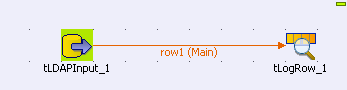
The Job described below simply filters the LDAP directory and displays the result on
the console.
-
Drop the tLDAPInput component along with a
tLogRow from the Palette to the design workspace. -
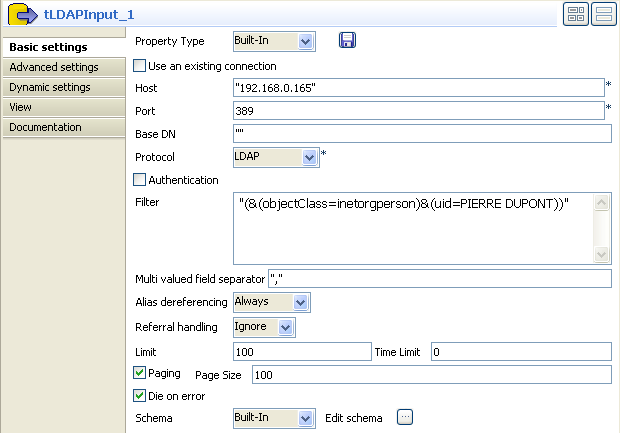
Set the tLDAPInput properties.
-
Set the Property type on Repository if you stored the LDAP connection details
in the Metadata Manager in the Repository. Then select the relevant entry on the
list. -
In Built-In mode, fill in the Host and Port
information manually. Host can be the IP address of the LDAP directory server or
its DNS name. -
No particular Base DN is to be set.
-
Then select the relevant Protocol on the
list. In this example: a simple LDAP protocol
is used. -
Select the Authentication check box and fill
in the login information if required to read the directory. In this use case, no
authentication is needed. -
In the Filter area, type in the command, the
data selection is based on. In this example, the filter is:
(&(objectClass=inetorgperson)&(uid=PIERRE DUPONT)). -
Fill in Multi-valued field separator with a
comma as some fields may hold more than one value, separated by a comma. -
As we do not know if some aliases are used in the LDAP directory, select
Always on the list. -
Set Ignore as Referral
handling. -
Set the limit to 100 for this use
case.
-
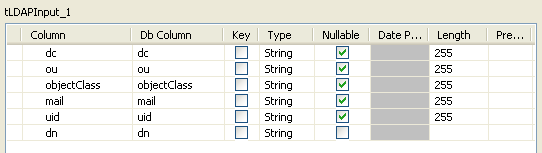
Set the Schema as required by your LDAP
directory. In this example, the schema is made of 6 columns including the
objectClass anduid columns which get filtered
on. -
In the tLogRow component, no particular
setting is required.

Only one entry of the directory corresponds to the filter criteria given in the
tLDAPInput component.
For an example of the use of dynamic schemas in
Input components, see Scenario 4: Writing dynamic columns from a MySQL database to an output file.